

Uninstall Avast One
To uninstall Avast One from a Windows device, select the relevant tab below according to your Windows version.
Uninstall via Start menu
To uninstall Avast One, follow the GIF or the steps below:
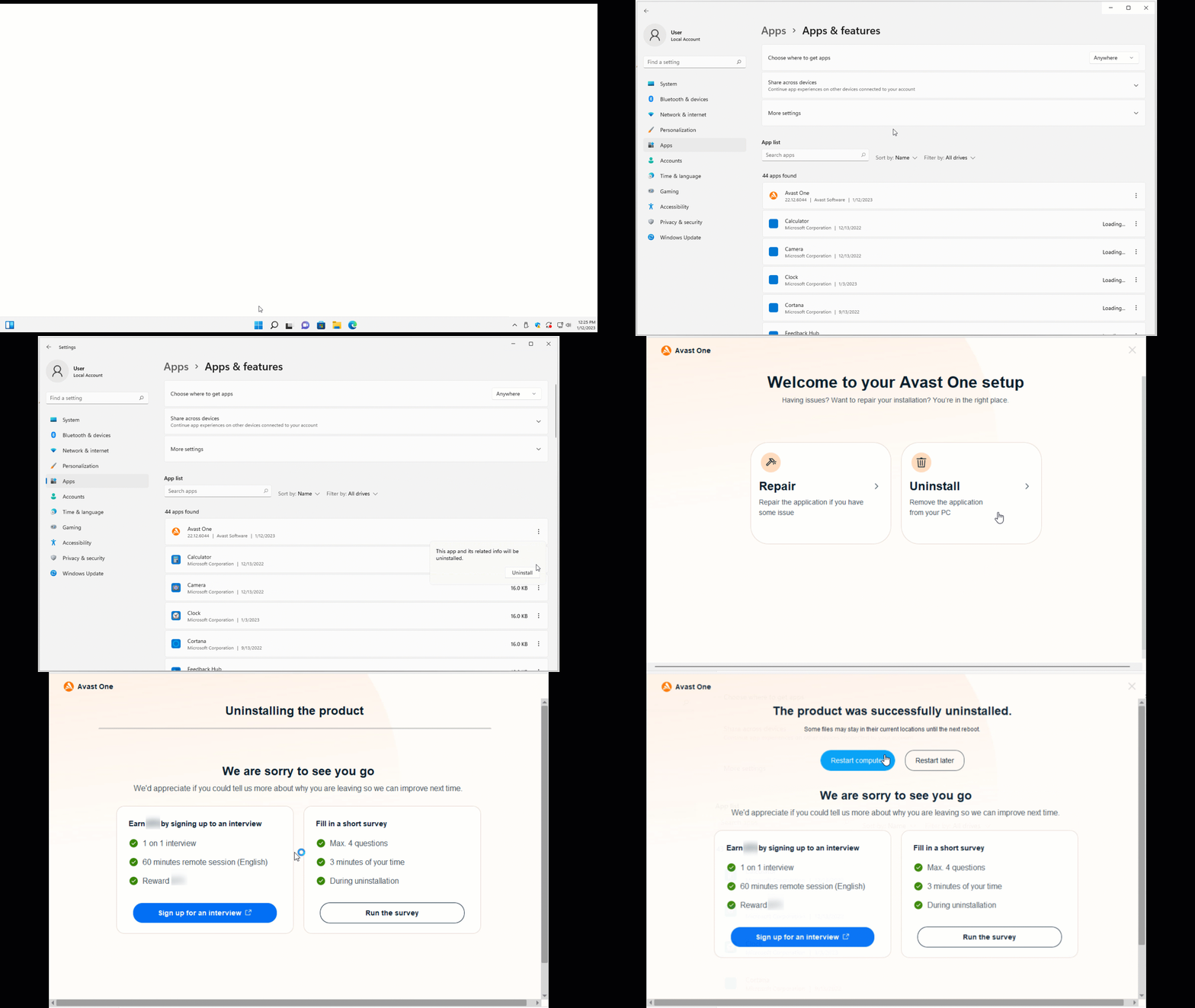
- Right-click the Windows
 Start icon, then select Apps and Features from the menu that appears.
- Ensure that Apps is selected in the left panel, then click
⋮(three dots) next to Avast One and select Uninstall twice.
- If prompted for permission by the User Account Control dialog, select Yes.
- In the Avast One setup window, click Uninstall.
- Click Yes to confirm that you want to uninstall Avast One.
- Wait while the uninstaller removes Avast One from your PC.
- When the confirmation message appears, click Restart computer to immediately reboot your PC and complete uninstallation.
 Start icon, then select Apps and Features from the menu that appears.

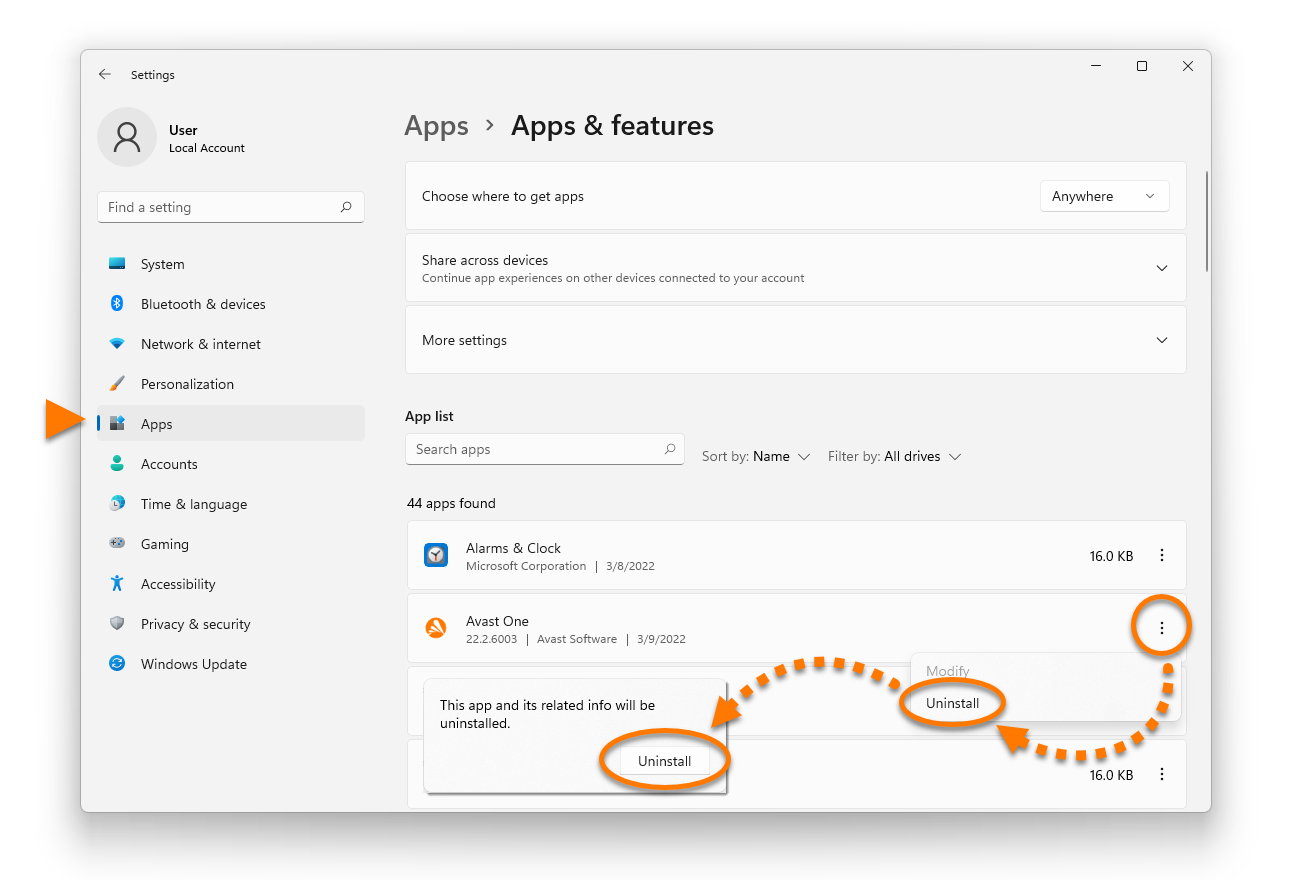


To uninstall Avast One, follow the GIF or the steps below:
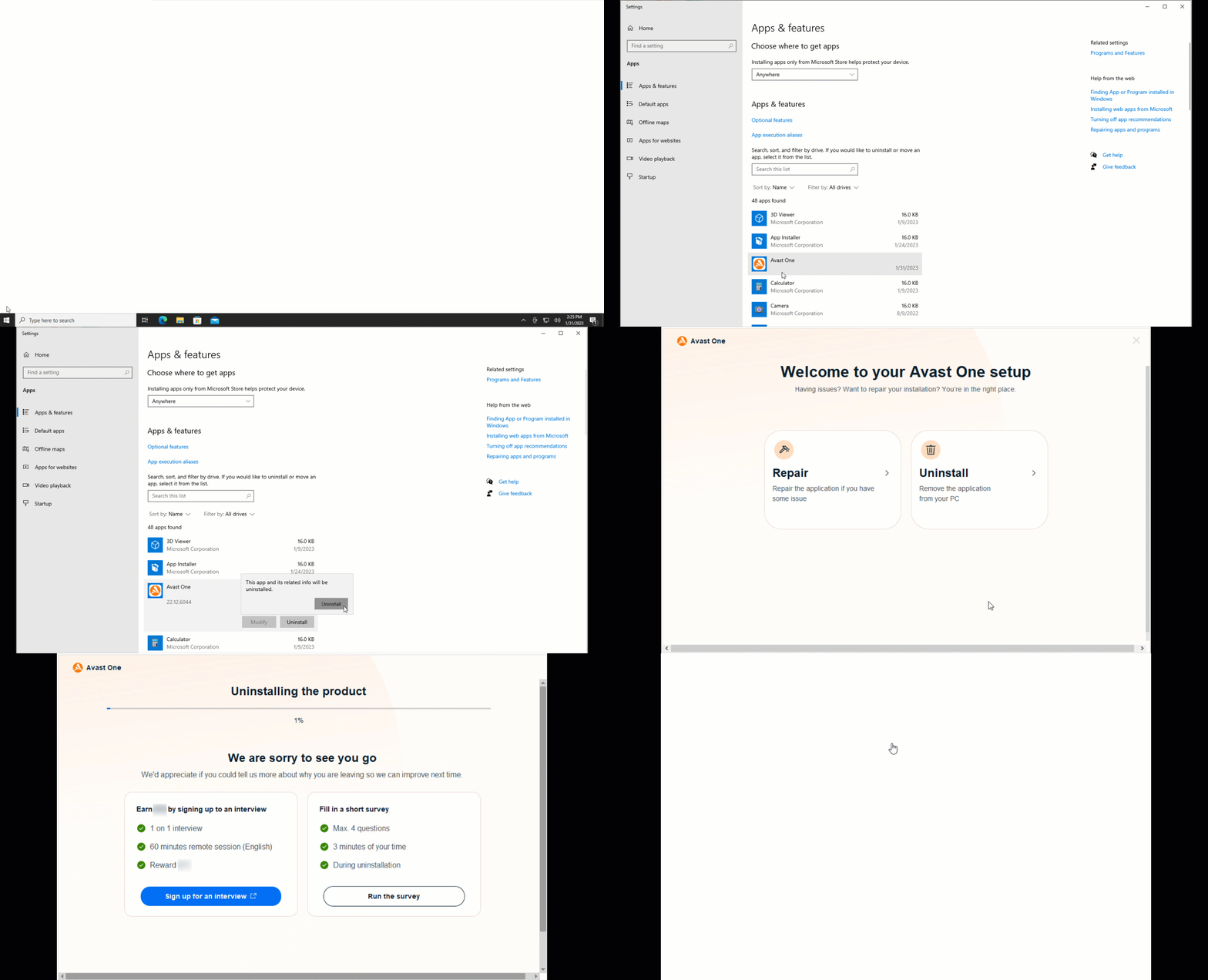
- Right-click the Windows Start icon, then select Apps and Features from the menu that appears.
- Ensure that Apps & features is selected in the left panel, then select Avast One, and click Uninstall twice.
- If prompted for permission by the User Account Control dialog, click Yes.
- When the Avast One setup window appears, click Uninstall.
- Click Yes to confirm that you want to uninstall Avast One.
- Wait while the uninstaller removes Avast One from your PC.
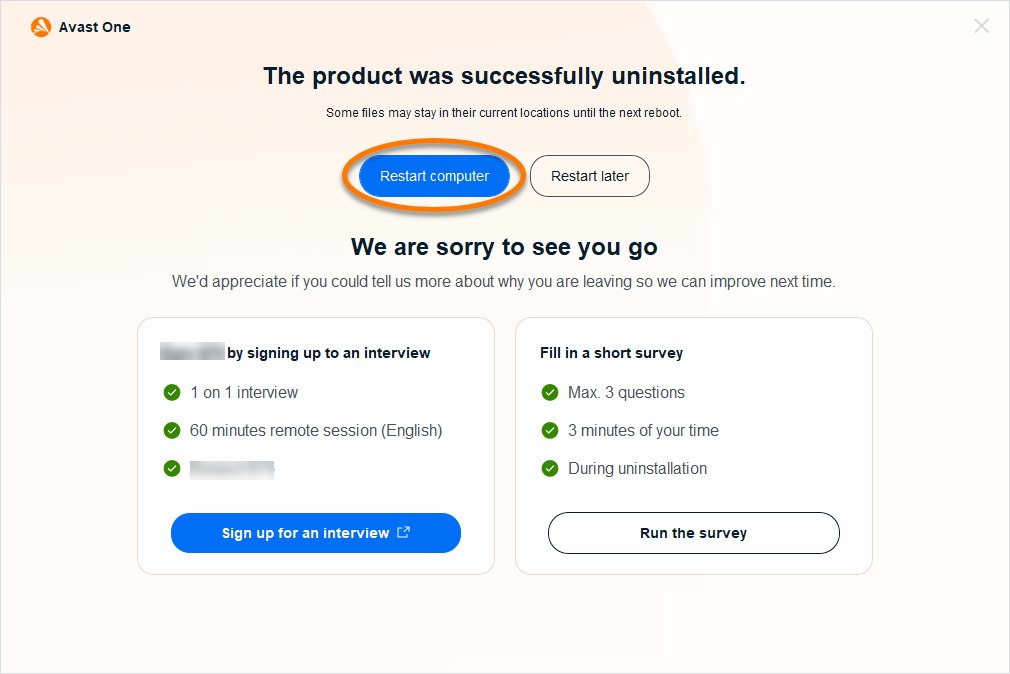
- When the confirmation message appears, click Restart computer to immediately reboot your PC and complete uninstallation.
 Start icon, then select Apps and Features from the menu that appears.


To uninstall Avast One, follow the GIF or the steps below:
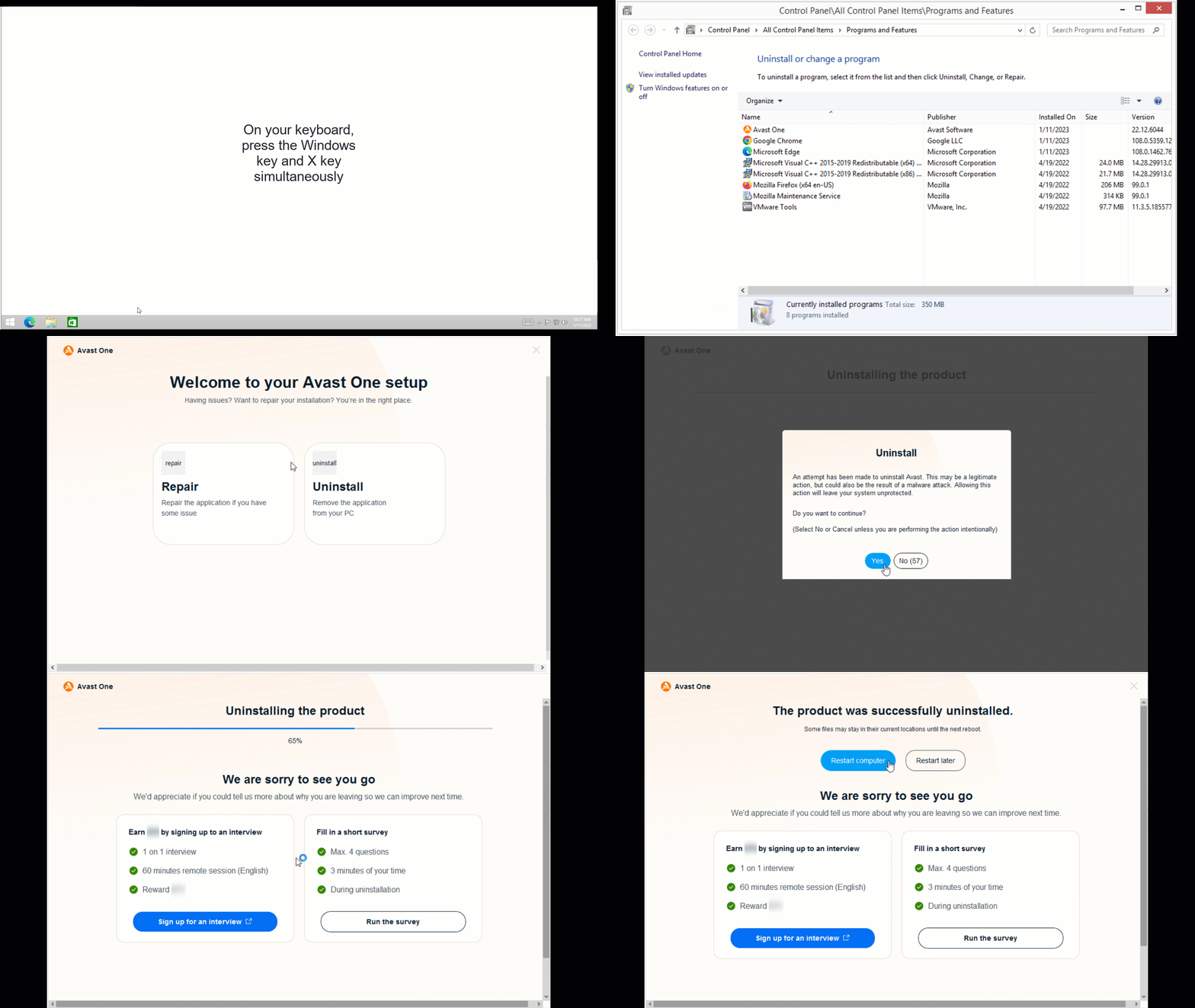
- On your keyboard, press the Windows logo key and
Xkey simultaneously.
- Select Programs and Features from the menu that appears.
- Right-click Avast One, then select Uninstall/Change from the drop-down menu.
- If prompted for permission by the User Account Control dialog, click Yes.
- When the Avast One setup window appears, click Uninstall.
- Click Yes to confirm that you want to uninstall Avast One.
- Wait while the uninstaller removes Avast One from your PC.
- When the confirmation message appears, click Restart computer to immediately reboot your PC and complete uninstallation.
 logo key and


To uninstall Avast One, follow the GIF or the steps below:
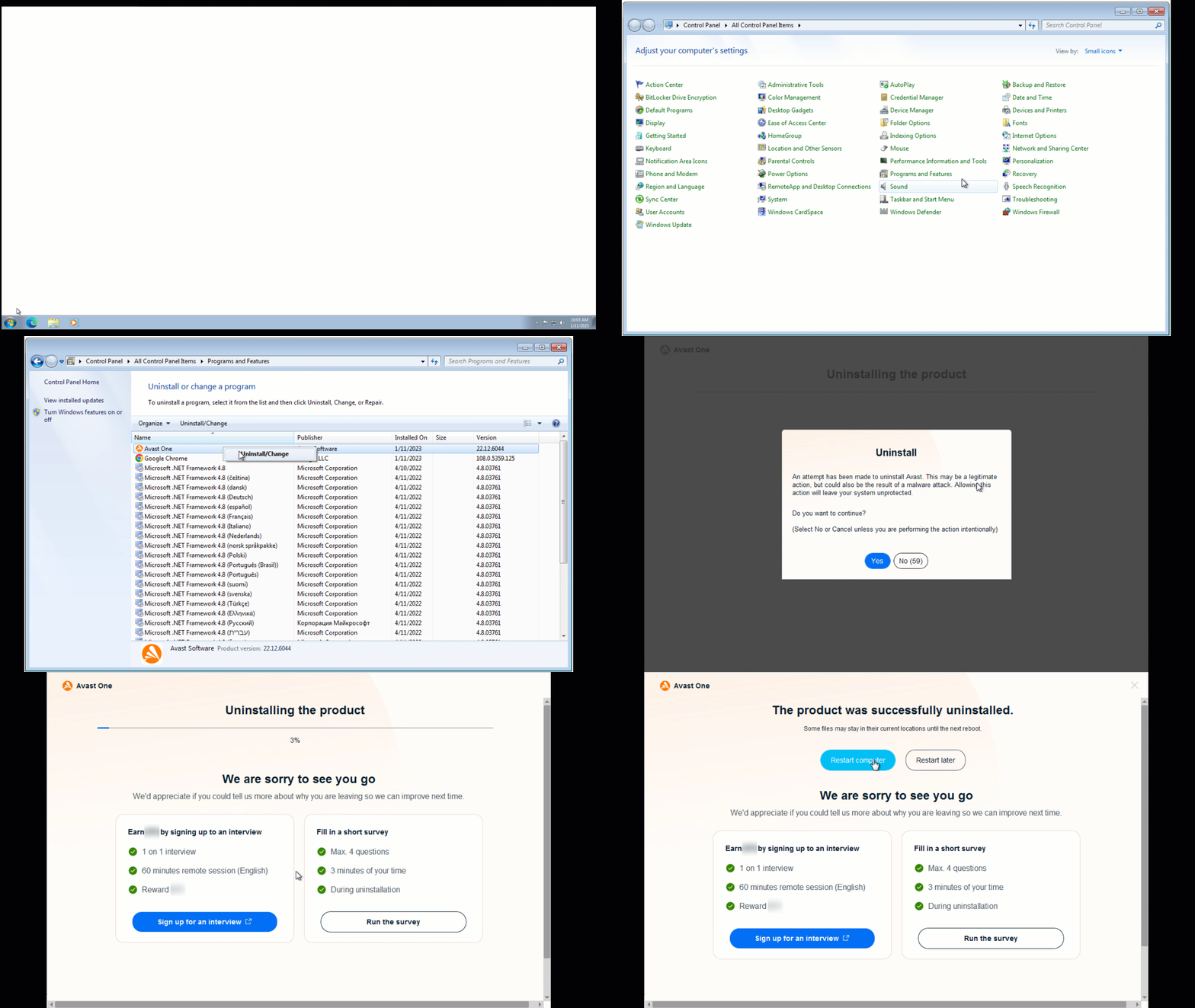
- Click the Windows Start icon, then select Control Panel from the menu that appears.
- Follow option A or option B below according to your view:
- Option A (Default category view): Under Programs, click Uninstall a program.
- Option B (Large/small icons view): Click Programs and Features.
- Option A (Default category view): Under Programs, click Uninstall a program.
- Right-click Avast One, then select Uninstall from the drop-down menu.
- If prompted for permission by the User Account Control dialog, click Yes.
- When the Avast One setup window appears, click Uninstall.
- Click Yes to confirm that you want to uninstall Avast One.
- Wait while the uninstaller removes Avast One from your PC.
- When the confirmation message appears, click Restart computer to immediately reboot your PC and complete uninstallation.
 Start icon, then select Control Panel from the menu that appears.


Avast One is now uninstalled from your PC. If you were unable to uninstall Avast One by following the steps above, refer to the Uninstall via the Avast Uninstall Tool section below.
Uninstall via the Avast Uninstall Tool
If you experience issues trying to uninstall Avast One via the Start menu, we recommend using the Avast Uninstall Tool to completely delete all Avast One files from your PC while Windows runs in Safe Mode.
For instructions, refer to the following article:
To uninstall Avast One, follow the GIF or the steps below:
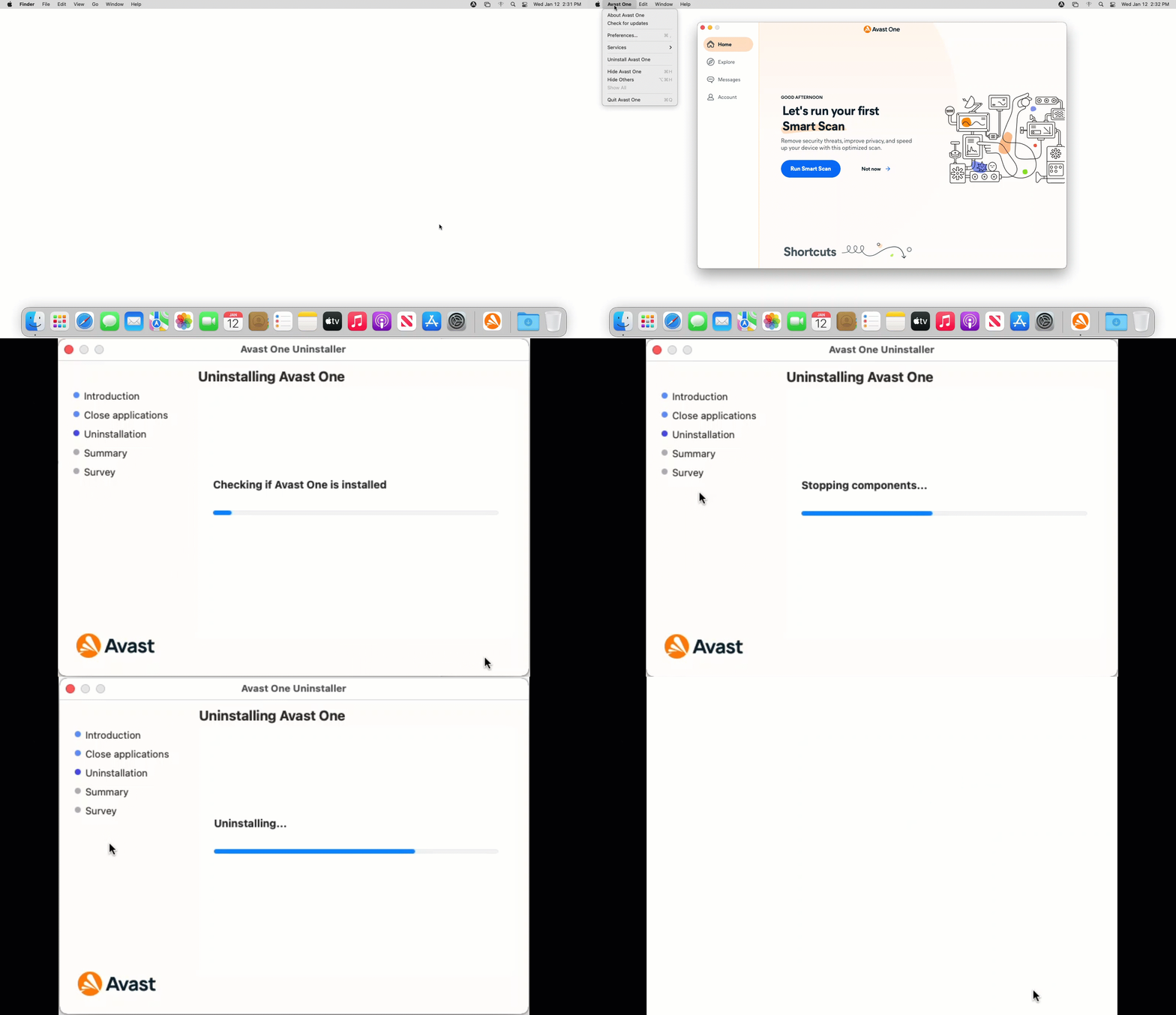
- Open Avast One, then click Avast One in the Apple menu bar and select Uninstall Avast One.
- When the Avast One Uninstaller window appears, click Continue.
- Enter the password that you use when you start your Mac, then click Install helper.
- Wait while the uninstaller removes Avast One from your Mac.
- If prompted, enter the password that you use when you start your Mac, then click OK.
- When the confirmation message appears, click Finish, or optionally click Continue to complete our customer survey.


Avast One is now uninstalled from your Mac.
- In your Dock, click the Finder icon.
- Select Applications ▸ Avast Security Uninstaller.
If you do not see Applications in your Finder menu, select Go ▸ Applications in the Apple menu bar at the top of your screen.
- When the Avast Security uninstaller window appears, click Continue.
- Enter the password that you use when you start your Mac, then click Install Helper.
- Wait while the uninstaller removes Avast Security from your Mac.
- If prompted, enter the password that you use when you start your Mac, then click OK.
- When the confirmation message appears, click Finish, or optionally click Continue to complete the customer survey.


Uninstall via Google Play Store
- On the Home screen of your device, tap the Play Store icon to open Google Play Store.
- In the search bar, type
Avast One, then select Avast One from the search results.
- Tap Uninstall, then Uninstall again to confirm uninstallation.


Avast One is now uninstalled from your Android device.
Uninstall via device settings
- Open your device Settings and go to Apps.
- Select Avast One.
- Tap Uninstall, then tap OK to confirm uninstallation.


Avast One is now uninstalled from your Android device.
Uninstall via Home screen
- On the Home screen of your device, touch and hold the Avast One icon, then select Remove App from the menu that appears.
- Select Delete App to remove Avast One and all of your app data.
- Select Delete to confirm uninstallation.


Avast One is now uninstalled from your iOS device.
Reinstall Avast One
If you need to reinstall Avast One, refer to the following article for installation instructions:
- Avast One 23.x for Windows
- Avast One 23.x for Mac
- Avast One 24.x for Android
- Avast One 24.x for iOS
- Microsoft Windows 11 Home / Pro / Enterprise / Education
- Microsoft Windows 10 Home / Pro / Enterprise / Education - 32 / 64-bit
- Microsoft Windows 8.1 / Pro / Enterprise - 32 / 64-bit
- Microsoft Windows 8 / Pro / Enterprise - 32 / 64-bit
- Microsoft Windows 7 Home Basic / Home Premium / Professional / Enterprise / Ultimate - Service Pack 1 with Convenient Rollup Update, 32 / 64-bit
- Apple macOS 14.x (Sonoma)
- Apple macOS 13.x (Ventura)
- Apple macOS 12.x (Monterey)
- Apple macOS 11.x (Big Sur)
- Apple macOS 10.15.x (Catalina)
- Apple macOS 10.14.x (Mojave)
- Apple macOS 10.13.x (High Sierra)
- Google Android 8.0 (Oreo, API 26) or later
- Apple iOS 14.0 or later
Updated on: 02/06/2022


 © 2024 Gen Digital Inc.