

Avast Mobile Security è disponibile sia in versione gratuita che a pagamento. Per l'utilizzo del prodotto a pagamento Avast Mobile Security Premium, è richiesto un abbonamento. Gli abbonamenti acquistati tramite Google Play Store o App Store vengono attivati automaticamente nel dispositivo utilizzato per effettuare l'acquisto. Quando si acquista un abbonamento tramite un diverso canale di vendita Avast, come l'Avast Store, è necessario attivare manualmente l'app utilizzando un codice di attivazione valido o l'Account Avast.
Attivare l'abbonamento
Per attivare Avast Mobile Security Premium utilizzando un codice di attivazione:
- Nella schermata Home del dispositivo toccare l'icona di Avast Mobile Security per aprire l'app.

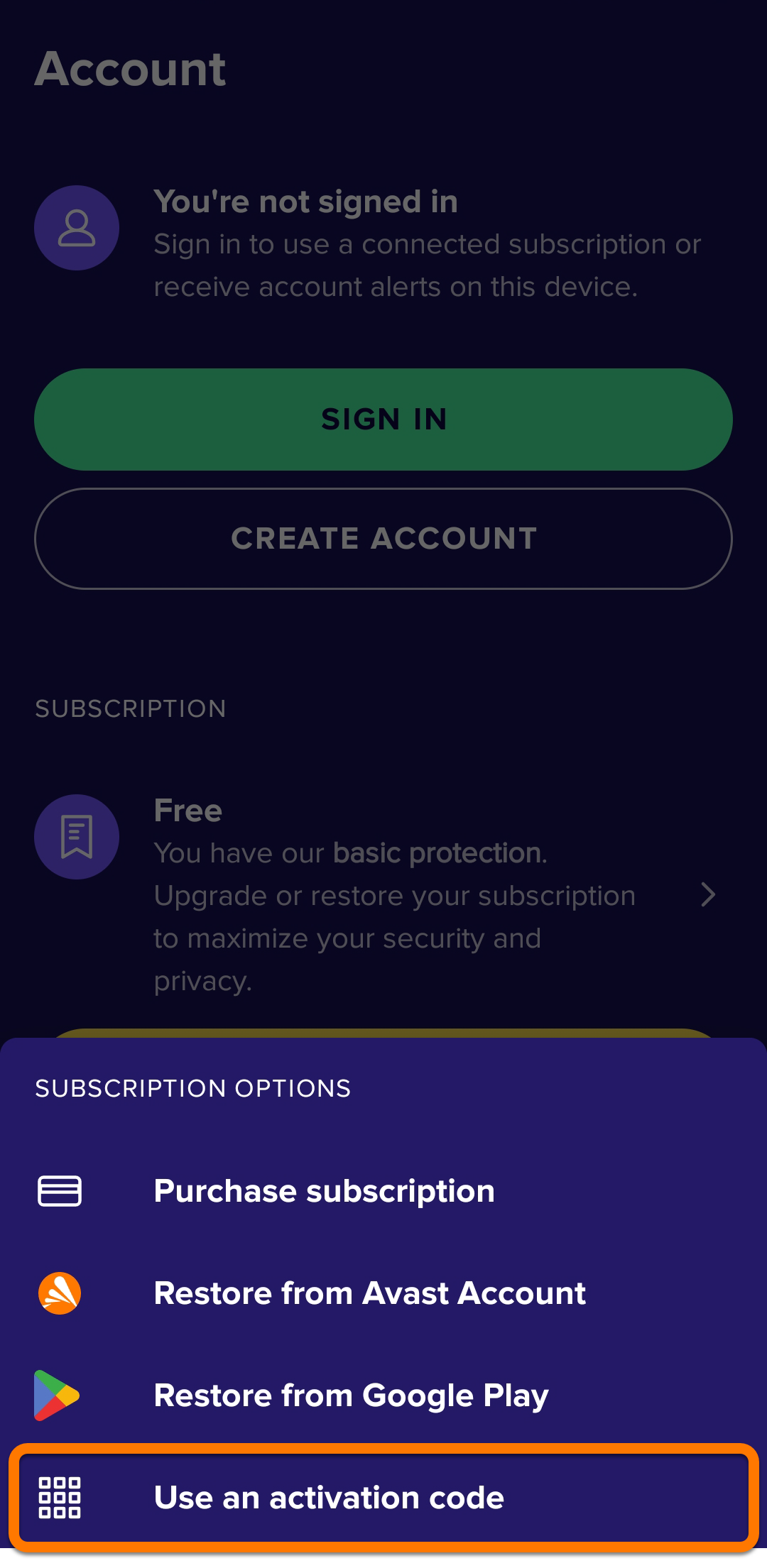
- Toccare Account, quindi selezionare il pannello Abbonamento.
- Selezionare Utilizza un codice di attivazione.
- Digitare o incollare nella casella di testo il codice di attivazione (inclusi i trattini), quindi fare clic su Continua.

 Account, quindi selezionare il pannello Abbonamento.

Risolvere i problemi di attivazione
Se si verificano problemi durante l'attivazione:
- Assicurarsi di avere immesso correttamente il codice di attivazione, inclusi i trattini.
- Se ancora non è possibile eseguire l'attivazione con il codice di attivazione, provare a seguire le istruzioni per l'attivazione tramite l'Account Avast.
Se i problemi persistono, fare riferimento ai seguenti articoli:
Attivare l'abbonamento
Per attivare Avast Mobile Security Premium tramite l'Account Avast:
- Nella schermata Home del dispositivo toccare l'icona di Avast Mobile Security per aprire l'app.
- Toccare Account, quindi selezionare Accedi.
- Immettere le credenziali dell'Account Avast, quindi toccare Continua.


Risolvere i problemi di attivazione
Se si verificano problemi durante l'attivazione, verificare che l'Account Avast sia registrato con lo stesso indirizzo email utilizzato per acquistare Avast Mobile Security Premium. Se per l'acquisto è stato usato un indirizzo email diverso, è possibile aggiungere questo indirizzo email all'Account Avast. Per istruzioni dettagliate, fare riferimento al seguente articolo:
Se i problemi persistono, fare riferimento ai seguenti articoli:
Attivare l'abbonamento
Se si desidera iniziare a utilizzare l'abbonamento in un nuovo dispositivo o è necessario ripristinare le impostazioni iniziali del dispositivo esistente, è possibile recuperare l'abbonamento ad Avast Mobile Security Premium tramite Google Play Store:
- Verificare di avere eseguito l'accesso a Google Play Store con lo stesso account Google utilizzato per acquistare l'abbonamento. Per istruzioni su come eseguire la verifica, fare riferimento al seguente articolo della Guida di Google Play: Guida di Google Play ▸ Come aggiungere e usare account nel Google Play Store sul dispositivo.
- Nella schermata Home del dispositivo toccare l'icona di Avast Mobile Security Premium. per aprire l'app.
- Toccare Account, quindi selezionare il pannello Abbonamento.
- Selezionare Ripristina da Google Play.

L'app recupera e attiva automaticamente l'abbonamento ad Avast Mobile Security da Google Play Store.
Risolvere i problemi di attivazione
Se si riscontrano problemi di attivazione, fare riferimento ai seguenti articoli:
Attivare l'abbonamento
Per attivare Avast Mobile Security Premium utilizzando un codice di attivazione:
- Nella schermata Home del dispositivo toccare l'icona di Avast Mobile Security per aprire l'app.
- Toccare Impostazioni (icona dell'ingranaggio), quindi selezionare il pannello Abbonamento.
- Selezionare Immetti il codice di attivazione.
- Digitare o incollare nella casella di testo il codice di attivazione (inclusi i trattini), quindi fare clic su OK.


L'abbonamento per Avast Mobile Security Premium ora è attivo.
Risolvere i problemi di attivazione
Se si verificano problemi durante l'attivazione:
- Assicurarsi di avere immesso correttamente il codice di attivazione, inclusi i trattini.
- Se ancora non è possibile eseguire l'attivazione con il codice di attivazione, provare a seguire le istruzioni per l'attivazione tramite l'Account Avast.
Se i problemi persistono, fare riferimento ai seguenti articoli:
Attivare l'abbonamento
Per attivare Avast Mobile Security Premium tramite l'Account Avast:
- Nella schermata Home del dispositivo toccare l'icona di Avast Mobile Security per aprire l'app.
- Toccare Impostazioni (icona dell'ingranaggio), quindi selezionare Accedi.
- Immettere le credenziali dell'Account Avast, quindi toccare Accedi.


L'abbonamento per Avast Mobile Security Premium ora è attivo.
Risolvere i problemi di attivazione
Se si verificano problemi durante l'attivazione, verificare che l'Account Avast sia registrato con lo stesso indirizzo email utilizzato per acquistare Avast Mobile Security Premium. Se per l'acquisto è stato usato un indirizzo email diverso, è possibile aggiungere questo indirizzo email all'Account Avast. Per istruzioni dettagliate, fare riferimento al seguente articolo:
Se i problemi persistono, fare riferimento ai seguenti articoli:
Attivare l'abbonamento
Se si desidera iniziare a utilizzare l'abbonamento in un nuovo dispositivo o è necessario ripristinare le impostazioni iniziali del dispositivo esistente, è possibile recuperare l'abbonamento ad Avast Mobile Security Premium tramite l'App Store:
- Verificare di avere eseguito l'accesso all'App Store con lo stesso ID Apple utilizzato per acquistare l'abbonamento. Per istruzioni su come eseguire la verifica, fare riferimento al seguente articolo del Supporto Apple: Supporto Apple ▸ Accedere con l'ID Apple.
- Nella schermata Home del dispositivo toccare l'icona di Avast Mobile Security per aprire l'app.
- Toccare Impostazioni (icona dell'ingranaggio), quindi selezionare il pannello Abbonamento.
- Selezionare Esegui il ripristino dall'App Store.

L'app consente di recuperare e attivare automaticamente l'abbonamento ad Avast Mobile Security dall'App Store.
Risolvere i problemi di attivazione
Se si riscontrano problemi di attivazione, fare riferimento ai seguenti articoli:
Altri suggerimenti
Per ulteriori informazioni sull'utilizzo di Avast Mobile Security Premium, fare riferimento al seguente articolo:
- Avast Mobile Security Premium 23.x per Android
- Avast Mobile Security Premium 23.x per iOS
- Google Android 8.0 (Oreo, API 26) o versioni successive
- Apple iOS 14.0 o versione successiva
- Compatibile con iPhone, iPad e iPod touch
Ultimo aggiornamento: 26/09/2023

 © 2024 Gen Digital Inc.