- Security
- Privacy
- Performance
Meta AI is now woven into Meta’s platforms. It offers quicker answers and smarter searches, but it also raises real questions about how much of your personal data is being collected and how it’s used. It can’t be fully disabled, but this guide shows you how to reclaim control with smart settings and reliable privacy tools.




This Article Contains
This Article Contains
What is AI and Meta AI?
AI, or artificial intelligence, refers to technology designed to mimic aspects of human thinking, like learning patterns, solving problems, and making decisions. Powered by machine learning, artificial intelligence evolves as it processes data. Various types of AI handle specific tasks such as recommendations or voice assistance, while generative AI creates realistic text, images, and videos that can fuel both creativity and misinformation.
Meta AI, Meta’s dedicated AI research division, builds on these advances to power the company’s vision for AI-driven tools and augmented reality. Designed to “help you get more done,” Meta AI can answer questions, generate content, and support everyday tasks, much like ChatGPT or Google Gemini. Convenience aside, its capabilities raise important questions: how is Meta using the data behind it? And how can Meta AI be turned off?
How Meta AI impacts your privacy
Many of us are already in a serious relationship with Large Language Model (LLM) chatbots like ChatGPT. They’ve become our informal friends, translators, confidantes, and creative content generators. Yet, we have made a conscious choice to use them.
That’s where Meta AI is a little different: its generative AI system is integrated directly into all its platforms, including Facebook, Instagram, Messenger, and WhatsApp — whether you like it or not. Unlike some other AI tools that you have to go out of your way to visit, Meta AI lives inside the apps you may already use every day: it's always lurking in your search bar, message threads, and even comment sections.
This raises essential questions about the reach and potential dangers of AI, and, above all, the implications for our privacy. Here’s a rundown of the key privacy impacts:
-
Stealthy data collection: Critics argue that Meta AI gathers huge amounts of user data behind the scenes, often without clear or informed consent. Everything from posts and comments to AI chat interactions may feed Meta’s training systems, expanding its models without users fully realizing it.
-
Hidden intentions: LLMs function as “black boxes,” making it difficult to understand how Meta AI collects, processes, and uses personal data. Users are rarely told what information influences its decisions or why it produces certain outputs, creating a transparency and accountability gap.
-
The potential for harm: Meta’s “move fast and break things” culture can amplify risks, as its AI may generate biased, inaccurate, or harmful content. Vulnerable groups — including minors and people in sensitive professions — are particularly exposed to these mistakes and misjudgments.
-
An insatiable appetite for more data: Meta AI depends on constant streams of human-generated content to refine its models. Every post, image, and AI prompt becomes training material, reinforcing the idea that user activity serves as ongoing fuel for Meta’s machine-learning systems.
-
Lack of user control: Even if you request deletion, AI models may still retain statistical patterns learned from your information. This means users have limited control once their data is used in training because a model cannot easily unlearn what it has already processed.
Given all of the above, it’s no wonder that some users wish to turn off Meta's AI. Want to join them? Get started with our practical guide below.
Step-by-step guide to turning off Meta AI on different platforms
It’s important to note that it’s not possible to disable Meta AI altogether, as it’s an integral part of the Facebook, Instagram, and WhatsApp experience. But don’t despair: you can take steps to minimize its presence and disable features like comment summaries, AI chat interactions, and notifications.
How to turn off Meta AI on Facebook
Here’s how to manage your data-sharing preferences on Facebook and help limit AI’s access to your information:
-
Open the Facebook app or website on your desktop.
-
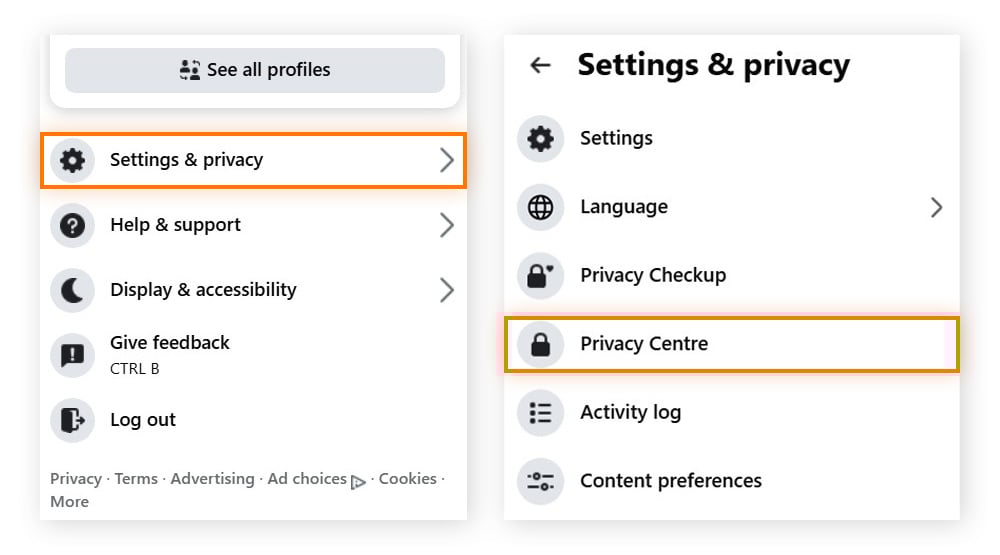
Tap or click on the menu icon (≡). Go to Settings & Privacy > Privacy Center.
-
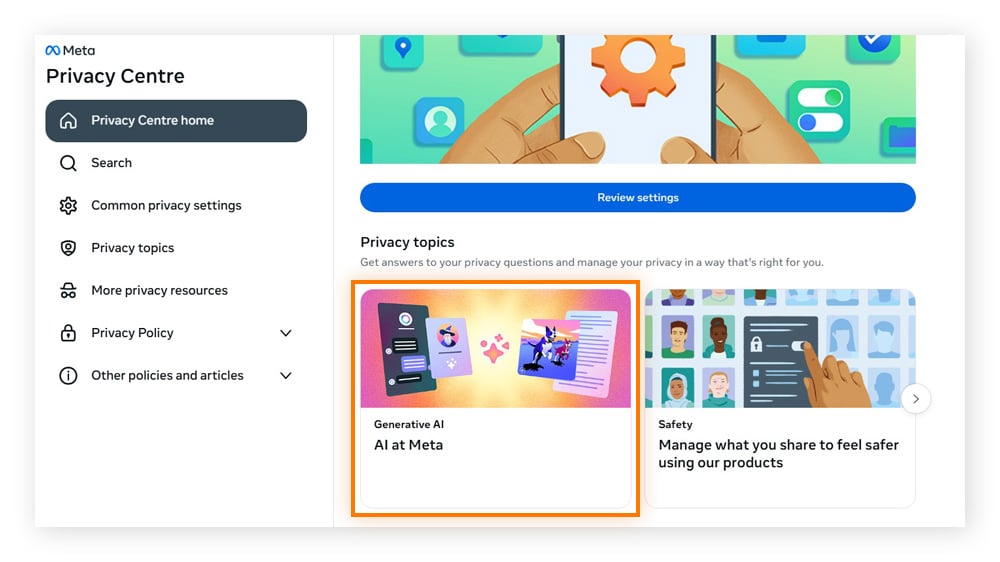
Select Privacy Topics, scroll down, and select AI at Meta.
-
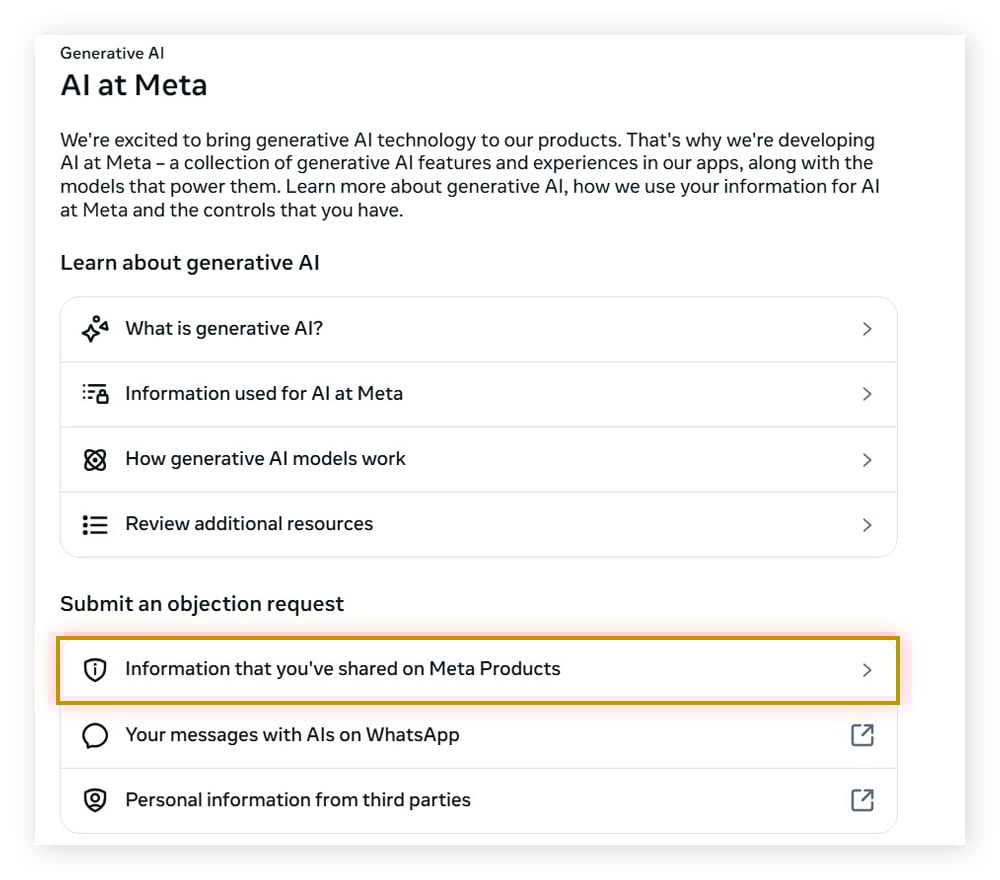
Scroll down to Submit an objection request and select the first option: Information that you’ve shared on Meta products.
-
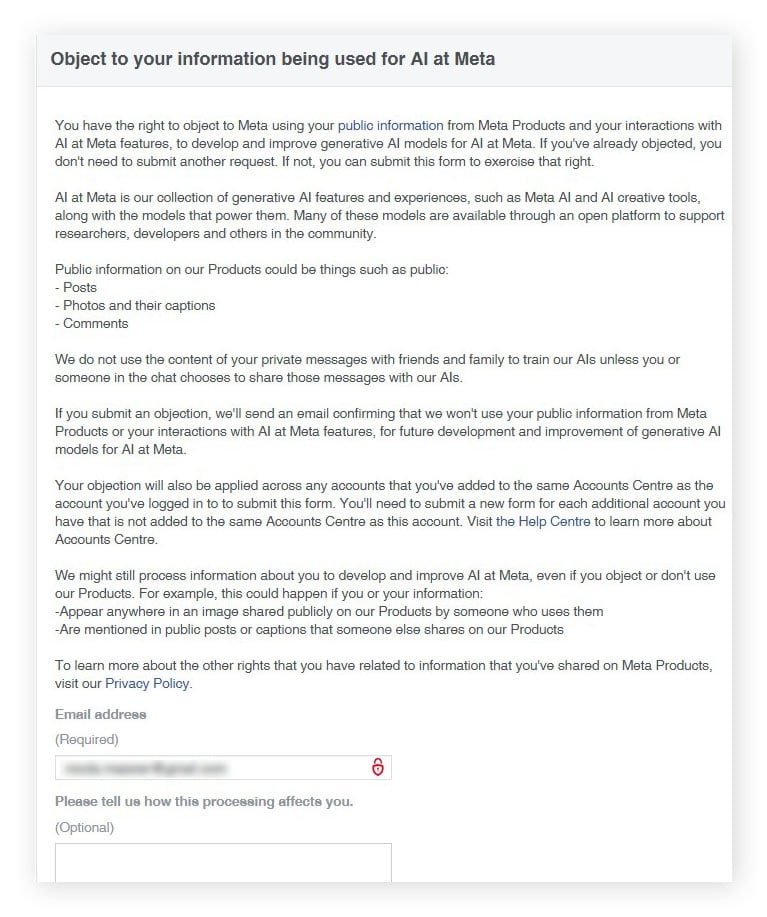
In the new window that opens, enter the email address associated with your profile. You can also supply details about how the processing of your information impacts you. When you’re ready, hit Submit.
You can also go a step further and request that Meta not use personal information from third parties. Fill in and submit this “Data subject rights for third-party information used for AI at Meta” form.
Minimizing your interaction with AI involves taking numerous small steps. Here’s how to disable content summaries on your Facebook posts, but remember that some Meta AI tools (like content summaries) haven’t been rolled out to all users yet:
Go to the menu > Settings & privacy > Settings > Audience and visibility (on the left) > Posts. Then toggle off “Allow comment summaries on your posts.”
It’s also important to regularly review your Facebook privacy settings. This helps you control who can see your information and strengthens account security. It’s a great idea to enable two-factor authentication, limit past posts, and disable facial recognition and location history.
And if you’re curious what Facebook already knows about you, learn how to download your Facebook data here.
How to turn off Meta AI on Instagram
On Instagram, Meta AI is increasingly suggesting captions or content. As with Facebook, you can’t banish it entirely, but you can minimize your exposure. Not everyone has Meta AI on Instagram yet, as it’s being rolled out region by region.
Here’s how to opt out of data collection for AI training. The process is nearly identical to Facebook:
-
Open the Instagram app and tap on your profile picture.
-
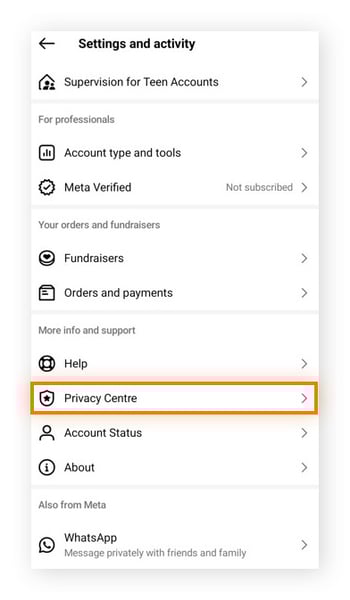
Tap on ≡ to open the Settings and activity window, and scroll down to the Privacy Centre.
-
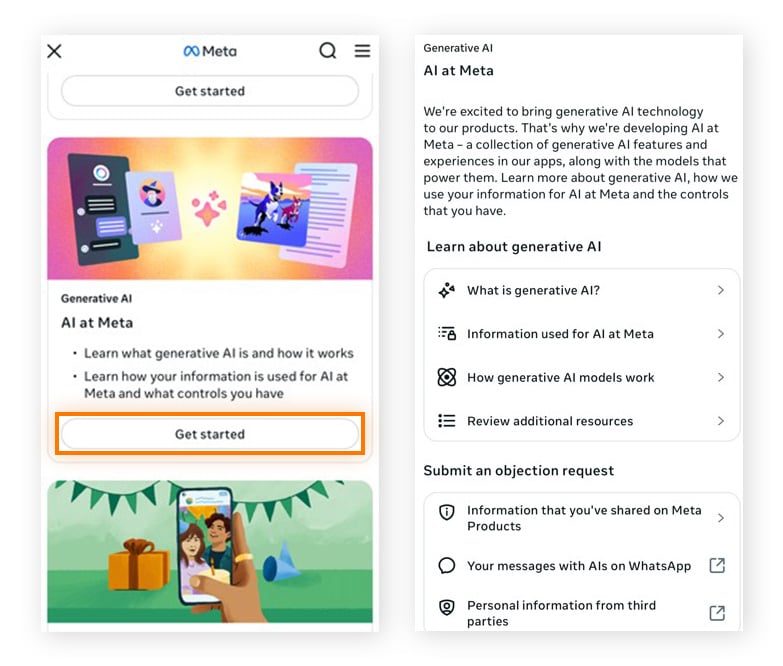
Select AI at Meta and tap Submit an objection request.
-
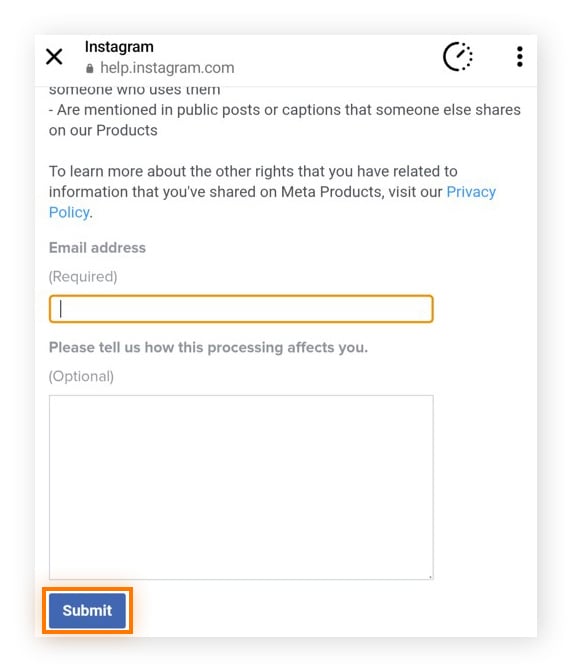
Enter the email address associated with your profile. You also have the option to explain how the use of your data impacts you before hitting Submit.
For a less intrusive search experience, remove Meta AI from the Instagram search bar:
-
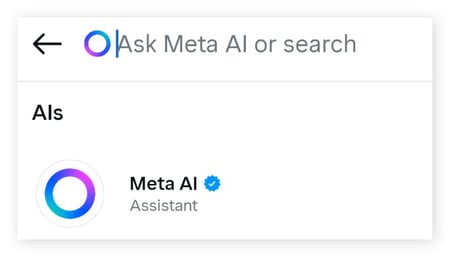
Tap the search bar and see if the blue Meta AI circle appears. If you can’t see the Meta AI logo, try the search bar in DMs and chats.
-
Click on the icon and then the “i” button next to it.

-
In the Meta AI window that opens, select Mute. Toggle the switch to “on” and choose your preferred duration.
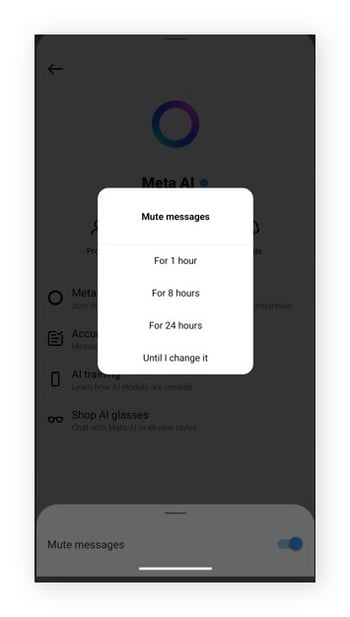
For added security, remember to adjust your Instagram privacy settings. If your account is public, for example, anyone and their cousin can find you (and that includes bots). If you’re really concerned about your privacy (or just want a break from everyone else’s carefully curated version of “reality”), consider deleting or deactivating your Instagram.
How to remove Meta AI from WhatsApp
While the Meta AI button is now embedded into your WhatsApp (whether you like it or not), you do have the power to ignore it or curb its reach. Here’s how to wield that power:
Use Advanced Chat Privacy
Open any of your WhatsApp chats and tap the person or group name at the top of the chat. Scroll down and tap Advanced Chat Privacy. In the window that opens, toggle the switch to “on”.
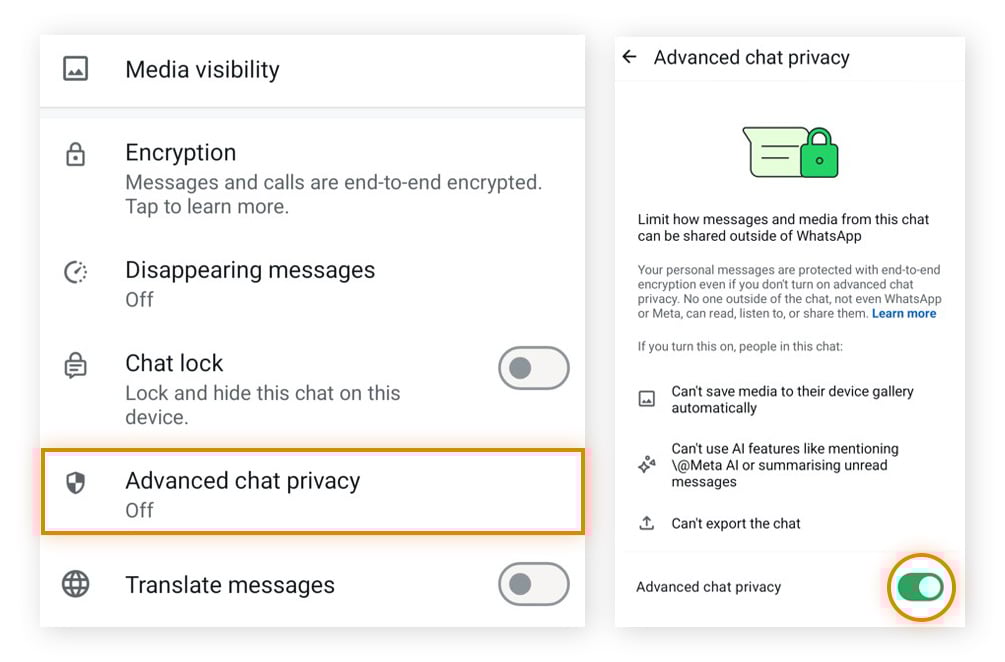
Then, check it’s working by starting to type @Meta. A warning will pop up confirming: “Meta AI not available in this chat”. Don’t forget you’ll need to enable Advanced Chat Privacy for each chat individually!

Mute notifications
Open the Meta AI chat in WhatsApp, tap the chat name at the top, and go to Notifications. Select Mute to stop alerts. If you don’t want to see the chat at all, you can also Archive it so it no longer appears in your main Chats list.
Delete individual chats
If you’ve opened a direct chat with Meta AI on WhatsApp, you can delete the conversation by opening the chat, tapping the three dots (Android) or chat options (iPhone), and choosing Delete chat. This removes the thread from your app, though it doesn’t disable Meta AI itself or prevent it from appearing elsewhere in WhatsApp.
How to disable Meta AI in Messenger
There’s still no true “off switch,” but if you don’t want AI prompts shaping your Messenger experience — or contributing data to Meta’s models — your best option is to minimize its presence.
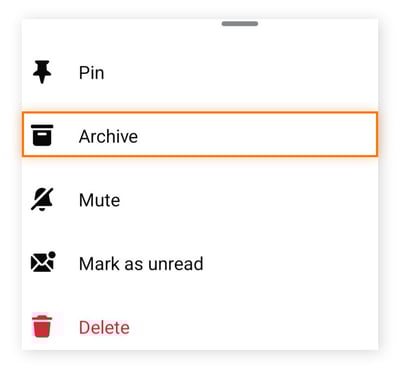
One thing to remember: archiving a chat isn’t enough. If a new message comes in, the conversation will pop back into your inbox. AI can also reappear through updates or in group chats where new messages are generated. To keep it out of sight, you’ll need to archive and mute the conversation.
Mute the Meta AI assistant
Muting the Meta AI assistant stops proactive replies and pings from the AI thread.
-
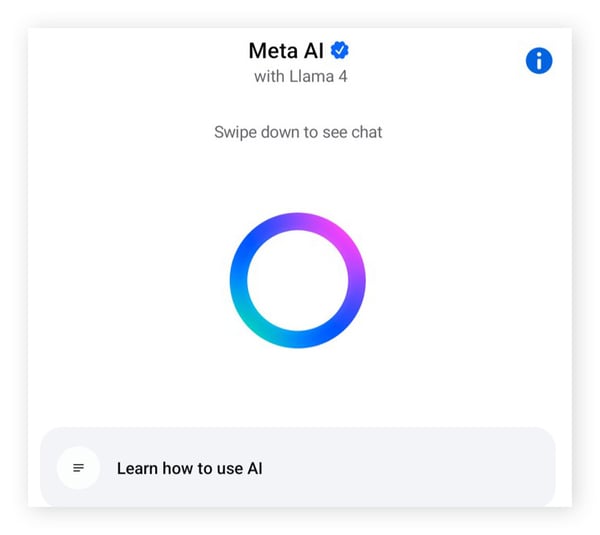
Open Messenger and find the Meta AI chat in your chat list.
-
Tap the (i) info button. Select Mute at the top and then choose Until I change it to permanently silence it.
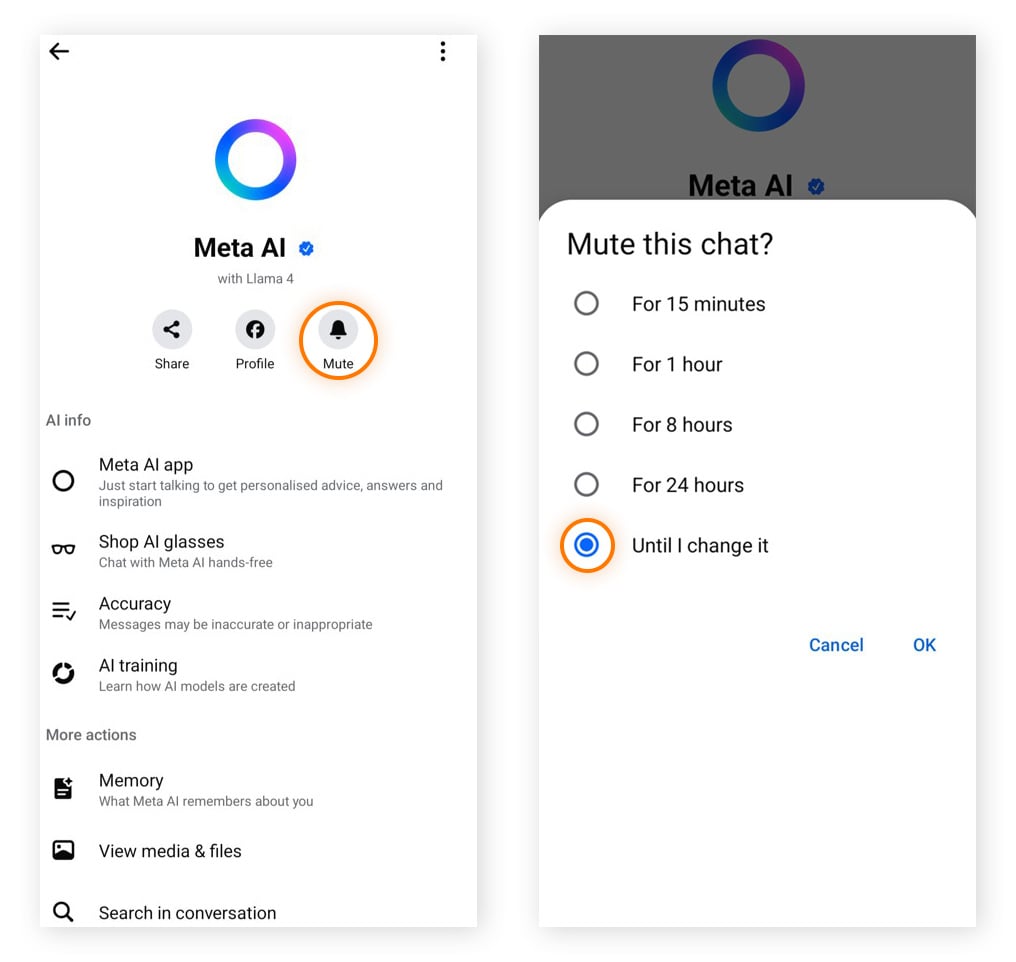
Archive the Meta AI assistant (Hide the AI chat from your inbox)
To archive the Meta AI assistant, long-press the Meta AI conversation and select Archive (or Delete chat, if your device offers it) to remove it from your main inbox view. To reduce the chances of AI resurfacing, avoid tapping AI suggestions or the Ask Meta AI prompts.
More tips to help protect your privacy while using Meta platforms
If Meta AI feels a little too much like a digital crocodile lurking beneath the murky surface of your social apps, you might not be overreacting. While there’s no simple way to switch it off, there are ways to help protect your privacy and secure your data.
-
Think before you share: Does the world really need to know your first model of car? Keep personal details to yourself, even in AI chats or private messages. Once data enters Meta’s ecosystem, you lose control over where it goes.
-
Use a secure connection: A VPN (Virtual Private Network) encrypts your internet data, adding an extra layer of protection from trackers and hackers. It won’t block Meta’s data collection, but you’ll have a much daintier digital footprint overall.
-
Be alert to scams: Is your cousin really stuck in Istanbul with no money? Whether it’s WhatsApp scams, Facebook Marketplace scams, or Instagram scams, fraudsters are relentless and creative — often using AI or fake profiles. Avoid clicking suspicious links, sending money, or sharing codes.
AI isn’t inherently good or bad. It can offer remarkable convenience and creativity, but it also serves as a reminder that privacy in the digital age is never the default. Alongside the steps in this guide, awareness, restraint, and strong anti-tracking privacy tools remain your best defenses.
Protect your privacy from invasive AI tracking
Meta AI’s deep integration across social platforms can increase the risk of your data being profiled or tracked. If you’re concerned about how your information might be used, take back control with Avast AntiTrack to help block invasive tracking techniques and obscure your digital footprint, giving you stronger privacy across the web. Start protecting your data today.
What customers say

Get it now
Get it for PC
Download free trial
Get it for Mac
Download free trial
Get it for Mac
Get it now
Get it for PC
More Privacy Articles

How to Find Hidden Apps on Android

How to turn off Meta AI

SSID: What It Means and How to Find Yours

How to Block Someone on TikTok (a Step-by-Step Guide)

How to Delete an Apple ID Account

How to Delete Your BeReal Account in Three Easy Steps

How to Delete Your Tinder Account

What Is a Digital Footprint and How Does It Work?

Is My Phone Being Tracked?

Your Guide to Deactivating and Deleting Facebook Messenger

What Is Doxxing, Is Doxxing Illegal, and How Do You Prevent or Report It?

How to Hide Apps on an Android Phone
Privacy Tips
Privacy
Nicola Massier-Dhillon
1-12-2025