- Security
- Privacy
- Performance
Your Android phone may be concealing hidden apps that can impact performance and put your privacy at risk. Finding these hidden apps on Android can help your device run more smoothly and even reveal malicious apps that shouldn’t be there at all. Read on to learn how to uncover hidden apps on Android with the help of an award-winning mobile security app.






This Article Contains
This Article Contains
What are hidden apps?
Hidden apps are just regular software applications, but they don’t appear on your Home screen or in your app drawer. Many of them are legitimate and intentionally concealed because they run in the background, such as system utilities or parental control tools. Android also lets you hide apps to reduce clutter, remove distractions, or protect your privacy.
But the capability to hide apps can also be misused. Hackers may install fake apps or malware that remain hidden from view, putting your privacy, security, and device performance at risk. That’s why it’s a good idea to check for hidden apps on your Android device periodically.
5 ways to find hidden apps on Android
These five simple methods will show hidden apps on Android and give you better visibility and control over what’s happening on your phone. Throughout this article, we’ll show you how to find hidden apps on a Samsung Galaxy s21. Keep in mind that the steps may vary slightly based on your device manufacturer and current Android version.
1. Check the app drawer
One of the easiest ways to find hidden apps on Android is via your app drawer. The app drawer is a menu that shows all the apps installed on your device. Here’s how to use it to find hidden apps:
-
Swipe up from the Home screen.
-
Tap the three-dot icon at the top or bottom-right of the screen and select Settings.
-
Scroll down and tap Hide apps on Home and Apps screens to display your complete library of installed apps. If any apps are hidden, they’ll appear at the top of the menu in the Hidden apps box.

-
To make a hidden app visible on your Home screen again, tap it to remove it from the Hidden apps section.
-
To hide an app that’s currently unhidden, tap the checkbox icon next to it to move it to the Hidden apps section.
2. Use your Android Settings
You can also find all of your installed apps listed directly in the Settings menu by following these steps:
-
Open the Settings app from your Android’s Home screen or swipe down from the top of your Home screen and tap the gear icon.
-
Scroll down and tap Apps.

-
In the Apps menu, tap the filter icon (three horizontal lines with a downward-pointing arrow).
-
To view every app on your device, switch the filter to All and enable Show system apps.
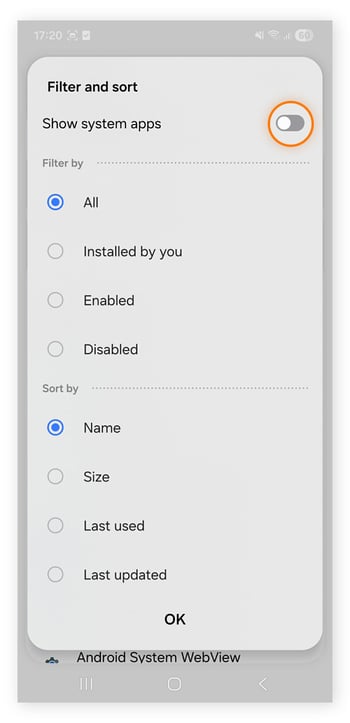
Once you complete these steps, you’ll see a long list of apps you may not have encountered before. That’s because Android includes many system apps that run quietly in the background.
If you’re simply decluttering, it’s best to turn off Show system apps to keep the list manageable. If you’re investigating a potential security issue, though, reviewing system apps can help you spot unfamiliar or suspicious software.
3. Search for apps directly
If you know the name of the app you’re looking for but can’t locate it on your phone, use the Android search bar to look it up directly. The search will surface the app even if it’s hidden from your Home screen or app drawer.
-
Swipe up from the Home screen to open the app drawer, then type the name of the app into the search bar at the bottom of the screen.
-
If the app is installed, it’ll appear under Apps in the search results. If no Apps section appears, there’s no installed app by that name.
-
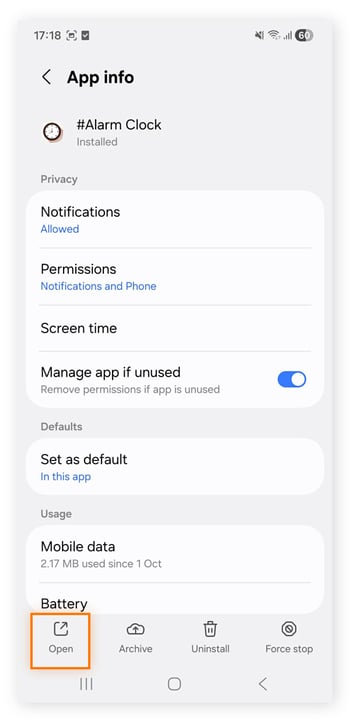
Tap the app in the results to view its settings. To open it, select Open in the lower-left corner of the menu.
4. Check Google Play Store
The Google Play Store (the official Android app marketplace) keeps a record of all of the apps installed on your account, including ones that may now be hidden. Here’s how to see them:
-
Open the Google Play Store app and tap your profile icon (usually your photo) in the top-right corner of the screen.
-
Tap Manage apps & devices, then tap the Manage tab to view a full list of apps downloaded and installed via Google Play.
This method is useful for checking only user-installed apps, and won’t reveal pre-installed system apps (or out-of-the box bloatware programs), since they’re not originally from Google Play. But keep in mind that hidden apps from third-party stores also won’t appear, nor will malicious apps added by hackers without your knowledge.
5. Identify third-party app hiders
Third-party app hiders are disguises used by malicious apps to avoid detection. When a hacker installs an app on your phone, they don’t want you to notice or remove it. To stay hidden, they often give it a generic icon and a name like “System Vault” or “Storage Manager” so it blends in with legitimate background apps.
Here are a few tips for locating these hidden Android apps:
-
Review the Apps list in Settings for apps you don’t recognize.
-
Watch out for suspicious names such as “Media Provider,” “Cache Sweep,” or anything that seems overly generic or slightly out of place.
-
Check for labels or thumbnails that imitate other apps or mimic system components.
-
Review app permissions for non-system apps you don’t actively use with unusually broad permissions.
-
Look up any suspicious apps online to see which ones are commonly pre-installed on your specific Android device. This can help you narrow down Android apps that are hiding in plain sight.
Common reasons apps are hidden
Why are some Android apps hidden on your phone? Here are the most common reasons.
-
They’re system apps: These are core components that keep your phone running. They’re hidden because you’re not meant to interact with them — modifying or removing them can cause your device to malfunction.
-
They’re background apps: Tools like parental controls or Find My Device often don’t appear on your Home screen because they work automatically in the background. You can usually manage them directly through your phone’s settings.
-
You hid them and forgot: You may have intentionally hidden certain apps for privacy or organization, then forgotten about them. Or you might have hidden them accidentally while adjusting settings.
-
They’re malicious apps (malware): Deceptive apps often run quietly in the background, spying on activity or stealing personal data. To avoid detection, they usually disguise themselves as system tools, use generic names, or disable notifications to stay out of sight.
Security risks of hidden apps
Most hidden Android apps have legitimate purposes, but it’s still important to check your device regularly for phone viruses and other suspicious activity. Malicious apps can sometimes be installed without your knowledge — clicking a link on social media or in a phishing text is often enough to introduce spyware or adware onto your phone.
Once downloaded, hidden malware apps can seriously compromise your privacy and security by:
-
Harvesting your contacts, messages, browsing history, and photos
-
Tracking your location
-
Recording your keystrokes to steal passwords and login information
-
Spying on your activity across apps
-
Spamming you with ads
-
Using your phone’s data to scam others
-
Deleting your data or holding it for ransom
-
Locking or damaging your device
Many fake apps are designed to spy on you and quietly spread to your contacts. They can stay hidden on your device for long periods, building a detailed profile that criminals can use to commit fraud or identity theft.
The consequences of these deceptive apps can be significant. One recent report found that 1 in 5 Americans has lost money to an online scam, and digital fraud is projected to cost Americans about $1 billion per week.
How to identify suspicious apps
Hidden apps can be more than an inconvenience. If malware is lurking on your device, it can cost you thousands and create serious, long-lasting problems. Learning how to spot hidden Android apps and identify suspicious ones is an essential part of protecting yourself.
Here’s what to look for:
-
Generic or vague names that don’t clearly describe the app’s purpose
-
Names or icons that mimic popular apps (e.g., Neflix instead of Netflix)
-
Unfamiliar Apps you don’t remember installing
-
Apps without icons, which won’t appear on your Home screen
-
Unusual or overly broad permissions to access your messages, storage, camera, mic, or device admin settings
-
High data or battery usage from apps you rarely or never use
You should perform a thorough check for hidden apps right away if you experience any of these signs of malware:
-
Unusual device behavior, like overheating, sudden slowdowns, freezes, or random glitches
-
Excessive ads or pop-ups, which often originate from a hidden adware app
-
Rapid battery drain, which may indicate a hidden malicious app running constantly in the background
Protect your Android privacy with Avast Free Antivirus
Hidden apps exist on every Android device, and most are harmless system or background tools you never need to open. But deceptive hidden apps are designed to stay out of sight while putting your security at risk.
Hackers often spread these threats through fake downloads, malicious links, or compromised apps. Avast Free Antivirus helps detect and block malicious apps before they can run, scanning your device for hidden threats and helping prevent malware from compromising your data. It’s a simple, effective way to keep your Android secure — even against stealthy threats.
What customers say

More Privacy Articles

How to Find Hidden Apps on Android

How to turn off Meta AI
SSID: What It Means and How to Find Yours

How to Block Someone on TikTok (a Step-by-Step Guide)

How to Delete an Apple ID Account

How to Delete Your BeReal Account in Three Easy Steps

How to Delete Your Tinder Account

What Is a Digital Footprint and How Does It Work?

Is My Phone Being Tracked?

Your Guide to Deactivating and Deleting Facebook Messenger

What Is Doxxing, Is Doxxing Illegal, and How Do You Prevent or Report It?

How to Hide Apps on an Android Phone
Privacy Tips
Privacy
Ben Gorman
14-01-2026