- Security
- Privacy
- Performance
Is there anything more frustrating than pulling out your iPhone only to discover it’s stuck in SOS mode? Suddenly, calls, texts, and mobile data stop working just when you need them most. Learn what causes SOS mode, how to fix it, and how to keep your iPhone secure, optimized, and ready for whatever the day throws at you.






This Article Contains
This Article Contains
What does SOS mode mean on iPhone?
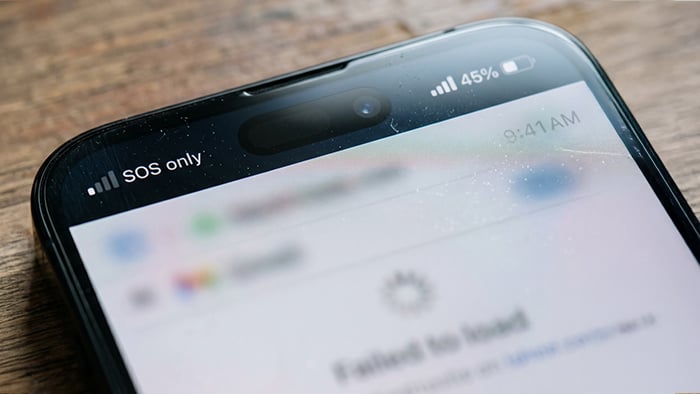
SOS mode is a built-in iPhone safety feature that allows you to contact emergency services, even when your phone is disconnected from the cellular network. When "SOS" or "SOS Only" is displayed in the status bar, it means regular calling, texting, and mobile data services are unavailable, but emergency calls can still be placed using any available carrier network.
This differs from "No Service," which indicates that your iPhone cannot detect a usable cellular signal from any network. On Android devices, the equivalent to SOS mode is a cell service status message that says "Emergency calls only."
Although it's a helpful and potentially lifesaving feature if you’re in an emergency, it's not so helpful when you’re not. However, you can usually troubleshoot the issue to restore full cellular connectivity and resume normal use of your device.
What can you do in SOS mode?
SOS mode can help you contact emergency services when you don’t have a cellular connection. If your carrier’s network is unavailable, your phone will attempt to use any nearby cellular network to place an emergency call. On supported devices, such as newer iPhones, SOS mode may also use satellite connectivity to send emergency texts when no cellular coverage is available, helping you reach dispatchers even in remote areas.
SOS mode disables most other cellular services, including accessing the internet using cellular data. However, it doesn’t prevent your iPhone from accessing internet-based features over a Wi-Fi connection. If you connect to a Wi-Fi network, you can still browse the internet, use apps, send iMessages, and make Wi-Fi calls.
Common scenarios when SOS mode appears
Your iPhone may enter SOS mode if you’re in an area with limited or no cellular coverage. If you're traveling through a remote location or a network dead zone, your iPhone may lose its connection to your carrier and automatically switch to SOS mode until service is restored.
International or long-distance travel can also trigger SOS mode. When moving between countries — or sometimes even between regions that use different network bands — your iPhone may temporarily lose its connection while searching for a compatible network. In these cases, normal service usually returns on its own once the device successfully reconnects.
You may also trigger SOS mode while swapping SIM cards, activating a new eSIM, installing a software update, or recovering from an update issue. These situations can temporarily interrupt your carrier connection and cause the device to display SOS mode until the process is complete.
Finally, the issue may not be with your phone at all. Carrier outages affecting providers such as AT&T, Verizon, or T-Mobile can also cause iPhones to enter SOS mode. If your carrier is experiencing a service disruption, the only option may be to wait for normal network service to be restored.
Why is my phone stuck in SOS mode?
If your iPhone remains stuck in SOS mode, it’s typically due to persistent network problems, software glitches, or hardware-related failures involving your SIM card or device.
Your phone should end SOS mode as soon as it reconnects to your carrier's network. So, if it continues displaying SOS or SOS Only despite being in an area where you should have service, the problem may require manual troubleshooting rather than simply waiting for it to fix itself.
Let's take a closer look at the most common reasons your iPhone may be stuck in SOS mode and what you can do to fix it.

Network or carrier outages
Even major cellular providers occasionally experience service disruptions that can temporarily prevent your iPhone from connecting to the network. If you suspect an outage may be keeping you stuck in SOS mode, check your carrier's network status page, support website, or social media accounts for updates. Third-party services such as DownDetector can also help identify widespread connectivity issues in your area.
If no outage has been reported, the problem may be related to your account rather than the network itself — carriers may temporarily disable cellular service, causing your iPhone to enter SOS mode until the issue is resolved. Verify that your cellular plan is active and that there are no billing, payment, or account issues that could have resulted in service suspension.
Outdated software
Sometimes the issue isn't your network — it's your device. Software bugs, corrupted network settings, or outdated carrier configurations can interfere with your iPhone's ability to communicate with nearby cell towers, leaving it stuck in SOS mode.
To rule out software-related issues, make sure your iPhone is running the latest version of iOS and that any available carrier settings updates have been installed. These updates often include bug fixes, network optimizations, and compatibility improvements that can help restore normal connectivity.
Security and performance tools such as Avast One can also help keep your iPhone running smoothly by identifying apps, processes, or system issues that may affect device stability. While these tools won't directly fix carrier-related problems, they can help reduce performance issues that may contribute to unexpected connectivity glitches.
SIM card problems
Your iPhone may also be stuck in SOS mode because of a problem with its SIM card. If you're using a physical SIM, a loose, dirty, damaged, or improperly seated card can disrupt communication between your iPhone and your carrier, preventing the device from connecting to the cellular network.
If you use an eSIM, the issue may stem from a corrupted or incomplete carrier profile. In some cases, toggling the eSIM off and back on, or re-downloading the carrier profile, can restore normal service.
Physical damage to the phone itself can also cause persistent SOS mode issues. Water exposure, a hard drop, or other hardware damage may affect your iPhone's internal antenna or cellular components, preventing it from maintaining a network connection even when coverage is available.
How to get your phone out of SOS mode
Getting your iPhone out of SOS mode can be as simple as waiting for your signal to return or involve more in-depth troubleshooting of SIM card or account issues. Start with the simplest solutions first, then work your way through the more advanced options if the problem persists.
-
Wait it out: If SOS mode was triggered by a temporary carrier outage or poor coverage area, normal service may return automatically once the outage is resolved or you move to a location with a stronger signal.
-
Toggle Airplane Mode: Turn Airplane Mode on, wait about 15 seconds, then turn it off again. This forces your iPhone to disconnect from and reconnect to nearby cellular networks, potentially resolving temporary cellular connection issues.
-
Restart your phone: A quick restart can fix temporary software glitches that interfere with cellular connectivity. Press and hold the Side button and either Volume button until the power slider appears, power off your device, and wait a few seconds before turning it back on.
-
Remove your SIM card: Power off your iPhone and remove the SIM card tray using a SIM ejector tool or a straightened paperclip. Inspect the SIM card for visible damage, dirt, or debris, then reinsert it securely before restarting your device.
-
Check your eSIM: If you use an eSIM, go to Settings > Cellular and select the affected line. Confirm that the line is enabled and active. If necessary, toggle it off and back on, then wait to see if service returns.
If SOS mode remains after trying these steps, the issue may be related to your carrier account, network settings, or a hardware problem with your device. In that case, additional troubleshooting or support from your carrier may be required.
Advanced troubleshooting tips
This section contains point-of-no-return style tips to help get your iPhone out of SOS mode. Only consider these solutions if nothing else seems to be working and proceed at your own risk, as they may permanently change or remove saved data or settings.
-
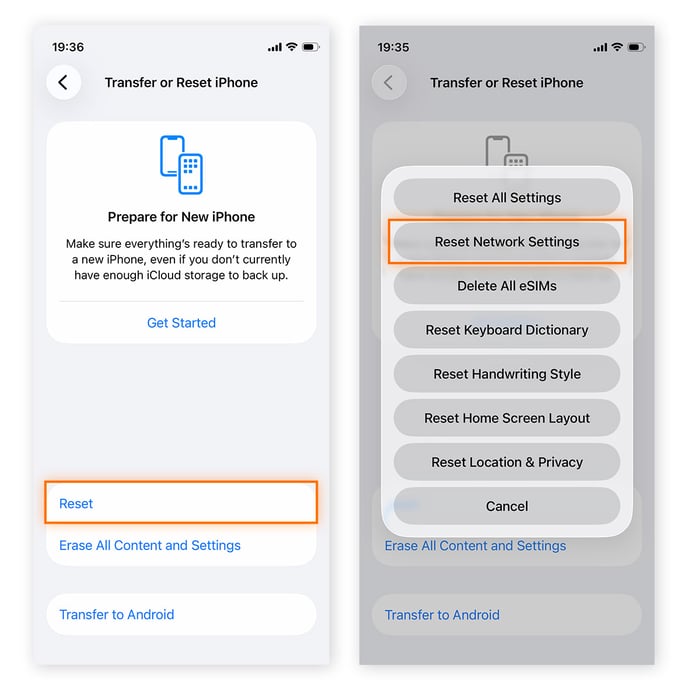
Reset your network settings: Resetting your network settings can resolve persistent connectivity issues, but it will remove saved Wi-Fi networks and passwords, reset certain cellular and VPN settings, and restore network preferences to their defaults. To do this, go to Settings > General > Transfer or Reset iPhone > Reset > Reset Network Settings.
-
Reinstall iOS using Recovery Mode: If a software issue is preventing your iPhone from connecting to your carrier's network, reinstalling iOS through Recovery Mode may help. This process requires connecting your iPhone to a Mac or PC and should generally be considered a last resort, as it is more complex than standard troubleshooting.
If these steps don't resolve the problem — or if you're uncomfortable making system-level changes — it's best to contact your carrier or Apple Support. They can help determine whether the issue is related to your account, network configuration, SIM card, or a hardware fault that requires professional service.
Protect your phone with Avast One
You can’t always prevent SOS mode, especially when traveling through areas with poor coverage, but you can take steps to keep your device running smoothly and securely. Avast One helps optimize your iPhone, protect it from digital threats, and monitor for potential security issues — all from a single app. Get it today to help keep your device performing at its best.
FAQs
Can SOS mode be activated accidentally?
It depends on which SOS feature you're referring to. The "SOS" or "SOS Only" status that appears in your iPhone's status bar is typically triggered by a loss of cellular connectivity and cannot be enabled accidentally through normal use.
However, Emergency SOS — a feature that directly contacts emergency services — can be activated unintentionally. On most iPhones, this can happen if you press and hold the Side button and a Volume button, or rapidly press the Side button five times in succession.
Is SOS mode a sign that my iPhone has been hacked?
No, SOS mode is not usually a sign that your iPhone has been hacked. Instead, it typically indicates a network connectivity issue, such as poor cellular coverage, a carrier outage, or a problem with your SIM or eSIM.
When will SOS mode go away on my iPhone?
In many cases, SOS mode resolves on its own once your iPhone reconnects to your carrier's network. Moving to an area with stronger coverage, toggling Airplane Mode on and off, or restarting your device is often enough to restore service. If SOS mode persists, check for carrier settings updates, verify that your SIM or eSIM is functioning properly, and consider resetting your network settings.
What customers say

More Security Articles

Phantom Deal: Inside an Imposter Scam Targeting an Avast Employee

What Is UPnP?
Why is My iPhone in SOS Mode?
New Avast One vs Legacy Avast One: What’s Changed?
What Is the New Avast One?

Is Mercari legit? A guide to safe shopping and avoiding scams

Is WeTransfer Safe?

Is Poshmark Legit?
Is WhatsApp Safe?

Is Apple Pay Safe?
How to Bypass Apple Activation Lock (and Which Methods to Avoid)

Is Windows 10 Still Supported? It Is by Avast
Security Tips
Security
Michelle Robins
26-06-2026