
Americas


Europe, Middle East & Africa
 België (Nederlands)
Belgique (français)
België (Nederlands)
Belgique (français)
 Česká republika
 Danmark
 Deutschland
 España
 France
 Italia
 Magyarország
 Nederland
 Norge
Norge
 Polska
 Portugal
 România
 Schweiz (Deutsch)
 Slovensko (česky)
 South Africa
Suisse (français)
South Africa
Suisse (français)
 Suomi
Suomi
 Sverige
 Türkiye
 United Arab Emirates


Troubleshooting Avast Antivirus products
If your Avast Antivirus application features or components aren’t working properly, or your application isn’t updating as you expect, you can repair your Avast installation, or check out our Avast Support site for general troubleshooting tips.
In some cases, you may need to completely uninstall and reinstall your Avast Antivirus product. You can uninstall Avast via Apps & Features settings on Windows 10, with a dedicated Avast uninstall utility — Avast Clear — or, via Command Prompt.
This article contains instructions on how to uninstall Avast Antivirus using Avast Clear, then how to uninstall Avast Antivirus using the Command Prompt if Avast Clear isn’t successful.
Avast Clear can uninstall these current Avast Antivirus programs from your Windows PC:
Uninstall Avast Antivirus using our Avast removal tool: Avast Clear
Avast Clear uses a separate window to bypass the normal Avast uninstaller setup. This ensures Avast removal even if you receive the message that the “setup is already running.” If you can’t uninstall using the standard method, using this dedicated Avast removal tool ensures that Avast can still be uninstalled.
Here’s how to uninstall Avast on Windows 10 using Avast Clear:
- Download the avastclear.exe uninstall utility and save it to a familiar folder on your PC (saved to Downloads folder by default).
- Right-click the file and select Run as administrator. If prompted for permissions, click Yes.
- Click Yes in the Avast Clear dialog to start your PC in Safe Mode.
- Select the folder containing your Avast program files, and select the Avast Antivirus product you want to uninstall (the location and product are usually detected automatically). Click Uninstall.
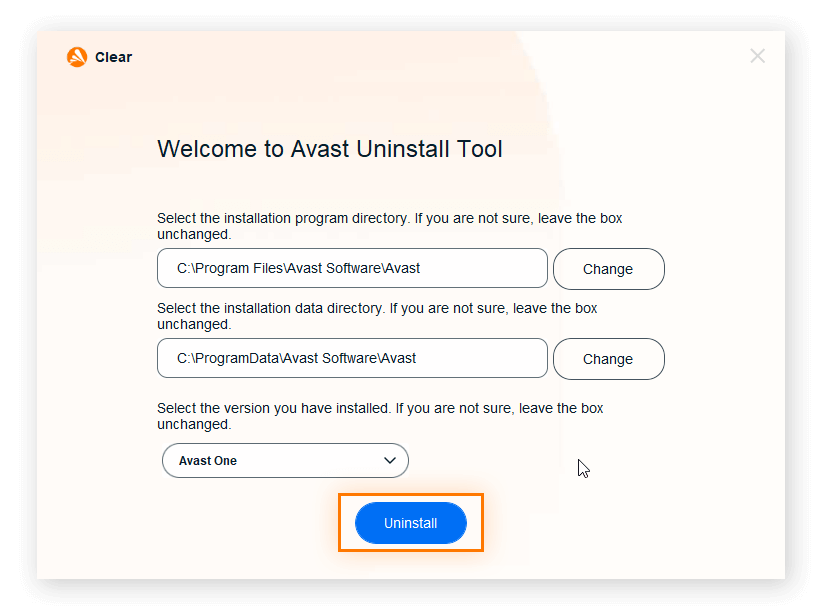
5. Restart your computer.
For instructions on how to uninstall Avast with Avast Clear on Windows 7 and Windows 8, check out our Avast Support guide.
How to uninstall Avast while “setup is already running”
You can’t uninstall Avast in the standard way while the setup is already running — you need to stop the setup first, then uninstall via Avast Clear. The “setup is already running” dialog pops up if you try to uninstall Avast while virus definitions are updating in the background, or if you already started the removal process.
Here’s how to stop the Avast setup and force Avast to uninstall:
- Open Avast Antivirus and go to Menu > Settings > Troubleshooting. Untick Enable Self-Defense.
- Hit Ctrl + Shift + Esc on your keyboard to open Task Manager.
- Select Avast Antivirus and click End task.
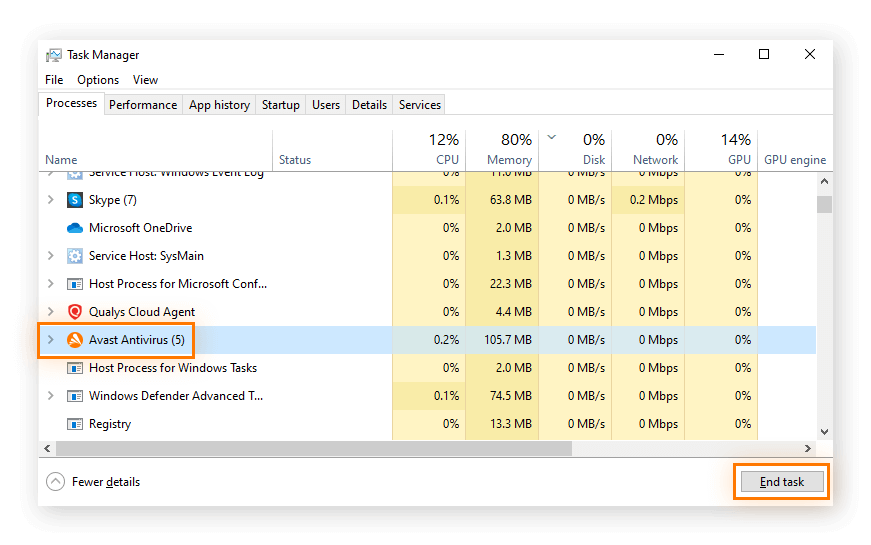
4. You can now uninstall Avast Antivirus using Avast Clear.
Uninstall Avast using Command Prompt
You can uninstall Avast using the Command Prompt if the Avast Clear uninstaller doesn’t work. We only recommend trying this method if uninstalling Avast with Avast Clear isn’t successful.
Here’s how to uninstall Avast Antivirus using the Command Prompt on Windows 10:
- Open File Explorer and go to c:\Program Files\Avast Software\Avast\setup\, then open the file Stats.ini.
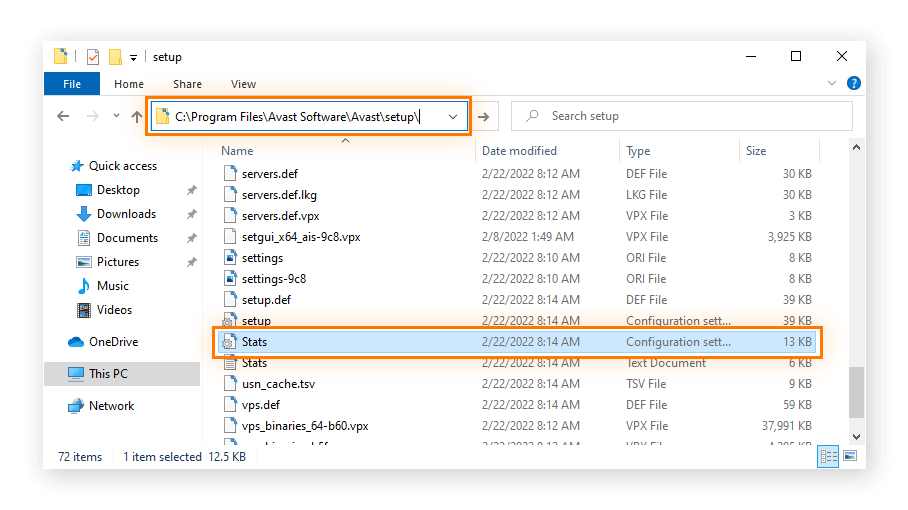
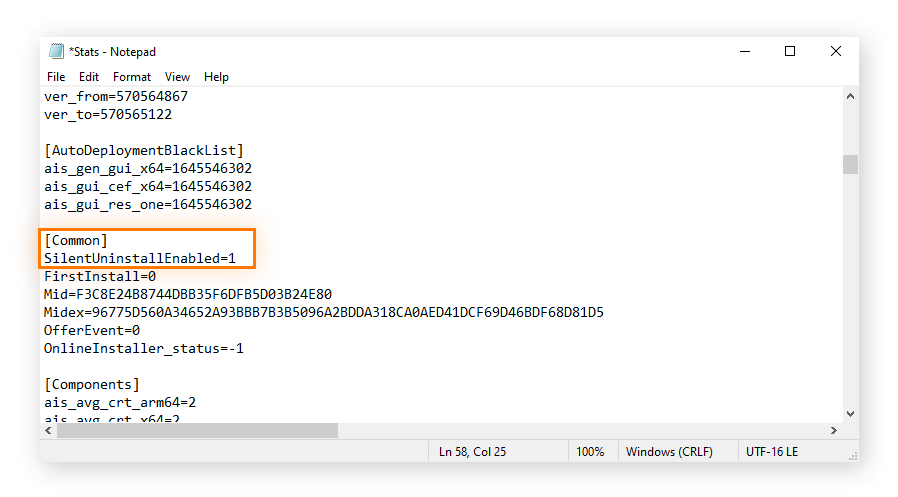
2. Scroll to Common, and type SilentUninstallEnabled=1. Save the changes.
3. Type cmd (Command Prompt) in the Start menu search bar, then click Run as administrator.
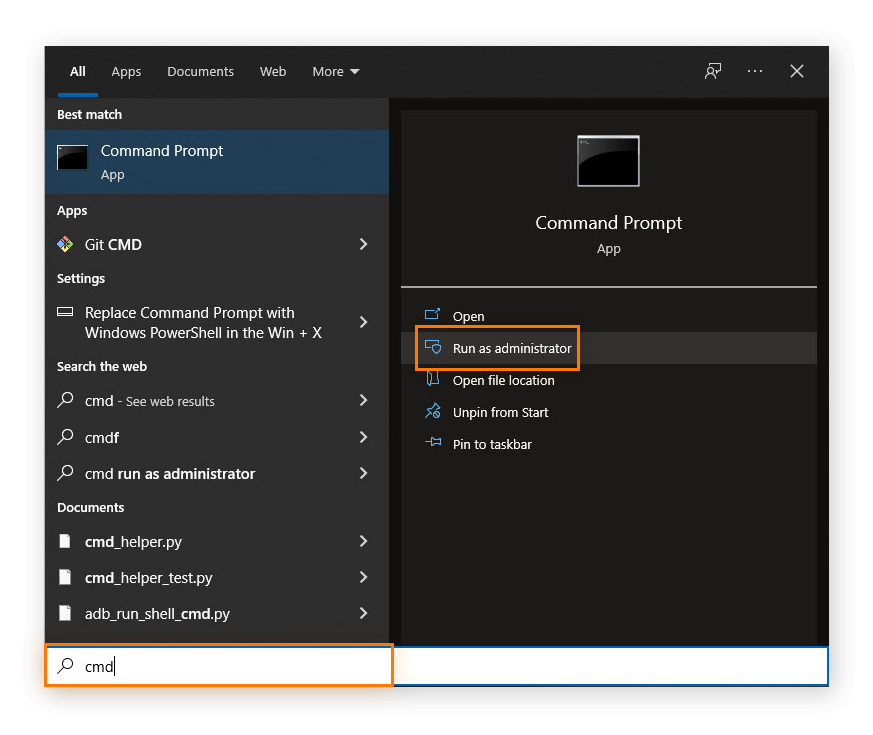
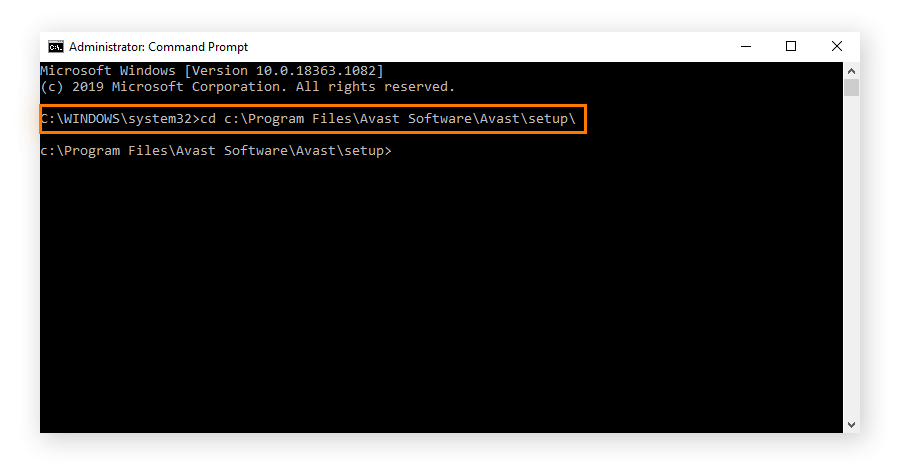
4. Type cd c:\Program Files\Avast Software\Avast\setup\ and hit Enter.
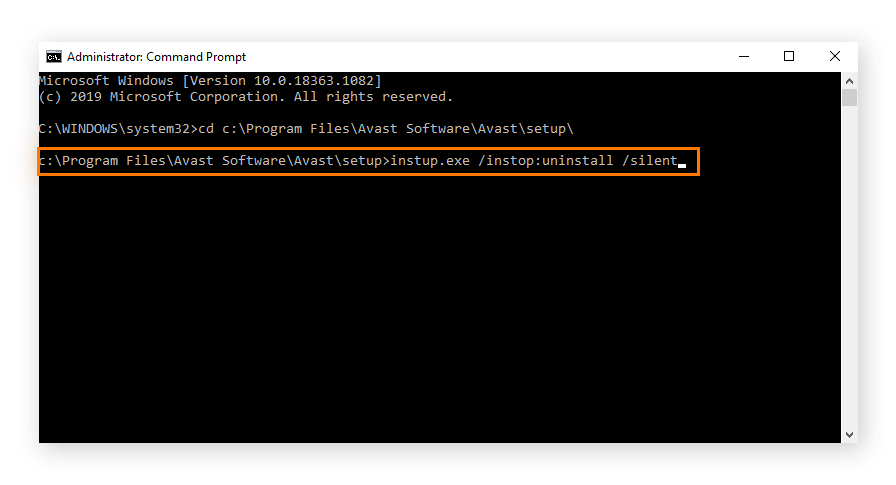
5. Type instup.exe /instop:uninstall /silent and hit Enter.
Tip: If uninstalling via Command Prompt doesn’t work, disable Self-Defense settings in Avast Antivirus via Settings > General > Troubleshooting, and untick Enable Self-Defense. Then, try to uninstall via Command Prompt again.