- Security
- Privacy
- Performance
Getting a Facebook session expired message can be an annoying interruption to your social media scrolling. It’s a standard security measure, but if it happens often, it could mean your account’s at risk. Read on to find out why your Facebook session keeps expiring and how to prevent it. Then, help strengthen your online account security with Avast.






This Article Contains
This Article Contains
What does “session expired” mean on Facebook?
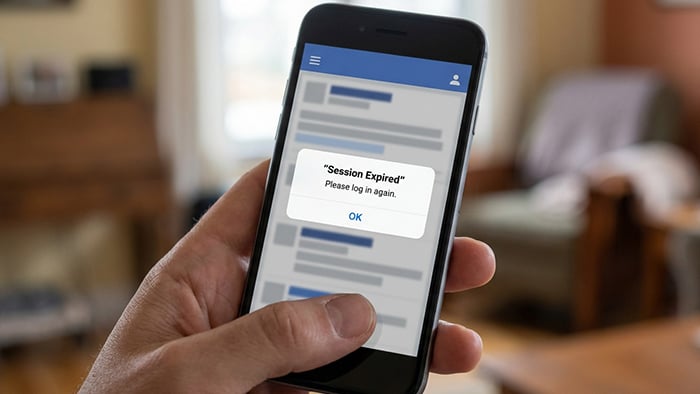
The “session expired please log in again” message on Facebook means that your login session has timed out (ended). When your session ends, Facebook forcibly logs you out. This is a security measure intended to prevent unauthorized access to your account.
Facebook has lots of security tools in place to help ensure that only you can access your account. If any of its measures detect unusual activity, Facebook might end your session on one or more devices.
To get back on Facebook, all you have to do is log in again. But it can still be frustrating.
Most of the time, the session expired message is harmless. It’s just Facebook’s security tools doing their job. But if it happens often, it could be a sign of a glitch or a bug. Or, it might mean that someone has gained (or is trying to gain) unauthorized access to your account.
That’s why it’s important to find out why Facebook keeps saying “session expired.”
How to fix Facebook session expired errors
Here are some simple fixes for those annoying session expired messages on Facebook.
Refresh and log back in to your account
Click the refresh button on your browser to reload the Facebook login page. Then, log back in using your email address and password.
Re-logging in will replace your security token with a new one. Facebook issues you a unique security token every time you sign in. If you’ve been logged in for a long time, or change devices or networks, your token may expire or become corrupted.
Logging in again gives you a fresh token and helps Facebook verify your identity.
Clear cache, cookies, and app data
Clearing your cache, deleting cookies, and clearing app data may remove whatever is causing a Facebook session expired loop.
Here’s how to clear your cache and cookies:
On Android:
-
Open the Settings menu and tap Apps (and then Manage apps on some Androids).
-
Select Facebook from the list of apps.
-
Tap Storage, then Clear cache.

On iPhone (iOS):
iOS devices won’t let you clear Facebook’s app cache directly, but you can clear its app data by deleting and reinstalling the app.
In a browser:
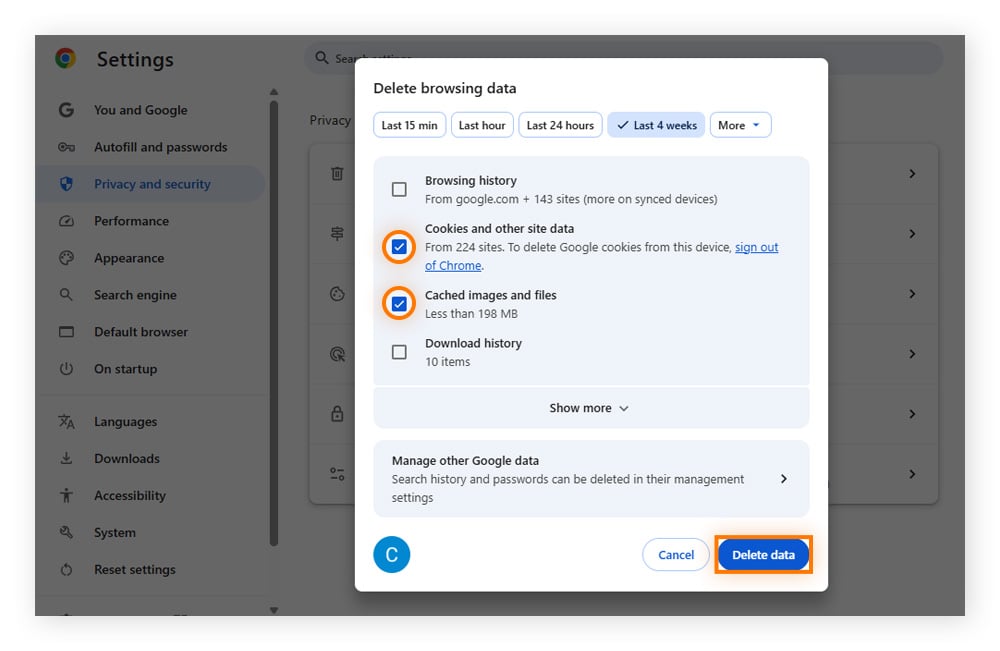
If you’re using Facebook in a web browser like Chrome or Firefox, clearing the browser cache and cookies may help. Here’s how, in Chrome:
-
Click the three vertical dots in the top right, then Settings.
-
Go to Privacy and Security, then Delete browsing data.
-
Select Cookies and other site data and Cached images and files.
-
Click Delete data.
-
Close the browser app and relaunch it before re-logging into Facebook.
Update or reinstall the Facebook App
Old versions of Facebook are more likely to have bugs and security issues that cause session expired messages. Make sure you keep all your apps updated on Android or iPhone to help avoid issues and known security vulnerabilities.
One way to make sure you have the latest version is to delete and reinstall Facebook. This will also clear all of the app data, removing any bugs, corrupted files, or broken settings that might have caused an expired session error.
Disable problematic browser extensions
Browser extensions can interfere with the way Facebook verifies your login session. For example, privacy tools, ad blockers, and VPN-related extensions can block cookies that Facebook uses to recognize you.
Try disabling or removing browser extensions one by one to identify which one is causing the Facebook session expired error. Here’s how to remove Chrome extensions or Firefox add-ons.
When you find the problematic extension, whitelist Facebook so the extension doesn’t impact your experience. If the problem persists, you might need to permanently remove the extension.
Common causes of Facebook session expired messages
The most likely reasons why your Facebook session keeps expiring are prolonged inactivity, corrupted app data, outdated software, or a hacking attempt.
Prolonged inactivity and session timeouts
If you’ve been logged into Facebook for a long time without using the app or website, Facebook might end your session and ask you to log in again. This is just a standard timeout and isn’t cause for alarm.
Facebook activity across multiple devices can also trigger timeouts. For example, if you normally log in to the Facebook app on your phone but then make account changes on the Facebook website, you might get a “Facebook app session expired” message.
Facebook may also end your session on one device if you log in from a new location. These security measures help ensure that only you are accessing your account and that any updates or changes are applied across all devices.
Corrupted app data
Cookies and cached data store temporary data so you don’t have to log in to Facebook every time you visit the site. If this data expires or becomes corrupted, it might not match Facebook’s current login records and trigger an expired session error.
This often happens after changing your Facebook password. Your browser cache may try to use your old cached login details, which Facebook no longer recognizes. Clearing your cookies and cache can solve these issues.
Outdated apps or browsers
If your Facebook app or browser is out of date, Facebook may not be able to verify your login. This can result in frequent session expired messages.
Facebook regularly updates its security. If your Facebook app or browser isn’t running the latest version, it may have trouble communicating with Facebook’s servers.
If Facebook can’t authenticate your account according to its latest security standards, you may get the “please log in again” message.
Updating your software can also fix bugs and vulnerabilities that could cause session expired messages. To avoid frustrating timeouts and more serious security threats, enable automatic updates for your browser, apps, and operating system.
Security measures and unauthorized access
A Facebook session expired message may be a sign of attempted cybercrime, such as account hacking.
Facebook’s security protocols automatically log you out after they detect suspicious activity. If you’re getting regular “session expired” messages, it may mean that a hacker has gained access to your account (or is trying to hack your account).
Take the following steps to secure your account and potentially stop expired session messages:
-
Update your password: Create a unique, strong password that isn’t easy for hackers to crack or guess.
-
Enable 2FA: When you enable two-factor authentication (2FA), you need to verify your identity using two methods (e.g., a password and a code sent to your phone).
-
Download antivirus software: Antivirus software can reduce the chances of someone gaining unauthorized access to your Facebook account. For example, it can help block malware like keyloggers, which could be used to steal your login details.
Protect your Facebook account today
Stopping those pesky session expired messages on Facebook is usually as easy as clicking refresh and logging in again. You may also need to update your software or clear your cache and cookies to prevent session timeouts. But in some cases, repeated Facebook session expired errors may indicate that your account is at risk.
Hacked Facebook accounts are no joke. They can put you and all of your Facebook friends at risk of fraud. To keep your account safer, download robust cybersecurity software like Avast Free Antivirus. It helps optimize your home Wi-Fi security, protect you from malware, and strengthen your defenses against online scams.
What customers say

More Performance Articles
Facebook Session Expired: Causes, Solutions, and Prevention

How to Get Your Mouse Cursor Back: 11 Tried and Tested Methods
How to Split Screens on Your PC or Laptop (Windows 10 & 11)

Your Phone Is Not Registered On a Network: What It Means and How to Fix It

Why Won't My iPhone Turn On? 6 Easy Fixes to Try

Why Your iPhone Gets So Hot and How to Fix It

Why Is My Ping So High and How to Reduce It

Why Your Keyboard Isn’t Working and How to Fix It in 6 Easy Steps

How to Right-Click on Mac With or Without a Mouse

How to Test for Packet Loss and Check Your Internet Quality

How to Fix Common Printer Problems

Why Does My Phone Keep Restarting and How Can I Fix It?
Performance Tips
Performance
Ben Gorman
9-01-2026