- Security
- Privacy
- Performance
Intimidated by the prospect of opening your PC to check what kind of GPU you have? Don’t worry about reaching for a screwdriver — just keep reading to find out how to check the graphics hardware powering your pixels. Then, learn how a dedicated updater tool can optimize your driver software for sharper graphics and optimal performance.




This Article Contains
This Article Contains
What graphics card do I have?
To find out what graphics card you have in Windows, type “device manager” into the search bar and hit Enter. Then click the arrow next to Display adapters, and your GPU’s name and model will appear below.
This section may show two entries:
-
An integrated GPU, which is built into your computer’s CPU.
-
A dedicated graphics card, a separate component designed for more demanding graphics tasks.
If you see an entry labeled “Intel,” it typically refers to an integrated GPU. Entries labeled “NVIDIA” or “AMD” usually indicate a dedicated graphics card responsible for more advanced rendering and performance.
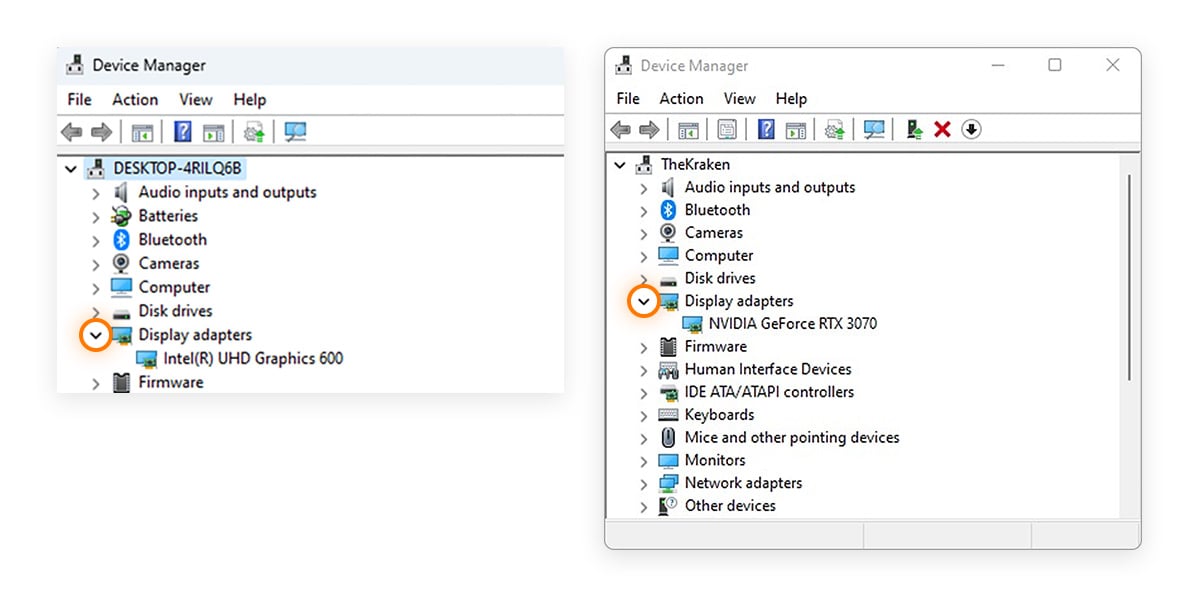 Screenshots showing where to find your integrated GPU (Intel) or dedicated graphics card (NVIDIA) via Device Settings.
Check your NVIDIA graphics card
If your computer has an NVIDIA graphics card and uses an NVIDIA display driver, you can launch the dedicated control panel to inspect which model you have, see system specs, and configure NVIDIA settings.
If your computer has an NVIDIA graphics card and uses NVIDIA display drivers, you can open the NVIDIA Control Panel to view your GPU model, system specs, and graphics settings.
Here’s how to check your specific NVIDIA GPU using the NVIDIA Control Panel:
-
Right-click on your desktop and select Show more options > NVIDIA Control Panel.
-
When the NVIDIA graphics card control panel pops up, click System Information in the bottom-left corner.

-
The System Information window will appear, automatically displaying your GPU model, NVIDIA drivers, memory (VRAM), and other hardware details related to your graphics setup.
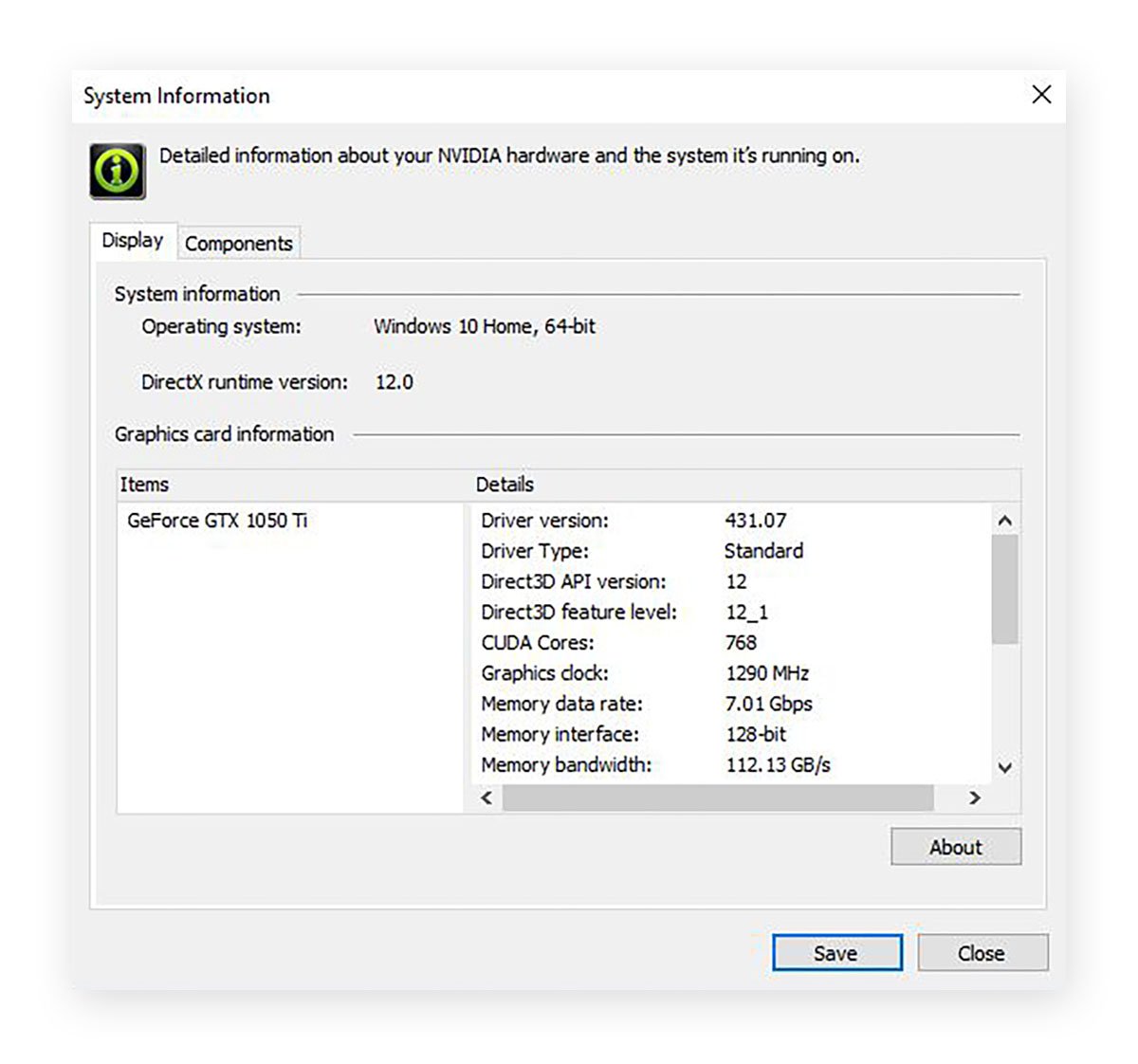
Like checking your GPU, checking your PC specs is another way to optimize Windows 10 for gaming. By understanding your hardware’s limits, you can boost your computer's performance with practices like overclocking your CPU.
Check your AMD graphics card
To check which specific AMD graphics card you have, plus its specs and other system info, open the AMD Radeon software from your desktop. Here’s how:
-
Right-click your desktop and click AMD Radeon Software.
-
Click the gear icon > System.
-
Last, click More Details. Under Graphics Chipset, you can see your precise AMD GPU model.
How to check what my GPU is on Windows
You can check what your GPU is on Windows using System Settings, browsing System Information, using Windows Task Manager, or by using the DirectX Diagnostic Tool.
Ensuring you’ve got the right graphics specs is critical, especially when it comes to gaming, HD video editing, and running other graphics-intensive applications. Thankfully, there are a number of easy ways to detect graphics hardware on Windows.
Using Windows System Settings
System Settings lets you identify your graphics card and review its key properties and compatibility. This method works for NVIDIA, RTX, and AMD graphics cards.
Here’s how to check your GPU through Windows 11 and 10 System Settings:
-
Type “advanced display” in the Windows search bar, and hit Enter.
-
Under Display information, you can see which graphics card is installed on your PC as well as other metrics impacting your computer graphics, like your desktop resolution and refresh rate.

Using System Information
The System Information app is a great tool for looking under the hood of your machine to examine your graphics card. It’s also useful for checking your RAM.
Here’s how to check your graphics card in a laptop or desktop via System Information:
-
Type “system information” in the Windows search bar, and hit Enter.
-
Ensure the Components and Multimedia tabs are open, then click Display.

From here, you can see your graphics card’s name, its type, and device ID. You’ll also see details about your driver installation and how much RAM your GPU has to call upon.
Using Windows Task Manager
Using Task Manager is the quickest way to find the full name of your NVIDIA or AMD GPU if you need to look up its specs.
To check your GPU using Task Manager: press Ctrl + Shift + Esc, select Performance from the left panel, then click GPU 0. If your system has multiple GPUs, they’ll appear as GPU 0, GPU 1, and so on.
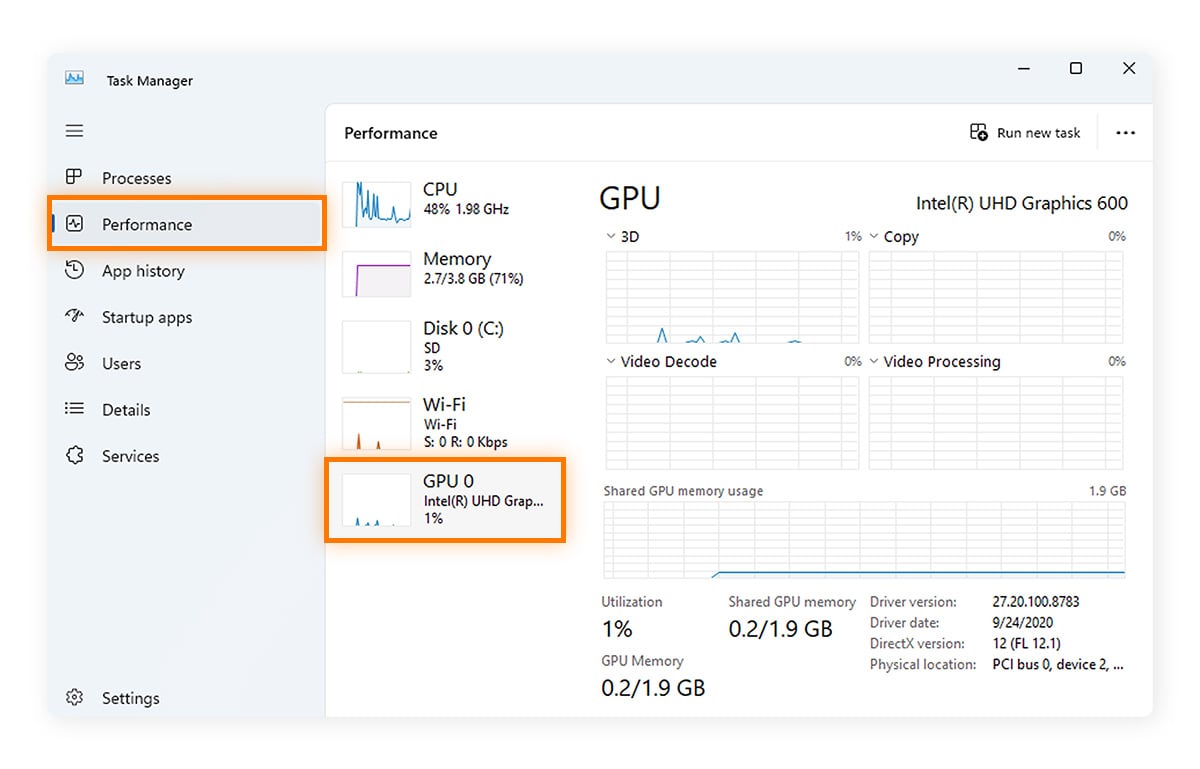
Along with displaying the graphics card that houses your GPU, Task Manager may show other details like GPU utilization (how hard your GPU is working at the moment) and GPU temperature (only for non-integrated GPUs), to let you monitor its health. If you want to get more power out of your graphics chip, check out our guide to overclocking your GPU.
Using DirectX Diagnostic Tool
You can use Windows’ built-in DirectX Diagnostic Tool, which troubleshoots video and audio hardware problems, to check your graphics card. Here’s how:
-
Type “dxdiag” in the Windows search bar and hit Enter.
-
If prompted, choose Yes in the dialog that appears.
-
Wait for the diagnostic scan to finish, then click the Display tabs for graphics device information, including graphics drivers.

Note: that if you have multiple displays, such as one or more external monitors, there will be multiple Display tabs.
How do I tell what external GPU (eGPU) I have?
If you’re using an external GPU (eGPU), it will appear alongside your internal GPUs in Windows. To identify which one is external, you’ll need to check its connection details.
Here’s how:
-
Type Device Manager in the Windows search bar and press Enter.
-
Expand Display adapters.
-
Right-click a GPU and select Properties > Details > Location paths.
Then, look for clues in the location path:
-
If you see references to Thunderbolt or an external PCIe bridge, the device is an eGPU.
-
eGPUs typically have longer, more complex location paths due to the additional hardware layers required for connection.
As a rule of thumb, count the segments in the PCI path:
-
Fewer segments (e.g., 2–3) usually indicate a GPU directly connected to the motherboard.
-
More segments (typically 4–5 or more) suggest an external GPU connected through Thunderbolt or a similar interface.
This difference reflects the extra routing required for external devices compared to internal components. In the screenshot below, the location path for the GPU shows three different PCI path segments — PCIROOT(0), #PCI(0100), and #PCI(1000).

An external GPU (eGPU), or external video card, is a way to boost graphics performance on a laptop or older desktop without replacing the entire system. It can improve gaming, video editing, and other graphics-intensive tasks — but it’s important to check compatibility and weigh the cost, as a full system upgrade may sometimes be the better option.
What’s an eGPU?
An external GPU (eGPU) is a standalone graphics unit housed outside your computer and connected via Thunderbolt 3, Thunderbolt 4, or USB4. It allows you to tap into more powerful graphics hardware than your system’s built-in GPU, making it a practical upgrade for users who need more performance without changing their entire setup.
Why isn't my graphics card showing up?
If your graphics card isn’t showing up in Windows, the issue is often related to missing, outdated, or corrupted drivers. If it doesn’t appear in BIOS, the problem is more likely hardware-related, such as the GPU not being fully seated in the motherboard or a potential failure. Your exact GPU model typically won’t appear in BIOS, but you can still confirm whether a dedicated graphics card is detected.
To check in BIOS:
-
Enter BIOS during startup (commonly by pressing F1, F2, F4, F11, F12, or Del).
-
Navigate to Advanced Settings > PCIe Configuration (or a similar menu).
-
Look for a PCIe slot marked as occupied or detected.
If a slot is detected, it confirms the GPU is physically recognized. If your GPU isn’t showing up in Windows or in BIOS, try uninstalling and reinstalling your graphics card drivers and updating Windows to the latest version. Then, check that your GPU is correctly inserted in the right slot of your motherboard, before checking BIOS again for basic hardware detection. If the issue persists, contact your GPU manufacturer or consider that the hardware itself may be faulty.
The difference between a GPU and graphics card
Graphics cards and GPUs are closely related — and often referred to interchangeably — but not the same. Whereas a graphics card is the full hardware component, the GPU is the processing chip inside it.
Here’s a clear breakdown:

GPU (Graphics Processing Unit):
The core processor responsible for rendering images. It handles tasks like processing textures, calculations, and frame rendering before sending the output to memory and, ultimately, your display.
Graphics card:
Also known as a video card or display adapter, this is the complete unit that houses the GPU along with memory (VRAM), cooling, and power components. It’s responsible for outputting images to your monitor.In short, the GPU does the processing, and the graphics card is the device that contains it and delivers the final output.
GPU glossary
When checking your GPU’s capabilities, you’re likely to run into some unfamiliar terminology. But don’t fret, we’ve got you covered!
Here’s a glossary of GPU terms to help you assess your GPU:
-
Clock speed: The rate at which a GPU’s core operates, measured in MHz or GHz. The boost clock refers to the maximum speed the GPU can reach under normal conditions—its peak performance.
-
FPS (frames per second): The number of frames your GPU renders and displays each second. Higher FPS generally means smoother performance in games and applications.
-
GDDR (Graphics Double Data Rate): A type of high-speed memory used by GPUs to store and access visual data. Newer versions offer better performance and bandwidth.
-
Resolution: The number of pixels displayed on a screen. Higher resolutions require more GPU power to render each frame.
-
TDP (Thermal Design Power): The amount of heat a GPU (or CPU) is expected to generate under load, which determines cooling and power requirements.
-
VRAM (Video RAM): Dedicated memory used by the GPU to store textures, models, and frame data. More VRAM helps with higher resolutions and complex graphics.
-
CUDA cores: Parallel processing units in NVIDIA GPUs that handle rendering and compute tasks. More cores generally improve performance.
-
DLSS (Deep Learning Super Sampling): NVIDIA’s AI-based technology that renders at a lower resolution, then upscales the image to improve performance while maintaining visual quality.
-
Ray tracing: A rendering technique that simulates realistic lighting, shadows, and reflections. NVIDIA GPUs that support it are typically labeled “RTX.”
-
GTX: NVIDIA’s older mainstream GPU line (e.g., GTX 10- and 16-series). These cards offer solid performance but lack dedicated ray tracing and AI features like DLSS.
Get sharper graphics with Avast Driver Updater
No matter how powerful your GPU is, your graphics card is only as good as the drivers behind it. Outdated or faulty drivers can cause crashes, stuttering, lower FPS, and poor visual quality — even on powerful hardware.
Avast Driver Updater automatically scans, updates, and fixes not just your graphics drivers, but all your system drivers. The result: smoother gameplay, sharper visuals, and more reliable performance across your entire PC. Try it for free today.
What customers say

More Performance Articles

How to Fix the “Driver Is Unavailable” Printer Error
How to Update Graphics Drivers in Windows 11, 10, 8, and 7

How to Fix the Sound on Your Computer (Windows 10 & 11)

How to Check Your Graphics Card on Windows PC
/The-best-driver-updater-software-for-WindowsThumb.jpg)
The Best Driver Updater Software for Windows

How Updating Drivers Can Increase PC Performance by 100%
How to Update Your Device Drivers for Windows

How to Update and Install Audio Drivers on a Windows PC
Drivers
Performance
Oliver Buxton
4-11-2021