- Security
- Privacy
- Performance
Pop-up interruptions are frustrating. Nothing disrupts your experience faster than an ad blocking the page you’re trying to view. The good news is you don’t have to put up with them. Learn how to stop unwanted pop-ups on Android, understand why they appear, and see how a secure browser with built-in ad blocking can make browsing faster and smoother.




This Article Contains
This Article Contains
6 ways to stop pop-up ads on Android
To stop pop-up ads on an Android phone, start by blocking pop-ups in your browser and disabling unwanted notifications in your phone settings. You can also try uninstalling malicious apps, using a private DNS, and clearing your browser’s cache.
It may be tempting to simply close individual pop-ups on your Android browser, but this won’t prevent them from returning. And worse, interacting with these pop-ups (such as tapping fake buttons) can potentially lead to scams, phishing attacks, or viruses.
Here are the six best ways to block pop-ups on Android. Some of the steps and menu options may vary slightly depending on your Android device.
1. Block pop-up ads in your browser
Adjusting your browser settings can stop pop-ups from appearing while you surf the web. Some pop-ups are benign, while others are malicious ads, alerting that you’ve supposedly won something or that your device is infected, when it isn’t.
Blocking pop-ups and redirects can improve safety and enhance your browsing experience by helping to prevent unwanted windows, deceptive redirects, and other disruptive behaviors.
On Chrome
Here’s how to block pop-ups on Chrome in your browser settings:
-
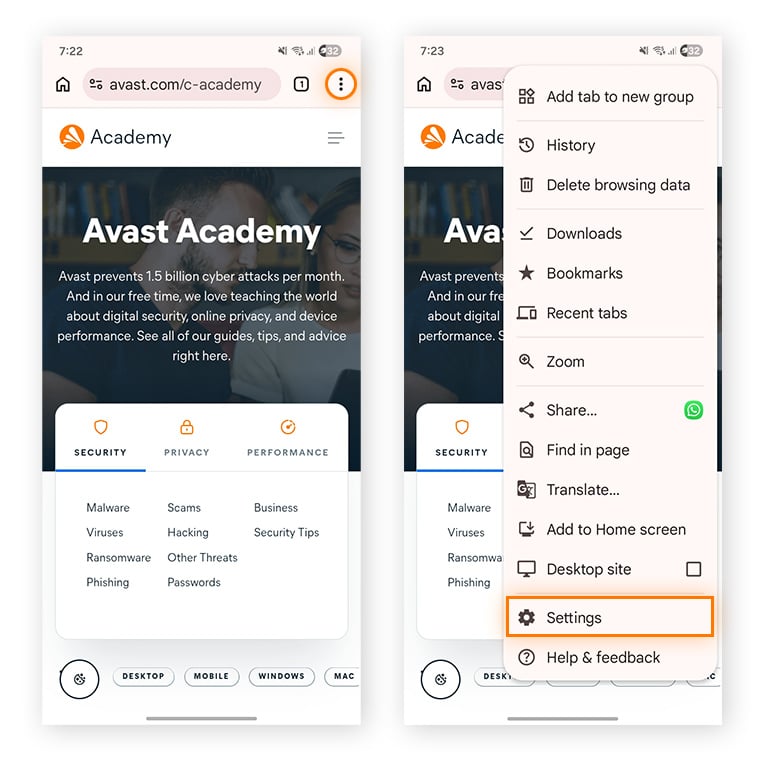
Open Chrome > Tap the three dots in the top-right corner > Settings.
-
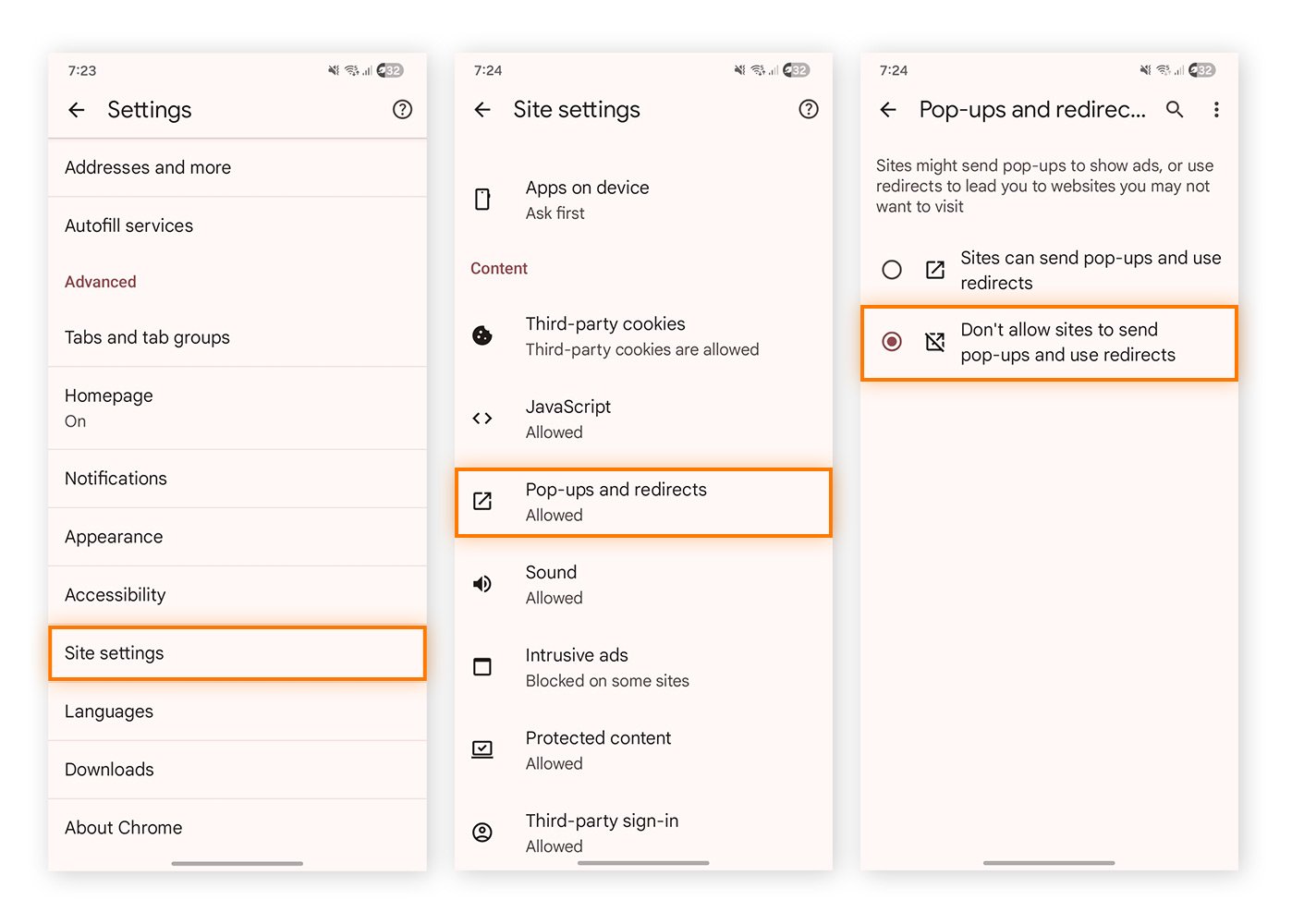
Navigate to Site settings > Pop-ups and redirects (under Content) > Tap Don’t allow sites to send pop-ups and use redirects.
You can also block intrusive or abusive ads that violate Google’s Ads standards. To do this, open Chrome > Settings > Site settings > Ads (or Intrusive ads) > Ads are blocked on sites known to show intrusive or misleading ads. Keep in mind that this may interfere with important functionality on some websites.
On Firefox
Firefox for Android blocks many pop-ups automatically, and this feature is typically enabled by default rather than exposed as a prominent setting. For additional control, you can use Enhanced Tracking Protection (ETP) or install a supported ad-blocking extension.
ETP isn’t a pop-up blocker, but it can help reduce unwanted content by blocking certain scripts. It’s enabled by default, usually in Standard mode. To set it to Strict mode, follow these steps:
-
Open Firefox > Tap Menu (three dots) > Settings > Enhanced Tracking Protection > Select Strict.
On Samsung Internet
Follow these steps to block pop-up ads on the Samsung Internet browser:
- Open Samsung Internet > Tap Menu (three lines) > Settings > Privacy Dashboard > Toggle on Block pop-ups.
For older versions (One UI 4-5), you can find the option under Menu > Settings > Sites and downloads.
On Microsoft Edge
Here’s how to block pop-ups and redirects on Microsoft Edge for Android:
-
Open Edge > Tap the Menu icon (three dots) > Settings > Site settings > Site permissions > Pop-ups and redirects > Toggle off Pop-ups and redirects.
This will reduce interruptions from pop-ups on Edge, but remember that some websites may need pop-ups and redirects to function properly.
Stop pop-up ads on Avast Secure Browser for Android
Avast Secure Browser includes a built-in ad blocker that automatically blocks pop-up ads, helping you browse with fewer interruptions. If you want more control, you can choose from three modes: Basic, Balanced, and Strict.
Here’s how to set up Avast Secure Browser on Android and adjust the ad blocker settings:
-
Install and launch Avast Secure Browser > Tap Set up > Choose your notification preferences > Set as default browser.
-
Tap the Security & Privacy Center icon (bottom-left corner) > Find Block ads & trackers > Tap the down arrow > Select your preferred mode.
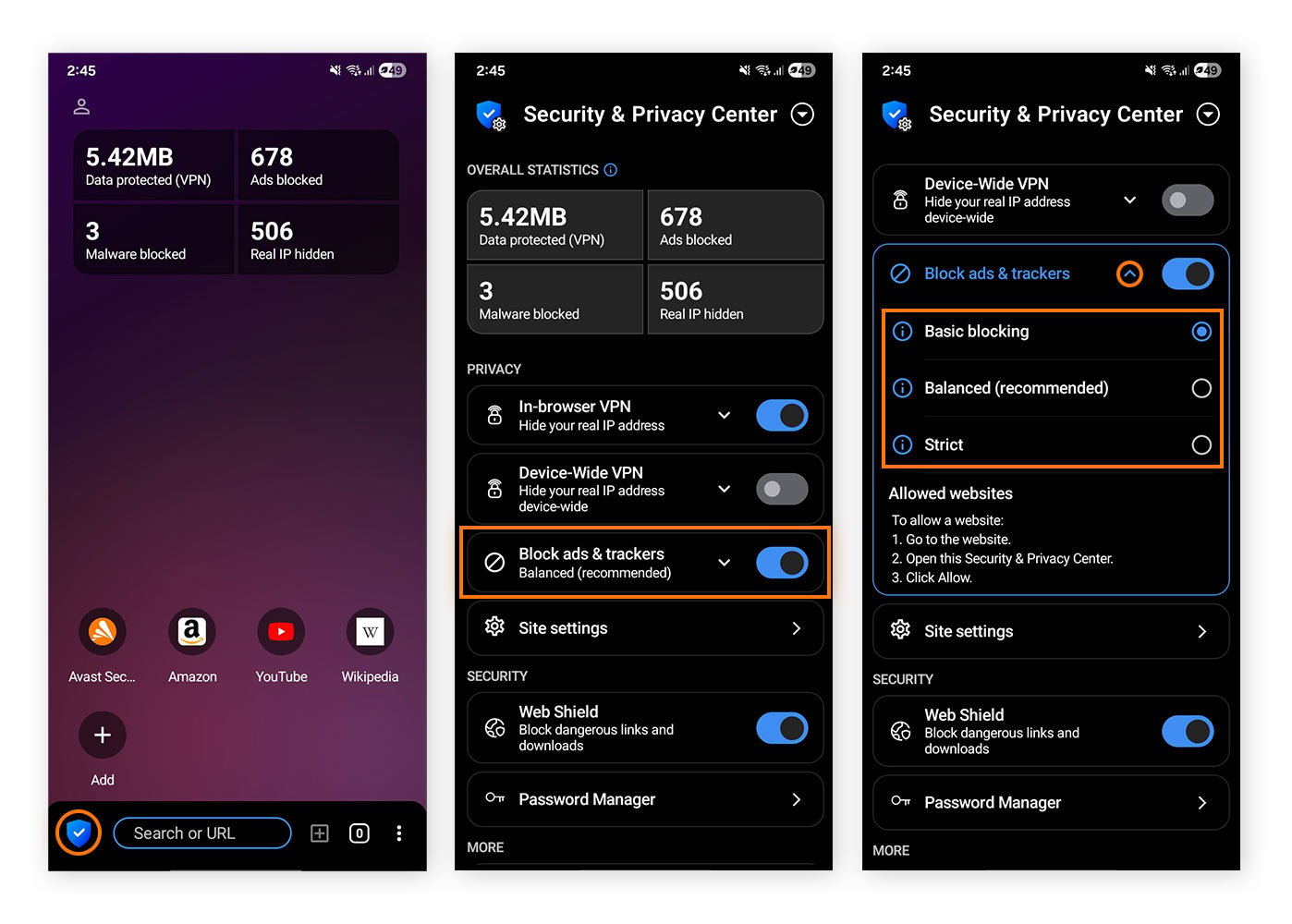 Avast Secure Browser home screen and Security & Privacy Center hub.
2. Change advanced app settings
Some apps may send you ads through push notifications, which pop up at the top of your screen. To stop them, you’ll need to change your app settings. Here’s how to do it:
-
Go to Settings > Apps > See all apps.
-
Tap the app you want to block pop-ups for > Notifications.
-
Toggle off the option to allow notifications.
You can also drag down the notification shade from the top of your screen and long-press the notification. Usually, you can silence it directly from here.
Some apps also display ads over other apps by using a special system permission. To stop this on a non-Samsung Android device, go to Settings > Apps > Special App access > Display over other apps > Toggle off. If the pop-ups stop after that, consider uninstalling it to make sure it doesn’t request permission again.
How to stop pop-up ads on Samsung phones
On Samsung devices, the path may be slightly different, but the steps are essentially the same.
- For notification ads: Go to Settings > Notifications > App notifications > Toggle off notifications for the app.
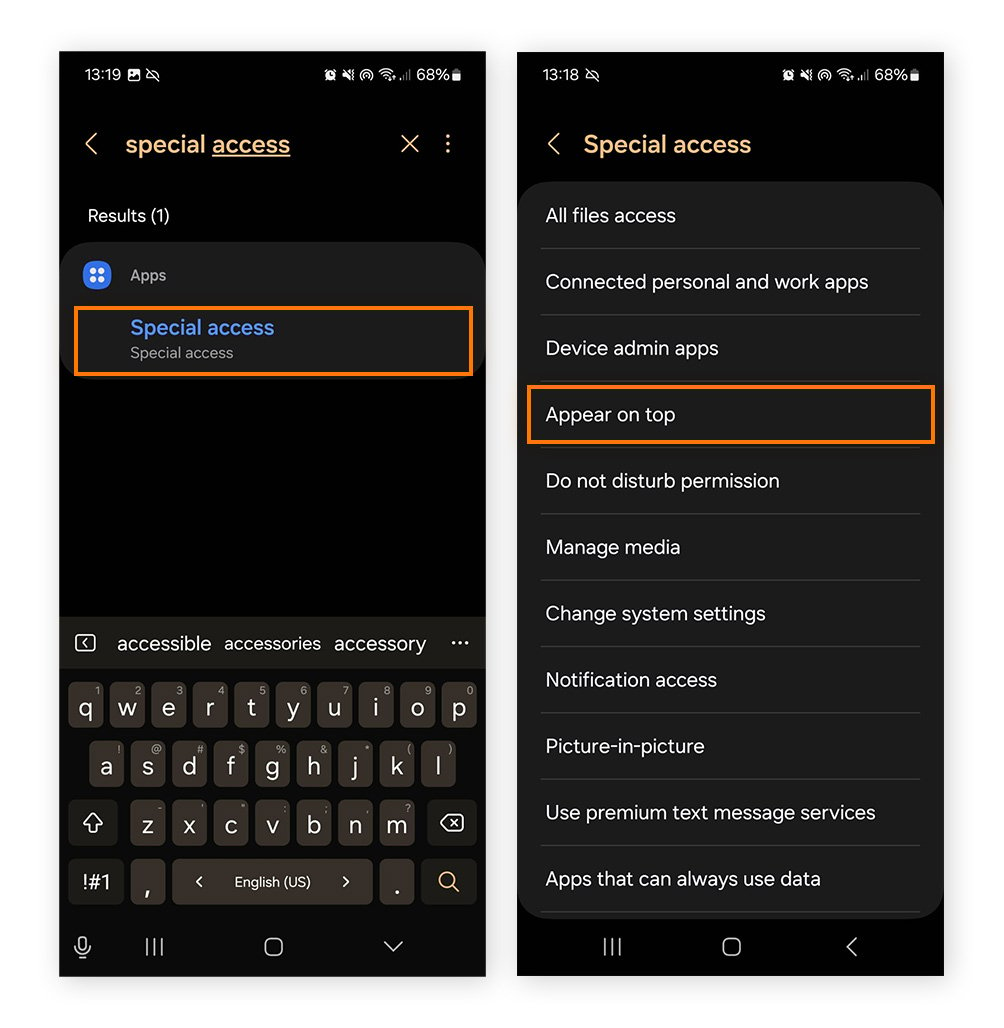
If ads float over other apps or your home screen, the app may have the “Appear on top” permission enabled. Here’s how to fix it:
-
Go to Settings > Search for and tap Special access > Choose Appear on top.
-
Scroll through your installed apps and Toggle off any that could be serving you intrusive pop-up ads.
3. Clear your browsing data
When you browse the internet, your browser stores cached data to help pages load faster. Over time, this data can become outdated or corrupted, which may cause websites to behave unexpectedly. Clearing your browser’s cache won’t stop pop-ups directly, but it can help fix issues like repeated redirects or unwanted page behavior.
Here’s how to clear your browsing cache:
-
Open Settings > Apps > Select your browser from the list of installed apps > tap Force stop > OK > Storage > Clear cache.
Clearing your browser cookies may have an adverse effect by forcing you to accept cookies again on every site you visit.
4. Identify and uninstall suspicious apps
Intrusive pop-up ads on Android phones may be caused by third-party apps, which can sometimes cause ads to appear even when the app isn’t open. If you’ve already changed your settings and the ads are still popping up on your phone, a specific app may be to blame.
Here are the most effective ways to find out which app could be causing pop-up ads:
-
Review recently installed apps: Go to Settings > Apps > Sort by Last installed (or Last updated), if available. If the pop-ups recently started, one of these is likely the culprit.
-
Review app permissions: Go to Apps > Select the app you want to review > Tap Permissions. Look for apps with unnecessary access (such as Phone, Contacts, or SMS).
-
Check your list of downloaded apps in the Play Store: Open the Play Store > Tap your profile picture (top-right) > Select Manage apps & device > Switch to the Manage tab.
-
Use Google Play Protect: Google Play Protect scans your phone for harmful apps. Open the Play Store > Tap your profile icon > Play Protect > Tap Scan.
-
Run a malware scan: Scan your device for malicious apps using a trusted antivirus solution. Malware infections can trigger malicious app downloads that serve unwanted ads to your Android phone.
Possible signs of malicious apps include missing icons or names, fake copies of popular apps, and apps you don’t remember installing.
Once you’ve identified the suspicious app, follow these steps to uninstall it:
-
From the home screen: Find the app and long-press the icon > Choose Uninstall or drag the icon to the Uninstall option at the top of the screen.
-
Through Settings: Open Settings > Apps > Select the app > Tap Uninstall.
Using Safe Mode
You can also use Safe Mode on Android to identify whether an app is causing your pop-up problem. In this mode, your device won’t run any third-party applications, only the core system apps.
The steps for entering Safe Mode are very similar on most Android devices, though they may change slightly depending on your phone model and Android version.
-
Press and hold the Power button until the menu appears (on some phones, you may need to press and hold Power + Volume Down or Power + Volume Up instead).
-
Tap and hold Power off (or Restart).
-
When the Reboot to Safe Mode message appears, tap Safe Mode or OK.
While in Safe Mode, use your phone as usual and see if pop-up ads appear. If they don’t, a third-party app is likely causing them.
To fix the issue, restart your phone to exit Safe Mode and remove any apps that were installed or updated when the problem started (either from the home screen or via Settings > Apps).
5. Use Private DNS to block ads
Android’s Private DNS feature can help reduce ads at the network level by blocking some ad and tracking domains, which may cut down interruptions across apps and browsers. Instead of targeting ads one app at a time, Private DNS filtering can prevent your device from connecting to certain known ad domains.
It adds a broader layer of protection than typical in-app blockers, but it’s not foolproof, and ads built into apps or served directly by a website won’t be stopped.
To use it, go to Settings > Network & internet (or Connections) > Private DNS > Private DNS provider hostname > Enter the hostname of a reputable DNS provider that supports ad blocking > Tap Save.
Stick to well-known, trusted services, like NextDNS or AdGuard DNS — DNS turns website names into the internet addresses your device connects to, so choosing a reliable provider is essential for both privacy and stability.
Evaluate DNS providers based on transparency, reputation, and encryption support.
6. Install a third-party pop-up blocker
Another method for preventing unwanted ads is to install a third-party ad blocker.
Most blocker apps and extensions work within web browsers, where they can reduce pop-ups, limit intrusive ads, and even decrease load times and data usage. For ads and pop-ups that come from other apps, you may need a system-wide option (like DNS-based blocking), and even then, some ad-serving apps can still slip through.
Always choose a trusted option that has plenty of good reviews and a solid rating. Be careful of apps that claim to be ad blockers but are actually spyware. Once you’ve selected an app, install it from Google Play. You may need to enable it in your browser or configure permissions for it to work properly.
Some browsers, like Avast Secure Browser, come with a free ad blocker feature built in, helping stop intrusive pop-ups, banners, and tracking scripts before they load, offering a smoother, more private browsing experience without needing extra extensions or setup.
Turn off Google ad personalization and app-suggested ads
Turning off Google’s ad personalization features won’t stop ads entirely, but it can reduce hyper-targeted promotions that sometimes appear as pop-ups or overlays.
Because Google uses your browsing behavior to tailor ads to you, limiting how much data Google can use shrinks the pool of personalized content that can follow you across apps and browsers.
To disable Google ad personalization on your device:
-
Go to Settings > Google > Ads (or Ads privacy) > Toggle off Ad topics, App-suggested ads, and Ad measurement.
You can also manage personalization at the Google account level. Turning this off helps reduce the more persistent, behavior-driven ads that can feel intrusive on all devices where you’re logged into that account.
-
Go to Settings > Google > Choose the account you want to manage > Tap Google Account> Data & privacy > My Ad Center > Toggle off Personalized ads.
Why do ads keep popping up on my phone?
Ads popping up on your Android phone are often caused by recently installed free apps. These ads aren’t necessarily harmful: some app developers simply make their money from advertisers paying to target their users with pop-ups.
However, some apps include ad software that can cause incessant pop-ups. In the worst cases, they may bundle malware or bombard you with disruptive and sometimes dangerous pop-up scareware.
Here are other reasons ads might keep popping up on your phone:
-
Your pop-up blocker is turned off: Your browser’s built-in pop-up blocker might be turned off.
-
You’ve allowed browser notifications: A website may have permission to send notifications, which can show up as ad-like push alerts.
-
An app has permission to display over other apps: With this setting enabled, an app can show ads on your screen even when you’re not actively using it.
-
A recently updated app introduced more ads: Sometimes, an app update may introduce more aggressive advertising than previous versions.
How to avoid pop-up ads
To avoid pop-up ads on your Android, you can enable built-in browser blockers, use a reputable ad blocker, or a secure browser with built-in protections. Also, be sure to stick to trusted app sources like Google Play and review app permissions to reduce unnecessary notifications.
Here are a few effective ways to reduce the risk of pop-up ads on an Android:
-
Install an ad-blocker: Get a top-rated ad blocker app to stop pop-up ads and prevent other annoyances that come up while browsing.
-
Use a private browser: Install a browser with built-in security features, such as Avast Secure Browser for Android.
-
Visit safe websites: Only visit trusted URLs that have a valid SSL certificate.
-
Install an antivirus: Use a quality free antivirus to keep adware from spamming your Android.
-
Research apps before installing: Thoroughly research any apps before you get them — check out the reviews, read the terms and conditions, and research the developer.
-
Use Google Play Store: Install apps only from Google Play and keep Google Play Protect enabled to reduce the risk of downloading harmful software.
-
Update permissions: Review your app settings and confirm you only allow permissions that are required for it to work.
-
Upgrade apps: Consider paying for premium, ad-free versions of apps you trust and use regularly.
-
Don’t root your device: Even for advanced users, it’s best to avoid rooting your Android (the Android equivalent of jailbreaking). When you root your device, you remove some built-in protections and make it easier for harmful apps to access sensitive data and trigger pop-up ads.
Common pop-up ads on Android
While pop-ups come in all shapes and sizes, there are a few that show up repeatedly for Android users. Many of these claim to be from legitimate websites but are actually scams or adware in disguise.
What the experts say
“Cybersecurity threats continued to evolve across mobile and desktop platforms, with mobile scams and adware dominating the landscape. Mobile users were particularly targeted by Scam-Yourself Attacks and HiddenAds adware disguised as fake apps, often distributed through official stores.”
The fake winner pop-up is most likely a scam attempt designed to extract personal information or trick users into installing malware.
Claim your prize pop-ups
The “claim your prize” pop-up is a variation on the “congratulations, you won!” pop-up. It can appear while browsing, and usually requires you to enter personal information or tap an unknown link to claim your supposed prize. It may use details inferred from your IP address, such as your location, to appear legitimate.
These pop-ups are often online scams that rely on social engineering tactics. In some cases, they may be associated with phishing attempts or lead to browser hijacking behavior.
Virus warning pop-ups
Fake virus alert pop-ups are a form of scareware designed to trick you into downloading malware or revealing personal information online or over the phone. These alerts commonly use phrases like “Google security warning” to appear legitimate.
Android and Chrome both issue occasional security warnings, but these legitimate warnings will not:
-
Be labeled “Google security warning.”
-
Require customers to call an unknown number.
-
Ask for personal information or money.
-
Urge users to act fast or sacrifice security.
Survey pop-up ads
These survey pop-ups are usually driven by adware. The pop-up redirects you to a fake survey that promises a reward but is designed to harvest your personal information. It may even install additional malware on your device, like ransomware, and demand payment to remove it.
Use Avast Secure Browser for ad-free browsing
Ad-blocking apps and plug-ins can help reduce pop-ups, but managing multiple tools and settings can be a hassle. For better peace of mind, use a free private browser that blocks pop-up ads on Android by default and includes extra security and privacy features.
Avast Secure Browser offers a full suite of features to keep you safer online — including anti-tracking tools, a threat scanner, and an ad blocker. Install Avast Secure Browser today to enjoy a more secure, ad-free browsing experience.
What customers say

More Privacy Articles

Six New Ways Avast Secure Browser Helps Keep You Safe, Private, and in Control

How to Remove Yahoo Search from Chrome

How to Delete Search History on iPhone and iPad

What Is DuckDuckGo and Is It Safe?

How to Stop Pop-Up Ads on Android Phones

What Is the about:blank Page? How to Use or Remove It

The Fastest Browsers to Use in 2026

How to Block Websites on Google Chrome
How to Make Chrome Your Default Browser

How to Fix “Your Connection Is Not Private” on Any Browser

How to Update Chrome on PC, Mac, Android, or iPhone

How to Download Chrome on Your Mac
Browser
Privacy
Jeremy Coppock
20-10-2023