- Security
- Privacy
- Performance
BlueStacks lets you run Android apps and games on your PC or Mac, making it a popular tool for mobile gaming and app testing. But some antivirus programs flag it as suspicious, and some users report performance slowdowns. So is BlueStacks actually safe? Here’s what to know, and how antivirus protection can help you avoid dangerous downloads.






This Article Contains
This Article Contains
What is BlueStacks?
BlueStacks is a tool that lets you run Android apps on a desktop computer. Normally, a device runs only one operating system (OS) at a time, but BlueStacks provides a workaround by virtualizing Android OS — essentially creating a simulated Android environment on your computer — so Android apps can run on Windows or macOS.
The main advantage of BlueStacks is that it allows you to play on a larger screen with a keyboard and mouse, giving you a smoother, expanded mobile app gaming experience that removes the limitations of a small screen and touch controls. BlueStacks also lets you take advantage of your computer’s beefier processing power to deliver smoother performance and higher graphics settings than most phones.
Recent versions of BlueStacks also expand platform support even further. BlueStacks Air, designed for newer Macs with Apple M-series processors, takes advantage of Apple’s hardware and Retina displays. Both the Windows and Mac versions support the Vulkan graphics API, which can improve visuals, reduce latency, and increase frame rates in demanding games such as Fortnite, Genshin Impact, or Pokémon TCG.
Is BlueStacks safe to use?
BlueStacks is generally safe to use on Windows and macOS when downloaded from the official website. However, the safety of apps running inside the emulator depends on their source. Apps from unofficial sites may contain malware or poorly optimized code that can harm performance or behave unpredictably.
However, BlueStacks can sometimes trigger false positives in antivirus software using heuristic detection, which may flag it as suspicious even though it’s legitimate software. That’s because it installs drivers, interacts with hardware, and regularly communicates with the internet, which resembles patterns associated with malware or viruses.
Real risks can arise when BlueStacks is downloaded from third-party sites. Some unofficial installers bundle additional software or malware, which can lead to legitimate security alerts. To reduce risk, download the emulator only from the official BlueStacks site and install apps through trusted sources like the Google Play Store.

In terms of data security, BlueStacks itself doesn’t sell personally identifiable information, but it may collect anonymized usage data, device details, and general location information for advertising and recommendations. The platform also promotes games within its ecosystem, which helps support the free version of the software.
It’s also worth noting that BlueStacks runs a virtual Android system on top of your operating system, it can use significant CPU and RAM. On lower-powered computers, this may slow performance or increase heat. Built-in options like Eco Mode can help reduce resource usage and keep your system running more efficiently.
Sideloading apps and APK risks
The BlueStacks emulator itself isn’t a threat to your system, but the APKs (Android Package Kits) you install on it can be. APKs are the file format used to distribute Android apps. Some third-party APK websites — often called APK mirrors — offer files that can be sideloaded into BlueStacks, meaning they’re installed outside official app stores. These files may contain trojans, spyware, adware, or other malware.
Official app stores typically perform extensive security checks before publishing apps. For example, Google screens apps for malicious code and removes harmful ones when detected. Apps from official sources also receive automatic updates, which help fix bugs and patch security vulnerabilities. Unofficial APKs don’t always receive those updates, leaving potential security gaps.
Modified or pirated apps carry even greater risks. “Cracked” apps bypass licensing restrictions, while modded apps alter the original software. Both can contain hidden malware, and unofficial mobile games are particularly vulnerable to threats such as cryptojacking, where malware secretly uses your device to mine cryptocurrency.
So before you sideload apps, check whether sites like APKPure are safe and keep a malware removal tool handy in case something goes wrong.
Is BlueStacks legal and legitimate?
BlueStacks is legal and widely considered a legitimate emulator. Emulation itself is legal under precedents such as the 2000 U.S. court case Sony Computer Entertainment, Inc. v. Connectix Corp. The ruling established that emulators are lawful when developed using a “clean room” approach— meaning they are built from scratch without copying proprietary code. BlueStacks follows this model and emulates Android, which is largely open-source, further supporting its legal standing.
The company is also backed by major technology partners such as Samsung, AMD, and Intel, and it complies with regulations like the Digital Millennium Copyright Act (DMCA) as well as privacy frameworks including the General Data Protection Act (GDPR) and the California Consumer Privacy Act (CCPA). BlueStacks does not violate Google Play policies and is sometimes even recommended by developers as a way to play mobile games on desktop.
However, there are important caveats:
-
Some mobile games prohibit emulators in their Terms of Service. Using BlueStacks for those games could lead to account restrictions or bans.
-
Pirated or cracked apps remain illegal, regardless of the platform used to run them, because they violate copyright law.
In short, the BlueStacks emulator itself is legal, but how you use it — and which apps you run — can determine whether you stay within legal and platform rules.
How does BlueStacks work?
To enable Android apps to behave as if they’re running on a real phone or tablet, BlueStacks emulates key parts of the Android operating system on your computer. It creates a virtual Android environment that apps recognize as a compatible device, where mouse clicks are translated into simulated touchscreen taps and scroll-wheel movements are converted into gestures like swipe or pinch-to-zoom.
Behind the scenes, BlueStacks also maps your computer’s keyboard, mouse, and graphics hardware to Android inputs. This allows games and apps designed for touchscreens to run smoothly on a desktop. The emulator uses your computer’s CPU, RAM, and GPU to process app activity, which is why performance depends partly on your system’s specifications.
Apps running through BlueStacks operate inside a sandboxed environment, meaning they’re isolated from the rest of your system. While the emulator itself can access your computer’s resources, the apps inside it cannot directly interact with your operating system or other installed software. This layer of separation helps maintain compatibility with Android apps while reducing the risk that those apps could interfere with files or processes on your computer.
Key features and benefits of BlueStacks
BlueStacks is useful for anyone seeking a desktop experience for Android apps. It’s particularly popular with gamers seeking better performance and with creators who benefit from more precise controls when editing or managing content.
Here are the key features and benefits of BlueStacks:
-
Runs Android apps on desktop: BlueStacks lets you run mobile apps on Windows or macOS, making it possible to use Android-only apps on a computer.
-
Improved performance: By using your computer’s CPU, RAM, and GPU, BlueStacks can run many apps and games more smoothly than a mobile device. This often results in higher frame rates, improved graphics, and lower latency.
-
Larger display: Apps run on a full desktop screen, making games easier to play and productivity apps easier to manage. BlueStacks also adapts to your monitor’s resolution and aspect ratio.
-
Wide app compatibility: The emulator supports millions of Android apps, allowing users to run games, productivity tools, and social media platforms.
-
Multi-instance support: BlueStacks allows you to create multiple Android environments (instances). This lets you run several apps at once or test different configurations for compatibility.
-
Macros and automation: You can assign sequences of actions — such as clicks or keystrokes — to a single hotkey, helping automate repetitive tasks in games or apps.
-
Keyboard and mouse controls: BlueStacks converts mobile touch controls into keyboard and mouse inputs, which can be customized for better precision and comfort.
Many resource-intensive games perform well on BlueStacks, including titles like Genshin Impact, Call of Duty: Mobile, and management games such as Fallout Shelter, which benefit from a larger display and improved controls. For even smoother gameplay, you can also improve system performance by learning how to overclock your CPU, speed up your Mac, or use a PC optimizer tool.
Creative and social apps also benefit from the desktop environment. Editing tools like CapCut, KineMaster, and Snapseed become easier to use with precise mouse input, while platforms like TikTok and Twitch can be managed more comfortably on a larger screen. BlueStacks even partnered with Twitch to integrate live streaming features directly into the emulator.
How to uninstall BlueStacks safely
BlueStacks can use significant system resources and storage space. If it’s slowing down your computer or you no longer need it, it’s best to remove it completely.
Here’s how to uninstall BlueStacks 5 on Windows 11 safely:
-
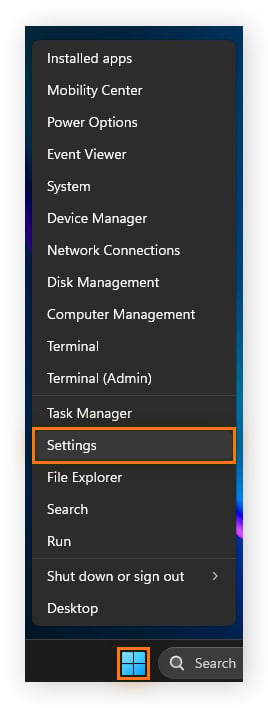
Click the Start button and select Settings, or press Windows + I.
-
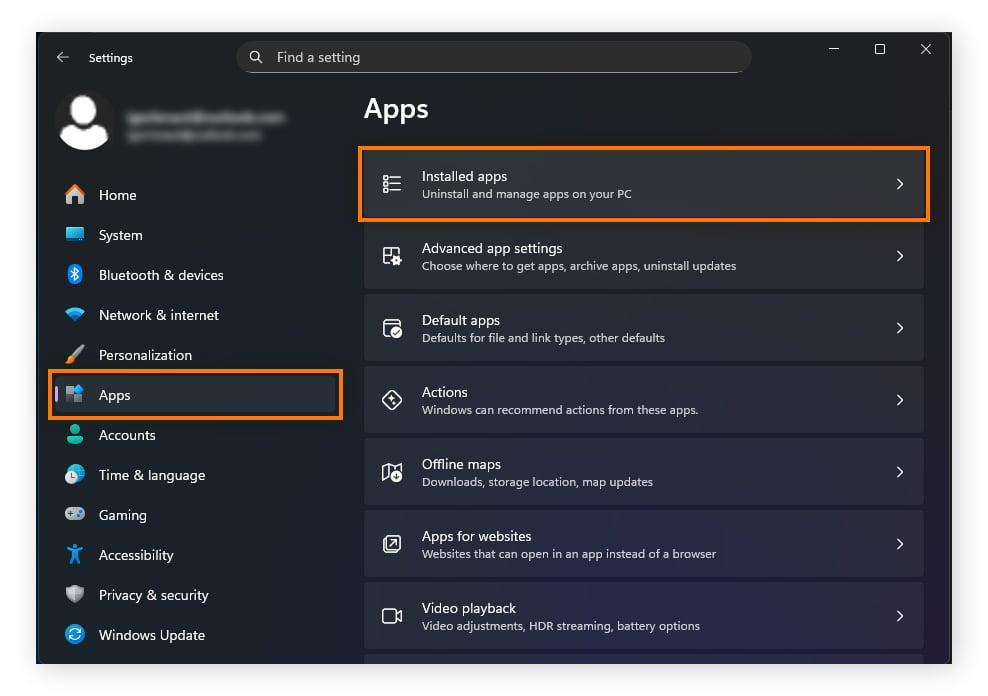
In the left sidebar, select Apps, then click Installed apps.
-
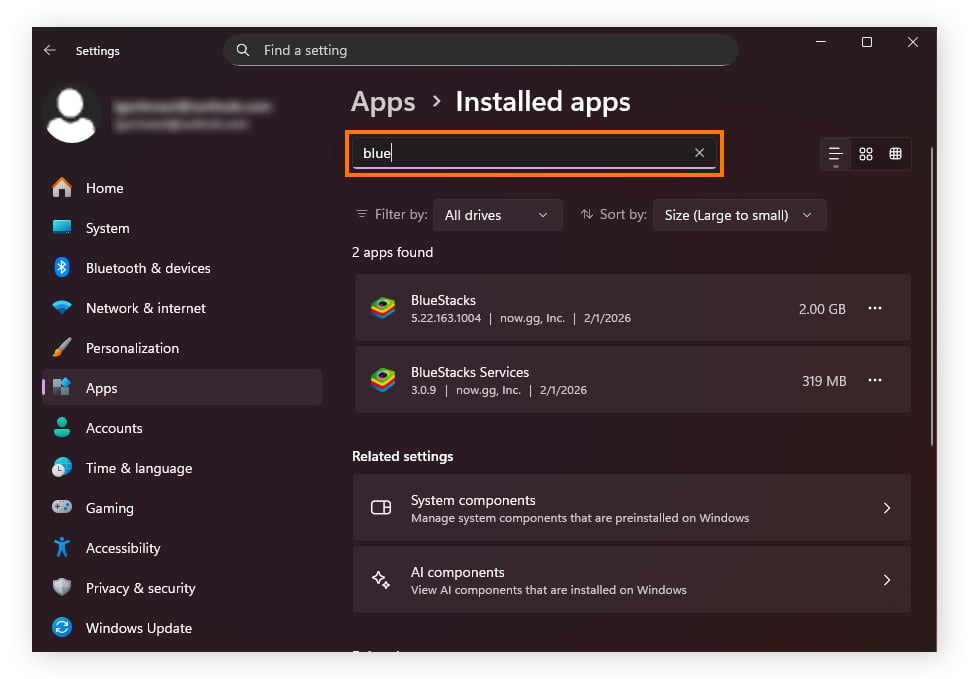
Scroll through the list or use the search bar to locate BlueStacks 5.
-
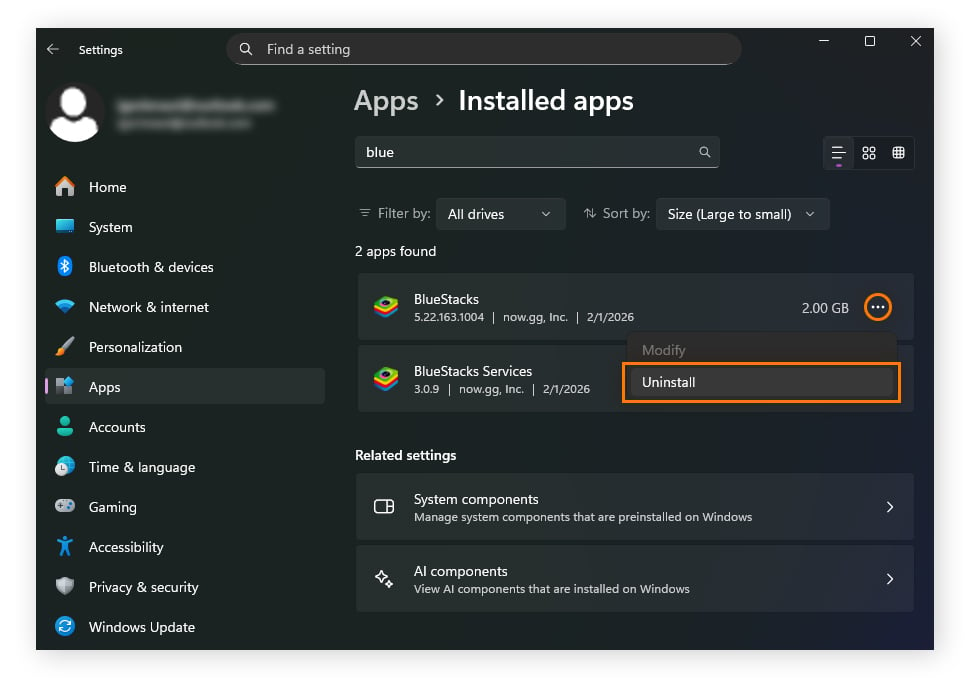
Click the three-dot menu next to BlueStacks and select Uninstall.
-
Follow the on-screen prompts in the BlueStacks uninstaller to remove the program and its associated files.
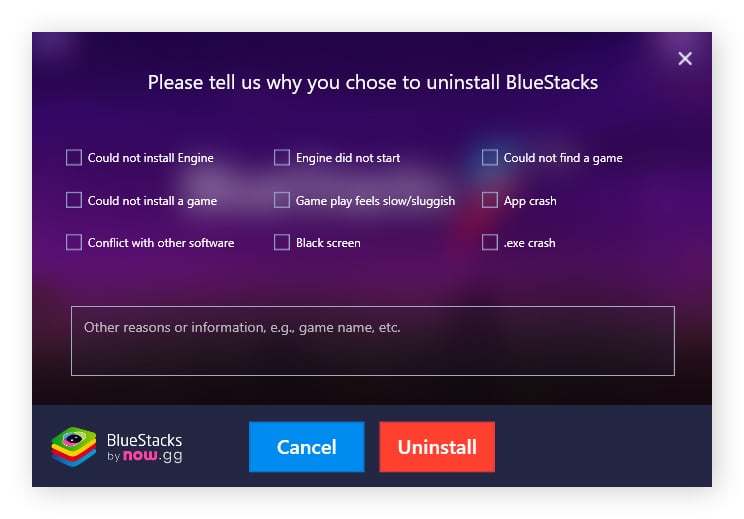
-
Then restart your PC to ensure that any remaining processes or temporary files are cleared from memory.
After uninstalling, you can also check your Downloads or Program Files folders for leftover files and remove them if necessary to free up additional space.
How to uninstall BlueStacks on macOS
Here’s how to safely uninstall BlueStacks from your MacBook or iMac:
-
Open Finder, then select Applications from the sidebar.
-
Scroll through the Applications folder or use the search bar to locate BlueStacks.
-
Drag the BlueStacks app to the Trash, or right-click the app and choose Move to Trash.
-
Right-click the Trash icon in the Dock and select Empty Trash to permanently remove the application.
-
Restart your Mac (optional but recommended) to clear any remaining background processes.
If you want to remove leftover files, open Finder, press Command + Shift + G, and check folders such as ~/Library/Application Support and ~/Library/Caches for BlueStacks-related files.
Tips to ensure safety when using BlueStacks
BlueStacks interacts closely with your system and the apps you install on it. Following a few basic security practices can help reduce risks and keep your data protected.
Here are some tips on how to use BlueStacks safely:
-
Download from official sources only: Install BlueStacks only from the official BlueStacks website, and download apps through the Google Play Store whenever possible to reduce the risk of malware.
-
Enable 2FA or MFA: Turn on two-factor authentication or multifactor authentication if logging into the app through Google. This adds an extra layer of protection if someone tries to access your account.
-
Limit app permissions: Some apps request permissions that aren’t necessary for their functionality, such as access to contacts or location data. Grant only the permissions required for the app to work properly.
-
Keep BlueStacks and your operating system updated: Regular updates often include security patches, bug fixes, and performance improvements. Keeping both BlueStacks and your operating system up to date helps reduce exposure to vulnerabilities.
-
Avoid sensitive or corporate accounts: Use BlueStacks primarily with personal accounts rather than work or highly sensitive accounts. This reduces the potential impact if a malicious app is installed.
-
Monitor system resources: BlueStacks can be resource-intensive depending on the apps you run. Monitor CPU temperature, RAM memory, and network usage to ensure your system remains stable. On Windows, you can open Resource Monitor by searching for it in the taskbar.
-
Isolate BlueStacks on its own profile: Consider creating a separate Windows or macOS user profile for BlueStacks. This helps isolate the emulator and any apps you install, limiting access to files and data on your main account.
Protect your device with Avast Free Antivirus
BlueStacks is generally safe when downloaded from trusted sources, but extra protection helps reduce risk even further. Avast Free Antivirus provides real-time malware detection that helps block suspicious apps, downloads, and threats before they affect your system. Download award-winning protection for free today.
FAQs
Is BlueStacks a virus?
No, BlueStacks is not a virus. However, it can sometimes trigger false positives in antivirus software because it installs drivers, interacts with system hardware, and maintains active internet connections — behaviors that security tools sometimes associate with malware. To avoid real risks, download BlueStacks only from the official site (bluestacks.com) and avoid third-party installers that may bundle malicious software.
Is BlueStacks safe for Mac?
Yes, BlueStacks is safe for Mac. However, older versions of the software were designed for Intel-based Macs and may not perform well on newer Apple devices using M-series processors (M1, M2, M3, and later). For these systems, BlueStacks Air is the recommended version because it’s optimized for Apple’s newer chip architecture.
Does BlueStacks collect user data?
BlueStacks states that it does not collect personally identifiable information (PII). It may collect aggregated and anonymized data such as usage statistics, approximate location, and device information for advertising and service improvements. The platform may also display sponsored promotions or ads, which support the free version of the software.
Can BlueStacks slow down my PC?
Yes, BlueStacks can slow down your PC because, by running a virtual Android environment on top of your computer’s operating system, it can use significant CPU, RAM, and GPU resources, especially on lower-end machines.
To improve performance on less powerful systems:
-
Allocate 2–4 CPU cores and 2–4 GB of RAM in BlueStacks settings.
-
Enable High Performance mode.
-
Lower the emulator resolution (for example, 1280×720).
-
Use Eco Mode to reduce background activity.
Is BlueStacks legal to use?
Yes, BlueStacks is legal to use and is supported by major technology companies such as Intel, AMD, and Samsung. However, some apps prohibit emulators in their terms of service. Competitive games, such as Marvel Contest of Champions, and certain platforms may restrict or ban accounts detected using emulation to prevent cheating, bots, or location spoofing.
Does BlueStacks mine cryptocurrency?
No, BlueStacks does not mine cryptocurrency. If you notice high CPU usage while running the emulator, it’s usually related to incompatible drivers, poorly optimized apps, or virtualization settings being disabled in the BIOS, rather than hidden crypto-mining activity.
What customers say

More Security Articles

Is ChatGPT Safe?

Is BlueStacks safe?

What Is Riskware and How to Avoid It

Is Roblox Safe for Kids?

Juice Jacking: What It Is and How to Protect Your Devices

What Is Hugging Face?

What Can Scammers Do With Your Number and How Can You Help Protect It?
What Is CAPTCHA and How Does It Work?

What Is DNS Poisoning and How to Protect Your Data

What Is a Swatting Incident and How Does Swatting Work?

How to Keep Kids Safe Online

Has My Twitter Account Been Hacked?
Other Threats
Security
Domenic Molinaro
25-03-2026