- Security
- Privacy
- Performance
Like any computer, your Mac can gradually slow down over time. Luckily, you’re not doomed to a slow machine forever. Learn what’s behind the lag and try these quick fixes to speed up your Mac manually. Then, install specialized cleaning software like Cleanup to boost your Mac’s performance and get it running lightning-fast again.




This Article Contains
This Article Contains
Key takeaways
Tips to make your Mac run faster:
-
Restart your Mac to implement updates and clear temporary files.
-
Free up disk space.
-
Stop unnecessary processes using Activity Monitor.
-
Close unused browser tabs and remove unnecessary browser extensions to free up memory.
-
Manage startup programs to reduce boot time.
-
Update macOS.
Whether it’s an old Mac, new Mac, iMac, or MacBook Air, there will come a time when apps stop responding, booting up takes ages, and videos begin to stutter. Keep reading to find out why your Mac is running slow and how to make it faster.
Why is my Mac so slow?
A slow Mac is often caused by low disk space, high RAM usage, or an outdated operating system. If your device is new, it might be slow because you’re running too many background apps or you could even have a malware infection.
Here are some common reasons why your Mac is running slow.
Too many background processes
Apps that continue running in the background or launch automatically at startup can consume valuable CPU and memory resources, slowing down your Mac and reducing overall performance.
macOS doesn't always warn you when background processes are using excessive resources, particularly if an app has frozen or crashed. Use Activity Monitor to identify resource-heavy processes and disable any apps or background tasks you don't need.
Startup disk running low on space
When your Mac's startup disk is nearly full, performance can suffer. That’s because macOS uses free storage as virtual memory, so running low on disk space can lead to slower performance, longer load times, and apps that freeze or crash.
To free up space, delete files you no longer need or move large files to an external drive or cloud storage.
Browser overload
Having too many browser tabs or extensions open can consume significant CPU and memory, making your Mac feel sluggish — especially if it has limited RAM.
Close tabs you aren't using, remove unnecessary extensions, and clear your browser cache regularly. If you use Chrome, you can identify resource-heavy tabs by opening Menu ⋮ > More Tools > Task Manager.
Outdated apps or macOS
Running an outdated version of macOS or older apps can reduce performance and cause compatibility issues. Newer software versions typically include performance improvements, bug fixes, and security updates.
Check regularly for macOS and app updates to help keep your Mac running smoothly and efficiently.
Malware infection
Despite some popular misconceptions, Macs can get viruses and other types of malware, which can consume system resources, cause unexpected slowdowns, and affect overall performance.
Run regular scans with reputable antivirus software for Mac to detect and remove any threats.
Slow internet connection
Sometimes the problem isn't your Mac — it's your internet connection. Slow Wi-Fi can make websites, cloud apps, and downloads feel sluggish even when your computer is running normally.
Use a tool like Speedtest to check your connection. If speeds are consistently lower than expected, try speeding up your internet connection by restarting your router, moving closer to it, or reducing network congestion. Clearing your browser cache and cookies may also improve web browsing performance.
How to speed up your Mac
The quickest ways to speed up your Mac are to free up storage, reduce memory (RAM) usage by closing unnecessary apps and browser tabs, and keep macOS up to date. There are several other effective optimizations we'll cover below.
Before you begin, consider running a Mac performance benchmark to establish a baseline. This can help identify bottlenecks and make it easier to see whether your changes improve performance.
The tips below apply to all modern Mac models. While the step-by-step instructions use a MacBook Air (13-inch, M4, 2025) as an example, the process is nearly identical on MacBook Pro, iMac, Mac mini, Mac Studio, and Mac Pro devices.
Restart your Mac
Restarting your Mac clears temporary files and allows macOS, apps, drivers, and system updates to finish installing properly. If you rarely restart your computer and rely on sleep mode instead, performance can gradually decline over time.
Even if you normally leave your Mac asleep overnight, it's worth restarting it every few days. Before trying more advanced performance fixes, start with a simple restart to give your Mac a fresh start.
Detect & stop demanding processes
If your Mac is slowing down or overheating, it may be due to programs using a high amount of CPU. Here’s how to detect and stop a demanding process to speed up your Mac:
-
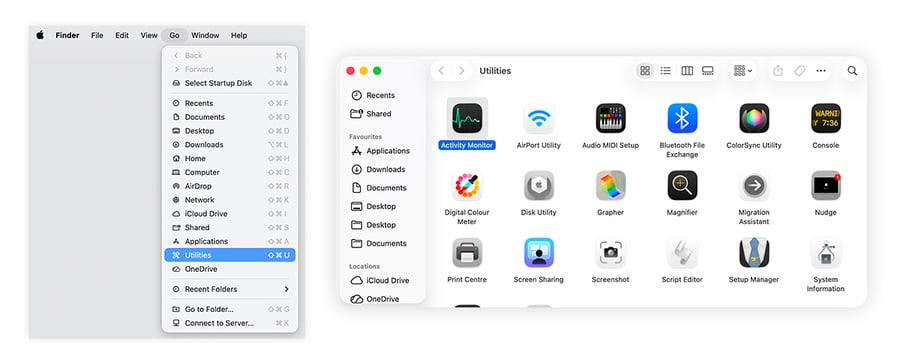
Click Go in your macOS menu bar > Utilities > Activity Monitor.
-
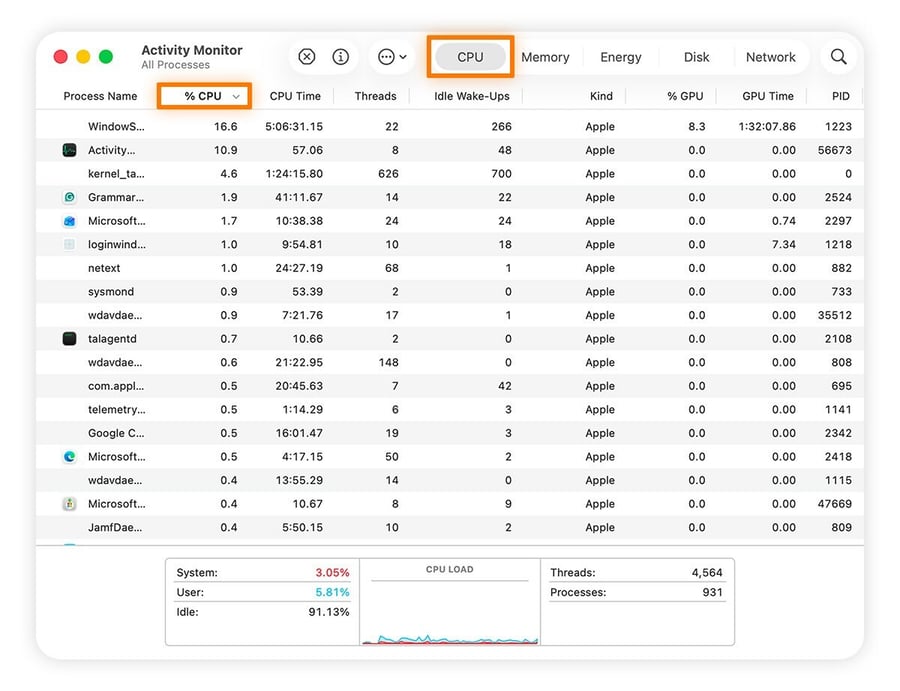
Click the CPU tab up top, and select % CPU to sort the active processes by how much computer power they’re using.
-
Ignore processes related to macOS, such as WindowServer, kernel_task, and sysmond, as these are essential system processes. Check for applications that you’ve installed yourself, marked with your username under the User column.
-
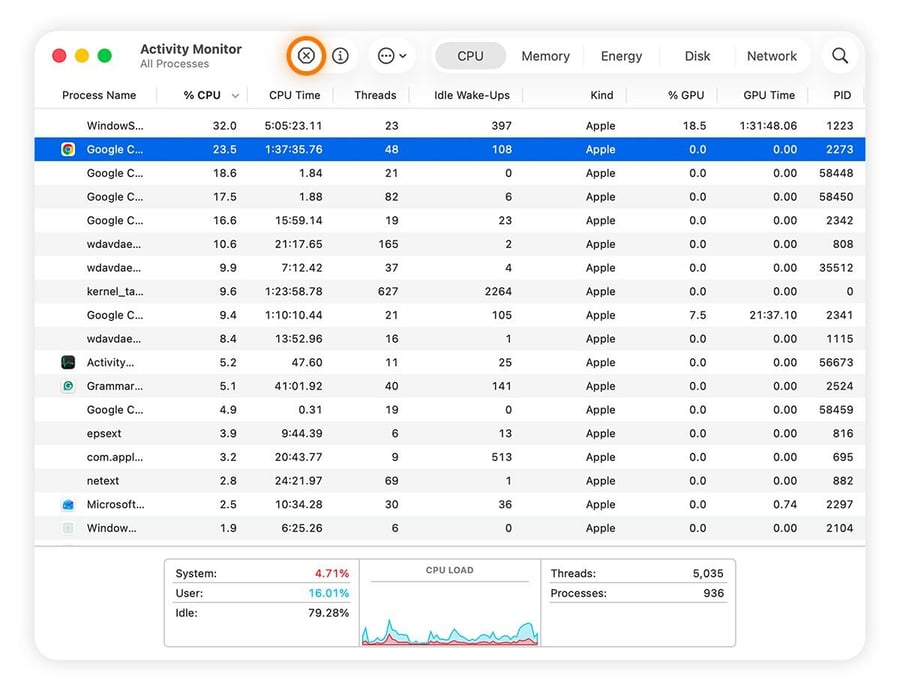
Find processes consuming from 5% to 10% of CPU, select the process you want to end, click the X button, and select Quit or Force Quit.
-
Switch to other tabs to find processes consuming Memory, Energy (battery life), your Disk, or even your Network.
-
Under Energy, sort by 12 hr Power to see a list of the top battery-draining apps from the last 12 hours.

Clean up system files and documents
File clutter can lead to unresponsive applications and reduced disk space, which can slow down your computer significantly. Macs overflowing with junk will likely experience painfully long boot times, sluggish processing, and slow page loads.
Cleaning up your Mac— such as clearing temporary trash data or junk files — can fix these issues and boost your computer. Fortunately, it’s easy to remove bloatware, files, and other digital clutter clogging up your Mac’s “Other storage”.
Using Cleanup
Digging through unwanted files manually can be time-consuming, especially on older machines. An easy and effective method to clean up your computer is using a dedicated Mac optimization tool that automatically wipes junk files, frees up storage space, and keeps your system streamlined for faster and smoother performance.
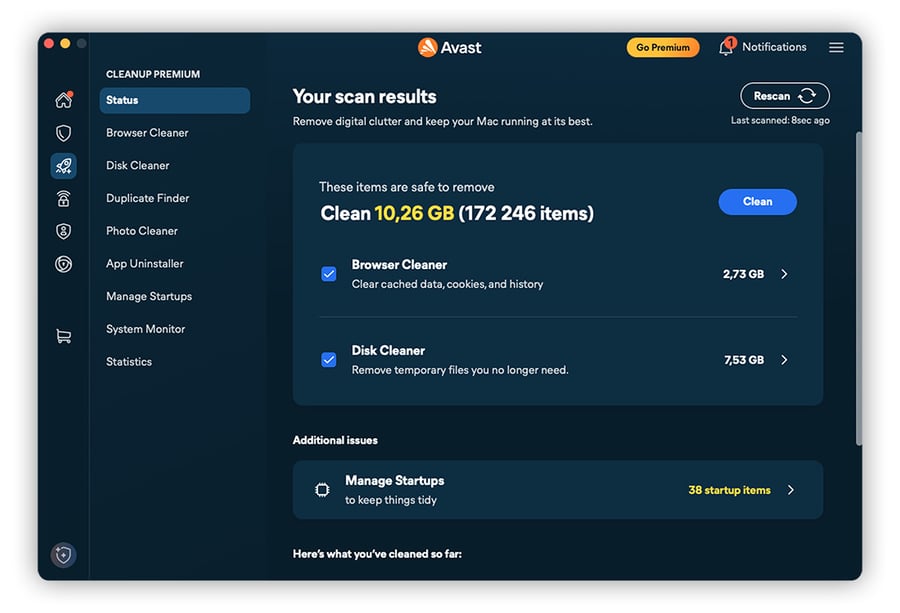
Cleanup for Mac will get the job done for you in no time. It will find old files you’re no longer using, clean duplicate documents you didn’t know you had, and even update your apps to keep your system clean and speed up your Mac.
Optimize your Mac’s storage
You can also use built-in macOS tools to optimize your storage and free up some space. Here are some of the most useful:
-
Store in iCloud: This function stores most files in iCloud, keeping only recent files and saving storage space.
-
Optimize storage: It automatically removes movies and TV shows you’ve already watched from your device.
-
Empty trash automatically: It erases items that have been in the trash for more than 30 days.
To enable these tools, click the Apple menu > System Settings > General > Storage, and select the options you prefer.
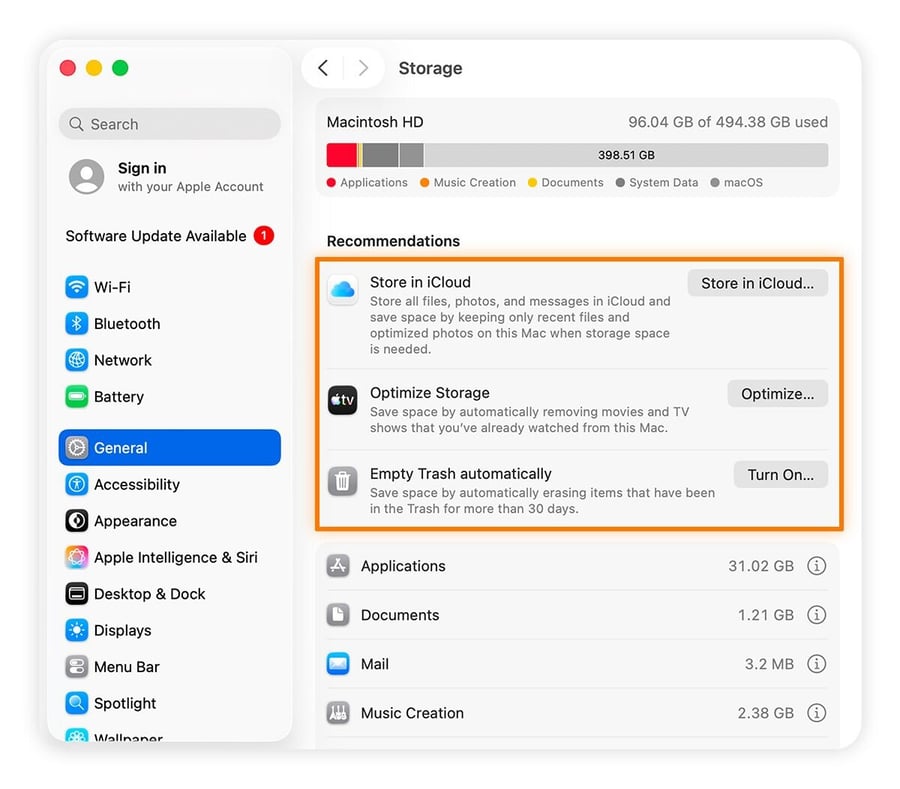
Keep in mind that syncing files and photos across devices with iCloud can affect performance, particularly if you store large files on your Desktop or in Documents. The more content iCloud needs to synchronize, the more background activity your Mac has to handle. If your Mac feels slow, consider moving large files out of these folders or storing them on an external drive.
Manage your browser tabs and extensions
Every open browser tab and extension uses your Mac's memory and processing power — even when you're not actively using it. Keeping dozens of idle tabs open or running unnecessary extensions can noticeably slow down your system.
Close tabs you no longer need, and bookmark pages you'd like to revisit later instead of leaving them open. Likewise, remove browser extensions you rarely use. For example, if you only occasionally use tools like the ChatGPT extension, a bookmark may be a better option than keeping the extension installed.
-
To remove Safari extensions on a Mac: Open Safari, select Settings from the Safari menu, click the Extensions tab, select the extension, and click Uninstall.
-
To remove Chrome extensions on a Mac: Click the jigsaw-shaped extensions icon (top-right corner) > Manage Extensions > Remove.
Uninstall unused apps
You can also improve your Mac's performance by uninstalling apps you no longer use. Removing unnecessary programs frees up storage space and eliminates background files and processes that can accumulate over time and slow your Mac down.
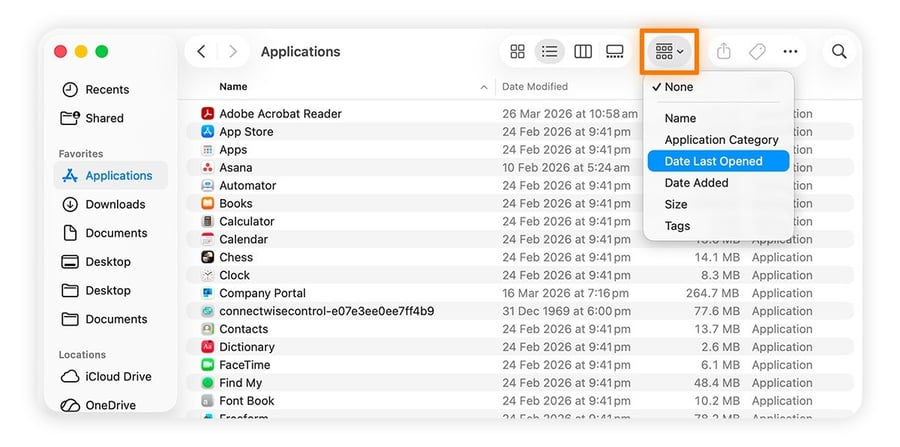
Here’s how to get rid of downloaded apps or macOS applications you no longer need:
-
Go to Finder > Applications and click the grid icon. Then select Date Last Opened to sort all your apps by the date you last used them.
-
Drag any apps you no longer use to the Trash, right-click the trash icon, then Empty Trash.
Clear cache on your Mac
Your Mac creates several types of cache — including system, app, and browser caches — to help frequently used data load faster. While useful, these files can accumulate over time, taking up storage space and, in some cases, affecting performance.
You can clear cache files manually, but deleting the wrong files may cause temporary issues. For a simpler approach, use a trusted optimization tool such as Cleanup for Mac, which can safely remove unnecessary cache and temporary files. Its built-in browser cleaner tool also helps clear cache and cookies across more than 25 browsers.
Organize and remove desktop clutter
Having an overcrowded, unorganized desktop doesn’t just slow you down when you’re trying to find the files you need; it slows your computer down too. That’s because each individual icon on your desktop takes up space in your Mac’s memory.
Rearrange your files into folders to reduce the number of icons your Mac needs to load and lower background RAM usage.
Manage startup programs
If your Mac feels slow immediately after startup, too many apps may be launching automatically in the background. Disabling unnecessary Mac startup programs can reduce boot time, free up system resources, and help your Mac run more smoothly.
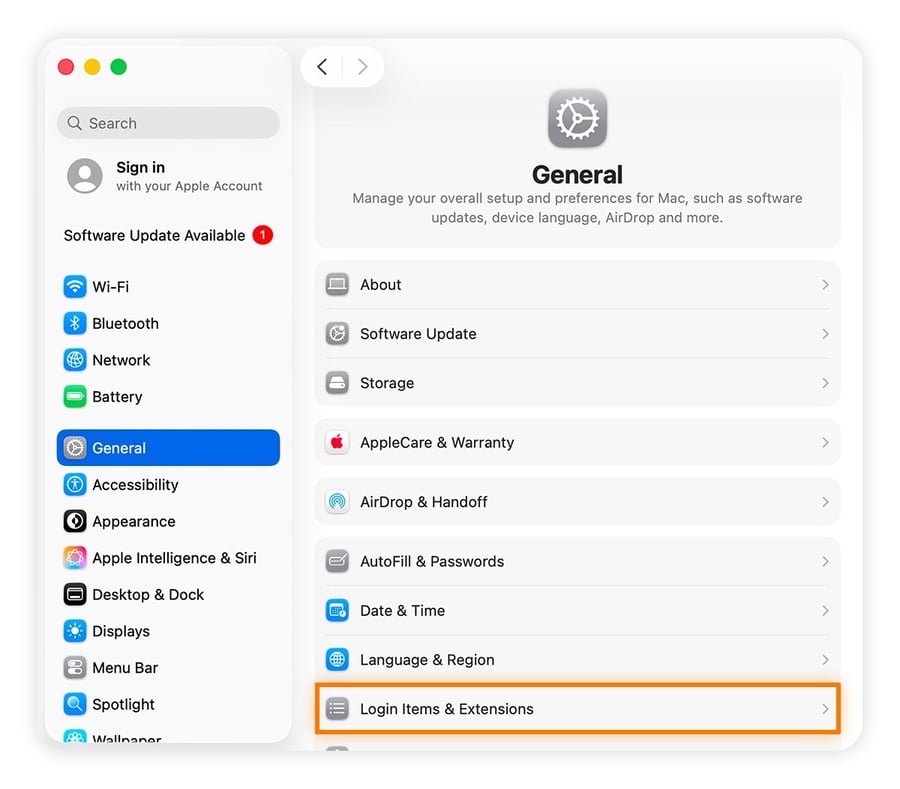
Here’s how to stop apps from starting up when you boot your Mac (for macOS Ventura, Sonoma, Sequoia, and later):
-
Go to the Apple menu > System Settings > General > Login Items & Extensions.
-
Select the startup app under Open at Login, and click the minus - button.
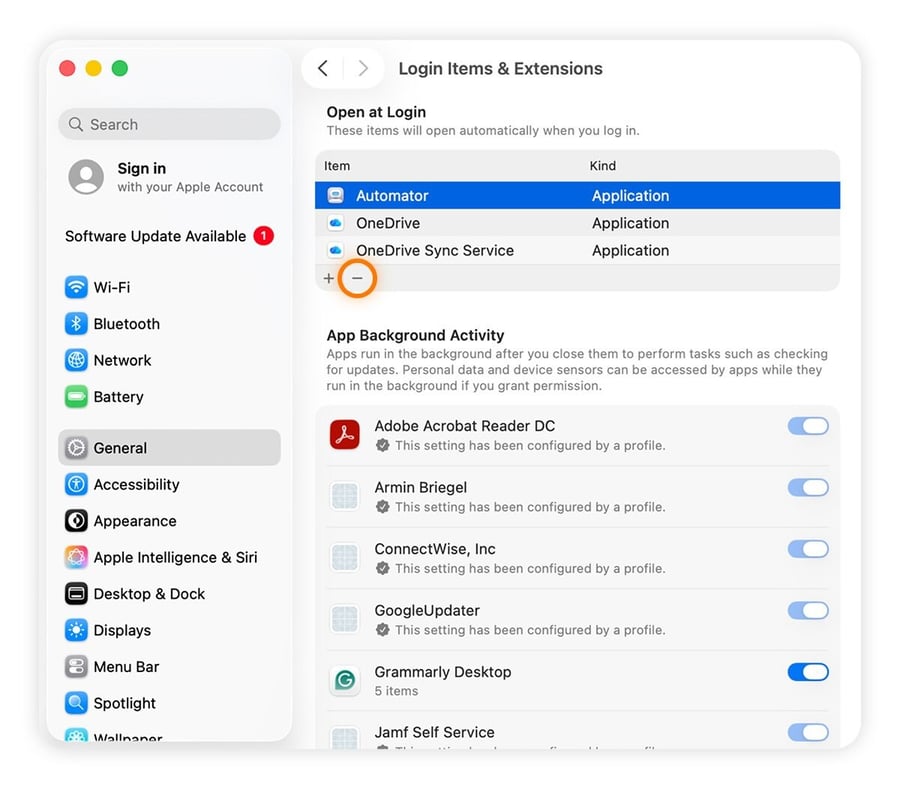
To manage Login Items on macOS Monterey or earlier: Open the Apple menu > System Preferences > Users & Groups. Then, click your username > Login Items, and remove apps by clicking the minus button.
Reduce visual effects
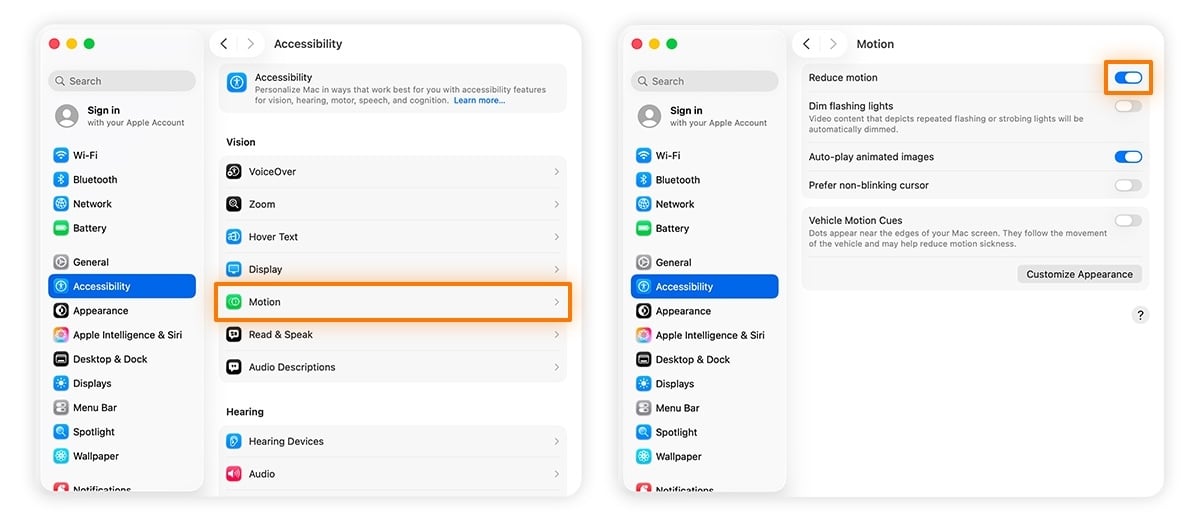
Built-in, high-quality visual effects on macOS can have a huge impact on Mac performance — especially on older MacBooks or iMacs. Here’s how to make your Mac run faster by turning off resource-hungry visual effects and animations.
To reduce visual effects and animations:
-
Click the Apple menu > System Settings > Accessibility > Motion > Reduce motion.
-
Go back to Accessibility > Display, and enable Reduce transparency.
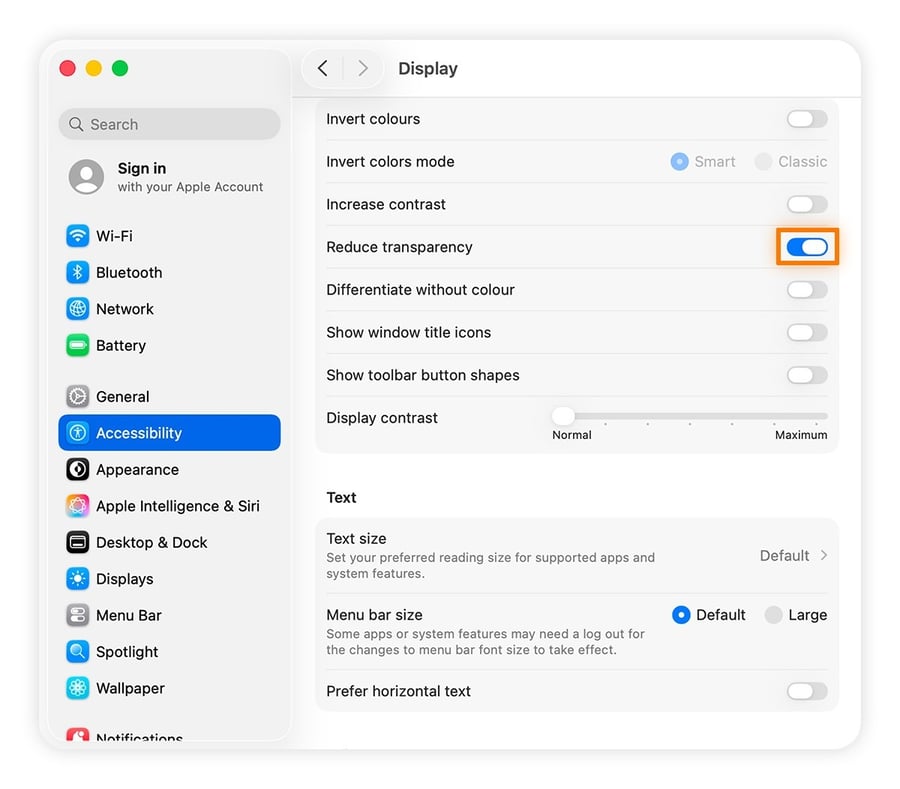
These settings can speed up older Macs by eliminating all those extra motion effects.
On older macOS versions (15 and earlier), you can reduce visual effects and animations in the same place: Open the Apple menu > System Settings (or System Preferences) > Accessibility > Display, and tick the Reduce motion and Reduce transparency checkboxes.
Check for malware
The Mac malware threat continues to grow, with a recent report confirming an acceleration in macOS malware in 2025, with 67% of Mac users encountering a cyberthreat that year. And, as well as compromising your privacy and security, malicious software can consume system resources and slow your Mac to a crawl.
Some threats, such as adware and browser hijackers, run quietly in the background, using CPU and memory without your knowledge. To check for and remove malware, use a reputable antivirus for Mac. Solutions like Avast One can detect and remove viruses, spyware, and other threats while helping protect your Mac against future infections.
Update macOS to the latest version
Keep macOS up to date and enable automatic updates whenever possible. Software updates often include performance optimizations, bug fixes, and security patches that can help your Mac run faster, more reliably, and more securely.
To update macOS:
-
Open the Apple menu > System Settings > Software Update, and click Update Now if an update is available.
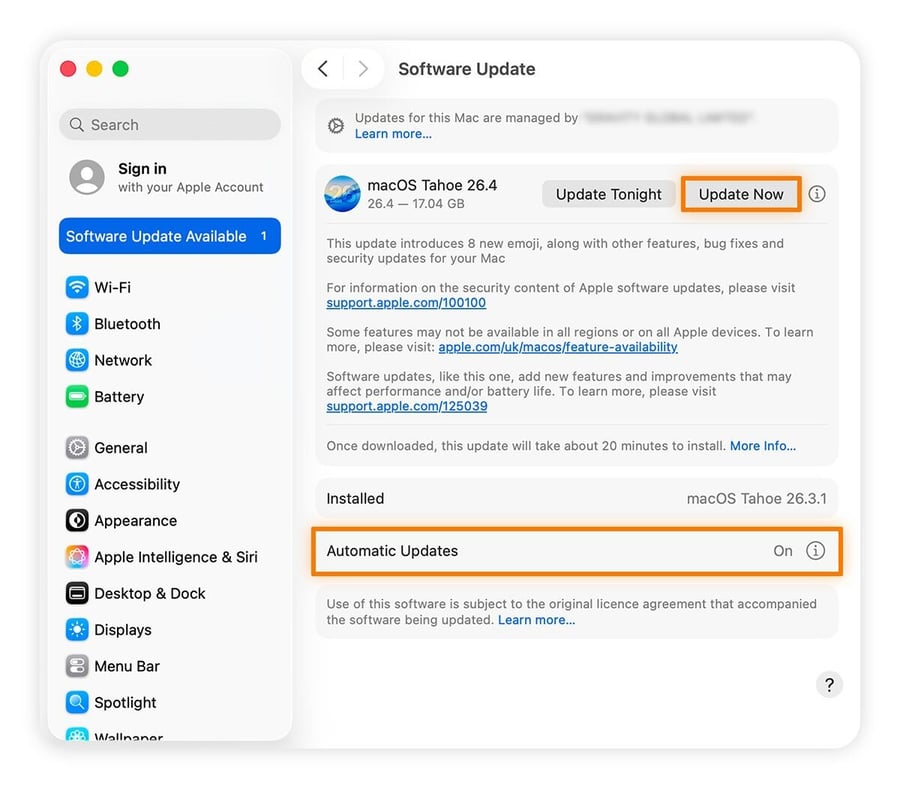
Installing updates may take a little time, but the performance and security improvements are often worth it. Be sure to enable Automatic Updates so your Mac stays up to date without requiring manual checks. If no updates are available, Software Update will indicate that your Mac is up to date. You can always check again later by clicking Check for Updates.
Upgrade your Mac’s RAM
If your Mac supports memory upgrades, adding more RAM can significantly improve multitasking and overall responsiveness. More RAM allows your Mac to keep more apps and data in memory instead of relying on slower virtual memory stored on disk.
To see whether memory is a bottleneck, check your RAM by opening Activity Monitor and selecting the Memory tab. If the Memory Pressure graph is consistently yellow or red, your Mac may benefit from additional RAM. Before upgrading, check whether your Mac model supports user-replaceable memory — many newer Macs have RAM soldered to the motherboard and cannot be upgraded.
Swap your HDD for an SSD
If your Mac still uses a traditional hard disk drive (HDD), upgrading to a solid-state drive (SSD) can dramatically improve performance. SSDs offer much faster read and write speeds than HDDs, resulting in quicker startup times, faster app launches, and a more responsive system overall.
This upgrade is typically possible on older Macs, including many pre-2017 iMacs and older MacBook Pro models. Newer Macs generally have integrated SSDs that aren't designed to be replaced, so check your specific model before planning an upgrade.
Reset PRAM/NVRAM and SMC
You can solve some performance problems on Intel-based Macs by resetting the SMC and the PRAM. This can help fix underlying issues that are causing sluggish behavior. It might even help stop your Mac from overheating and solve problems with audio or display settings.
If your Mac is running slowly and showing specific issues related to hardware-level functions or settings glitches, you can try resetting the SMC and PRAM to resolve it.
Reset the SMC
Every Mac motherboard has a System Management Controller (SMC) that controls low-level functions such as power management, battery charging, fan speed, and LED indicators.
The process of resetting your Mac’s SMC is different depending on your model and the type of processor it has. On silicon Macs, SMC functions reset automatically every time you restart your computer. The following steps apply to Intel-based Macs:
-
On MacBooks with a non-removable battery: Turn off your MacBook, make sure the power supply is plugged in, and hold down the Shift + Control + Option keys and the Power button at the same time for 10 seconds. Then release them and power on your Mac normally.
-
On MacBooks with a removable battery: Turn off your MacBook, unplug the power adapter, and remove the battery. Press and hold the Power button for 5 to 10 seconds, then release it. Reinsert the battery, reconnect the power adapter, and turn your MacBook back on.
-
On Mac minis, Mac Pros, and iMacs: Turn off your Mac completely, unplug the power cord, wait at least 20 seconds, and then plug it back in.
Reset the PRAM/NVRAM
The PRAM (Parameter RAM) and NVRAM (Non-Volatile RAM) are small memory areas that your Mac uses to store crucial settings like volume, display resolution, and start-disk selection. Older Mac models use PRAM, while newer Macs use NVRAM.
Resetting PRAM or NVRAM can help resolve issues related to sound, display resolution, startup disks, and other hardware settings.
-
On Apple silicon Macs: Simply shut down your Mac, wait about 30 seconds, then turn it back on. These settings are checked and reset automatically during startup if needed.
-
On Intel-based Macs: Shut down your Mac. Turn it on and immediately press and hold Option +Command +P +R. Keep holding the keys until the Apple logo appears and disappears twice, or you hear the second startup chime, then release the keys.
Check whether your hardware is failing
As your Mac ages, hardware components can wear out and begin affecting performance. Failing hardware may cause slowdowns, crashes, glitches, overheating, or other system instability.
If you suspect a hardware issue, check your drive's health, monitor CPU temperatures, and look for signs that other components aren't functioning properly. Even if your Mac seems to be running normally, regular hardware health checks can help identify potential problems before they become more serious.
Speed up your Mac with Avast
The fastest Macs are usually the cleanest Macs. When storage fills up, performance can start to suffer, but Cleanup for Mac helps you stay ahead of the slowdown by removing junk files, duplicates, and poor-quality or repeated photos. Get it today to free up space, improve efficiency, and keep your Mac running smoothly with automatic cleanup that works in the background.
What customers say

More Performance Articles
/Academy-How-to-speed-up-your-browser-Thumb.jpg)
Why Is My Browser So Slow? How to Speed Up Chrome, Firefox, and IE

Why Is Your Mac Running Slow and How to Speed It Up

Why Is My Data So Slow & How to Make It Faster

Why Is My Internet So Slow & How to Speed It Up

How to Speed Up Your PC

How to Clean Up Your Android Phone

Why Is My Android Phone Slow and How to Speed It Up

Why Your iPhone is Slow and How to Speed it Up
Speed
Performance
Sandro Villinger
20-06-2023