- Security
- Privacy
- Performance
Just like computers, Android phones can get infected with malware that compromises security and privacy. If you’ve noticed your phone acting strangely, follow this guide to check for and remove an Android virus, with or without the help of an all-in-one security app that can also keep your phone cleaner and protect your data.







This Article Contains
This Article Contains
Remove an Android virus: Step-by-step guide
The most reliable method for removing a virus from an Android phone is to run a virus scan using a reputable security app. This should automatically detect and remove most viruses and other types of malware, providing a quick solution to restore your privacy and security.
However, there are alternative, more hands-on approaches you can try first if you don’t have a security app installed, including removing suspicious apps, using Android’s built-in Play Protect scan, and clearing your browser cache.
Here’s a step-by-step guide to follow if you suspect your Android phone has a virus:
1. Restart your phone in safe mode
Rebooting your phone in Safe Mode disables third-party apps, preventing most malware from running. This makes it easier to identify and remove suspicious apps, as malicious software is less likely to interfere with troubleshooting while Safe Mode is active.
Exactly how to reboot into safe mode depends on what device and Android version you’re running, but there are the steps to follow on most phones:
-
Press and hold the power button to open the Power menu.
-
Long-press the Power off option until the Reboot to Safe Mode message displays.
-
Tap Safe Mode or OK to turn on Safe Mode.
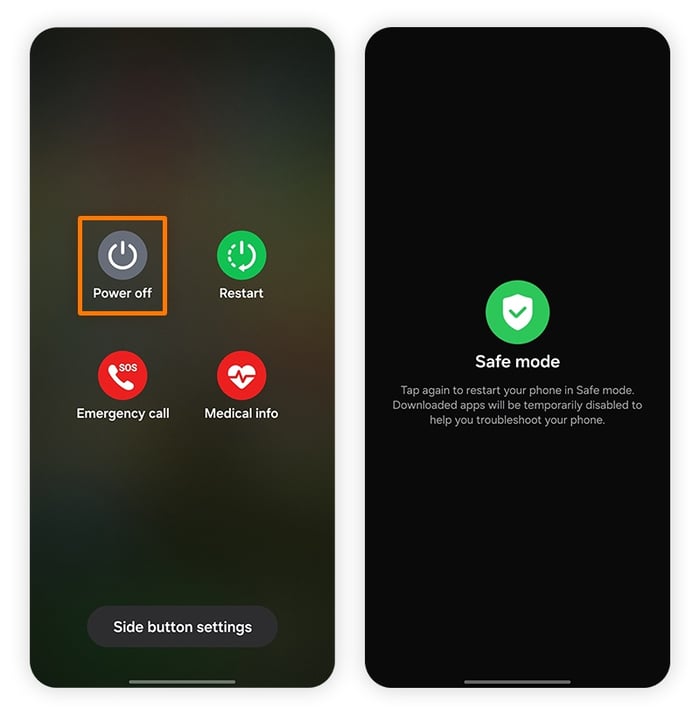
You’ll know if the reboot was successful by checking whether there’s a “Safe mode” label in the lower-left corner of your home screen when your phone turns back on.
Once you’re in Safe Mode, your phone may stop behaving unusually straight away. If so, the problem is likely related to a third-party app, which you can easily fix by identifying and uninstalling the offender.
However, if safe mode doesn’t change anything and your phone is still acting up, the infection could be compromising a more central element of the Android system. In these cases, it may be necessary to run a full virus scan or perform a factory reset (after backing up any important data).
2. Identify and uninstall any malicious apps
Malicious apps can host viruses that steal your data, flood your phone with ads, or affect performance. If a malicious app is causing issues on your phone, uninstalling it should fix the problem and restore normal functionality.
Once you’re in safe mode, follow these steps to search for and remove potentially problematic apps:
-
Go to Settings > Apps and review your app list, looking for anything you don't recognize, apps installed around the time the problems began, or software you no longer use.
-
Uninstall any suspicious apps by selecting the app from the list and tapping Uninstall.
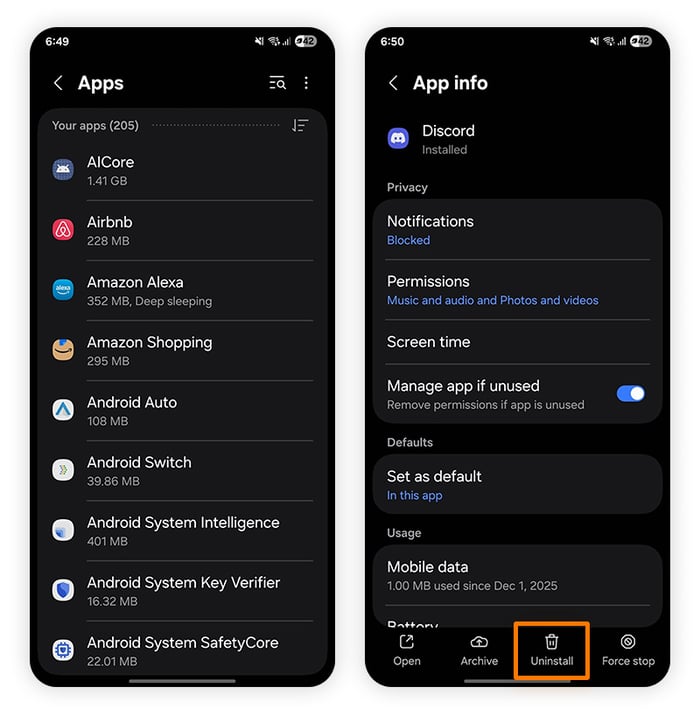
After uninstalling potentially problematic apps, reboot back into normal mode to check that the issue has been resolved. If your phone is still affected, continue working through the next steps.
Remove device administrator permissions
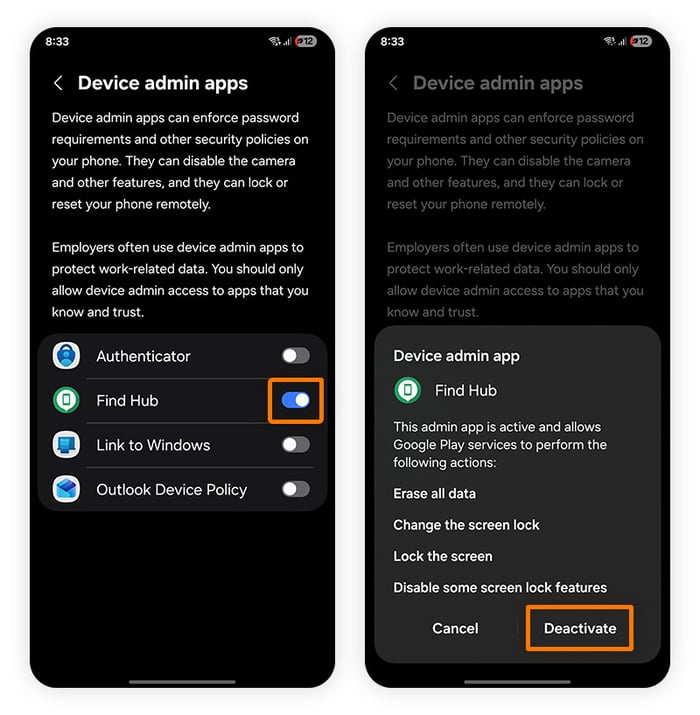
Some sophisticated malware can grant itself device administrator privileges, preventing it from being uninstalled normally. If you encounter this, you'll first need to revoke its administrator permissions before you can remove the app.
Follow these steps to disable those permissions:
-
Go to Settings > Security > Device administrators or Device admin apps (sometimes under More security settings).
-
Tap to toggle off admin permissions for any apps you want to be able to uninstall.
3. Clear your browser cache
Viruses can live in your mobile browser in the form of malicious website data or cached scripts that may be causing redirects, pop-ups, or intrusive ads. This data may have been stored after you visited a fake website or clicked a malicious link, but clearing your browser’s cache and stored cookies should remove it.
Here’s how to clear your browser cache in Google Chrome for Android:
-
Open the Google Chrome app and tap the three dots in the top right to open the settings menu,
-
Tap Delete browsing data, select All time as the time range, tick Cookies and site data and Cached images and files, and then tap Delete data.
Keep in mind that clearing your cache and cookies will sign you out of most websites and reset saved preferences, such as your language, theme, region, and other site-specific settings.
4. Enable Play Protect
Google Play Protect is Android's built-in security service that scans apps for harmful behavior. It also checks apps from the Google Play Store before you install them and continuously scans apps already on your device, providing an important first layer of defense against malware.
Play Protect is enabled by default on most Android devices, but it can be turned off — either manually or, in rare cases, by malware abusing Android's app permissions to bypass security protections.
If you suspect you have a virus that might have disabled Play Protect, follow these steps to turn it back on and run a full scan of your installed apps:
-
Open the Play Storeand tap your profile icon to open the menu.
-
Tap Play Protect and then Turn on (or Scan, if Play Protect is already enabled). This will immediately run a scan that should detect any harmful apps installed on your device.
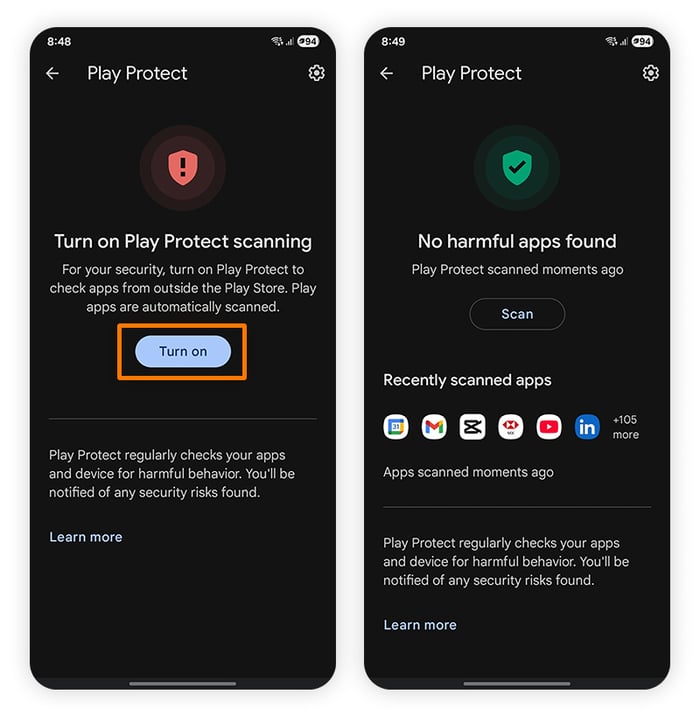
If Play Protect detects a suspicious app, it will alert you and recommend removing it. However, it's not foolproof. Like any malware scanner, Play Protect can miss newly emerging threats or sophisticated malware that uses advanced techniques to evade detection or operate deeper within the operating system.
5. Run a free antivirus scan
If the manual troubleshooting steps don't resolve the issue and Play Protect doesn't detect any threats, the next step is to run a deeper scan with a reputable mobile security app. Free solutions like Avast One can perform a more comprehensive scan of your device and help detect and remove malware that may have gone unnoticed.
Here’s how to run a scan using Avast One:
-
Install Avast One, open the app, and tap Get started.
-
Set up your account and choose a subscription or continue with the free version.
-
Tap Run Smart Scan and review any risks that it identifies, following the prompts to secure your Android device.
6. Perform a factory reset
If none of the previous steps resolve the issue, a factory reset is your last resort. This is almost guaranteed to remove any traces of malware, but it also erases everything on your device, including apps, photos, messages, and settings.
So, before resetting your phone:
-
Back up important data to Google Drive, another cloud service, or a separate device. Avoid restoring apps or files that may contain malware.
-
Charge your battery to at least 70% to reduce the risk of the phone shutting down during the reset.
-
Connect to Wi-Fi or mobile data so you can sign back into your Google Account and complete the setup process afterward.
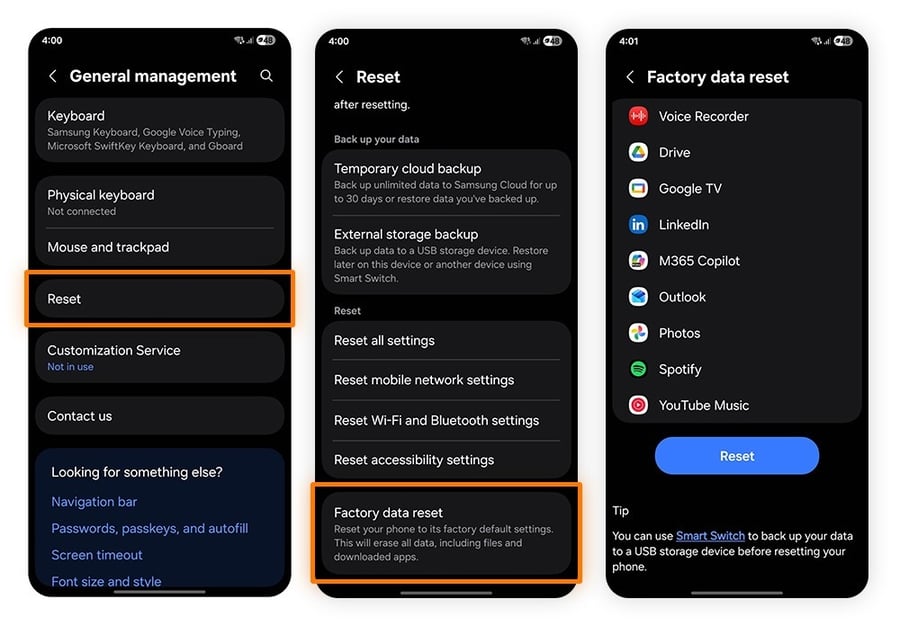
While the steps can vary slightly depending on what device and Android version you’re running, here’s how to factory reset your Android phone on a Samsung Galaxy S24:
-
Open the Settings app, scroll down and tap General Management, then Reset, Factory data reset, and, finally, Reset.
-
If prompted, enter your PIN or passcode to proceed. Then wait for the factory reset to complete and your phone to restart.
-
Follow the initial setup steps until you see the option to restore your phone from a backup. Choose a backup file that predates the virus. Alternatively, you can choose to wipe your phone and start over.
7. Update Android and your apps
After removing the malware, update Android and all your installed apps to ensure you have the latest security patches. Keeping your operating system and apps up to date helps close known vulnerabilities that malware can exploit, reducing the risk of reinfection and improving your device's overall security.
To update Android to the latest version:
- Go to Settings > System > Software update (or search Update in Settings) > Follow the on-screen instructions.
In rare cases, if you’re unable to install system updates, it may be a sign that some components of the infection are still present. In this case, run another malware scan or consider advanced cleanup steps, such as performing a factory reset.
To update your apps on Android:
- Open the Play Store > Tap your profile icon > Manage apps & device > Update all (under Updates available). You can also tap See details to update individual apps.
How to know if your phone has a virus
The quickest and most thorough way to confirm if your phone has a virus is to run a free antivirus scan using a trusted security app. However, other key signs that could indicate your phone has a virus or malware include a rapidly draining battery, unexplained high-data usage, sluggish performance, regular crashes, or intrusive pop-up ads.
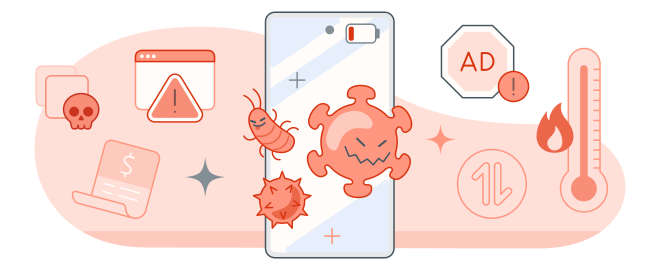
Here’s a more detailed summary of what to look out for:
Frequent app crashes
There are many reasons for apps to glitch or crash from time to time, like poor internet connection or server errors. However, if your Android apps start crashing more frequently, you could be dealing with malware.
Unusually high data usage
It’s one thing to run out of data after binge-watching the latest season of your favorite show, but if it happens while your phone is sitting in your pocket all day, you may have a reason to worry. Some malware can chew through mobile data in the background as it runs or transmits data, so it’s a good idea to check your data consumption.
Persistent pop-up ads
If you start seeing pop-ups on your Android even when you aren’t using any apps, you may have an adware infection. If that’s the case, use trusted anti-malware software to get rid of it, then consider blocking pop-up ads with an extension or using a browser with a built-in ad blocker.
Fast-draining battery
Viruses often run resource-intensive background processes which drain your battery faster than normal. While high battery usage isn’t always a sign of a virus, if your Android device is relatively new and you notice unusual battery usage combined with other signs in this list, it could indicate a malware issue.
Unfamiliar apps
Unfamiliar apps appearing on your phone can be a sign of malware, especially if you don’t remember installing them and don’t know what they do. Apps from the Google Play Store are unlikely to be outright malicious, thanks to the relatively strict app vetting process, but they can be hijacked by hackers who push malicious updates containing viruses.
Your phone starts overheating
While there are legitimate reasons for your phone overheating, high phone temperatures combined with unusual battery drain and high data usage could indicate a virus. Malware often uses a lot of your phone’s resources in the background, making the CPU work harder than normal and causing your device to heat up.
Can Android devices get malware?
Yes, Android phones can get viruses and a wide range of malware, including spyware, adware, Trojans, and ransomware. While people often use the term "virus" to describe any malicious software, strictly speaking, a virus is a specific type of malware that spreads by replicating itself and infecting files or devices.
All of these threats can hijack different system resources, steal personal data, monitor your activity, display intrusive ads, or disrupt your device’s performance. Here are some of the most common types of Android malware:
-
Spyware: Spyware secretly collects information from your device and sends it to a hacker. It often masquerades as a legitimate app and can monitor text messages, browsing activity, keystrokes, passwords, location, and other sensitive data.
-
Ransomware: As the name implies, ransomware locks your device or encrypts your files and demands payment to restore access. While paying the ransom may seem tempting, recovery is sometimes possible by removing the ransomware and restoring your device from a clean backup.
-
Trojans: Remote access Trojans (RATs) disguise themselves as legitimate apps to trick users into installing them. Once active, they can give attackers remote access to your device, allowing them to steal data, install additional malware, or disable security features.
-
Adware: Adware displays intrusive advertisements that can slow your device, drain battery life, and disrupt normal use. It's often bundled with free apps from untrusted sources and may also collect data about your browsing habits.
-
Worms: Worms are self-replicating malware that spread automatically between devices without requiring user interaction. They often propagate through text messages, messaging apps, email, or other digital channels, making them particularly difficult to contain.
Real-world examples of Android malware
Real-world Android malware ranges from relatively simple adware to sophisticated spyware such as Pegasus and SpyMax. More recent threat intelligence shows a growing number of spyware and surveillanceware campaigns, with attackers increasingly using these tools to secretly monitor devices, collect sensitive information, and transmit it to cybercriminals or other unauthorized parties.
What the experts say
“On mobile, spyware continued to trend upward... Two Android families, Tambir and SpyMax, dominated our spyware detections in Q4. SpyMax, commonly masquerading as legitimate apps such as Chrome or Netflix, requested network and package-installation permissions, and then used those to silently install additional components with full spying and monitoring capabilities.”
Researchers at organizations like Gen Digital Threat Labs work tirelessly to detect malicious apps and get them removed from Google Play as soon as possible to prevent their spread. Here are some examples of threats that Gen Digital (Avast’s parent company) has had a hand in detecting and nullifying:
-
Cosiloon (2023): Threat Labs discovered pre-installed adware on brand-new Android devices. We detected this malware on about 18,000 devices in more than 100 countries, and pushed Google to act.
-
SMSFactory (2022): Researchers at Gen tracked and countered an emerging strain of malware known as the SMSFactory Android Trojan. In just that year alone, we protected more than 165,000 people from falling victim to this new threat.
-
Adware scam apps: In 2020, Threat Labs tracked down Android adware spreading through TikTok, with help from a tip-off by a 12-year-old girl who submitted a report to Avast
-
HiddenAds malware: In 2020, our threat researchers discovered another 47 malicious apps on Google Play, masquerading as gaming apps but actually containing adware.
-
Android/Filecoder.C (2019): This Filecoder ransomwarestarted spreading to devices on internet forums like Reddit, and continued by mass-sending to contacts. It encrypted files on infected devices and demanded a ransom of $200.
These are recent examples, but mobile malware has been around for decades. In 2004, the hacker group 29A created the Cabir mobile phone worm and distributed it to cybersecurity researchers to demonstrate that phones could be infected with malware.
Although Cabir was a Bluetooth-spreading worm rather than a true virus, it displayed the word "Caribe" on infected devices and propagated to nearby phones. It caused little direct harm, but it proved an important point: mobile devices are not immune to malware.
How do Android devices get infected?
Android malware infections typically come from harmful downloads, infected apps, malicious links in phishing emails, or harmful SMS messages. Viruses are often designed by cybercriminals — individuals or organized groups — whose goal is to make money or gain access to valuable data.
Here’s a more detailed look at some of the main risk surfaces for your Android device getting compromised by malware:
-
Infected applications: Hackers can hijack popular apps or create new fake apps filled with malware and distribute them through official or third-party app stores, tricking you into installing harmful code on your phone.
-
Fake ads: Malvertising is the practice of inserting malware in ads that are hosted through (often legitimate) ad networks. Clicking an infected ad might download malware on your device.
-
Scams: Online scams include email or SMS-based phishing attacks. A phishing attack involves scammers pretending to be someone trustworthy to steal sensitive information, tricking you into clicking a malicious link or revealing personal data.
-
Malicious websites: Visiting malicious websites can expose you to scams or trick you into downloading infected content. Fake websites often look exactly like real ones, but you should be able to tell a fake based on the URL in your address bar.
-
Direct-to-device downloads: Direct-to-device infections require the hacker to attach a targeted device to another device — for example by connecting their own Android device to yours with a USB cable — to share an Android virus directly.
Tips to protect your phone against malware
To protect your phone against future malware infections, keep your software updated, install apps only from official stores, enable security features, and install a reputable free antivirus for Android.
Here are our top tips for protecting yourself against Android viruses and malware:
-
Avoid third-party app stores: The official source for Android apps, the Google Play Store, vets apps before making them available for download. Stick to apps downloaded from there to avoid malicious third-party developers.
-
Update software: Keeping your Android OS up to date helps to patch known security vulnerabilities that attackers may exploit. Install all updates immediately (preferably automatically) to benefit from the very latest security patches.
-
Don't click suspicious links: Avoid opening links or attachments from unknown senders or odd-looking domains — they could be a gateway for malicious code to infiltrate your device.
-
Be aware of public Wi-Fi risks: Using unsecured public Wi-Fi can put your online activity at risk of being monitored. Using a VPN (virtual private network) to encrypt your connection makes it harder for attackers to target your location or device.
-
Use a top-rated security app: Shielding your phone with security software is an effective way to stay virus-free. It can help you detect viruses and other types of malware already on your phone, and protect against new ones being installed.
How to choose an Android antivirus app
When choosing an antivirus app for your phone, look for one from a reputable provider with strong user reviews and positive results in independent security tests. Compare the features offered in free and premium versions, and choose a solution that includes the protection and tools you need.
Here are the main things to keep in mind when searching for a good antivirus to install on your Android:
Install from trusted sources
Download your chosen antivirus app from the Google Play Store or the antivirus provider's official website. Avoid third-party download sites, especially those offering unofficial free or discounted versions, as they may distribute fake antivirus apps that are actually malware in disguise.
Check security research
Even among trusted antivirus software, you’ll find many options claiming to be the best antivirus. Spend some time reviewing results from third-party labs like AV-TEST and AV-Comparatives. These organizations independently test antivirus apps and publish their findings to help consumers make informed decisions.
What the experts say
Avast consistently ranks as one of the top-rated mobile antivirus providers on AV-TEST, and Avast received a number of Advanced+ awards from AV-Comparatives in 2026, including for malware protection.
Choose between a free or paid antivirus
Choosing between a free and paid mobile security app depends on the level of protection you're looking for. Reputable free apps typically provide essential features such as malware detection and virus scanning, while premium plans often add more comprehensive security and privacy tools.
For example, the free version of Avast One includes robust malware and spyware protection, virus scanning, and scam website blocking. Upgrading unlocks additional features, such as Android cleanup tools and a VPN service to help protect your data and online privacy.
Android vs. iPhone infections
The main differences between Android and iPhone infections lie in how often they occur, the types of threats involved, and each platform's security model. Android devices are targeted more frequently, partly because of their larger global market share and more open app ecosystem. However, iPhones are by no means immune to malware or cyberattacks.
While iOS has long been considered the more secure mobile OS, sophisticated threats have consistently shown that Apple devices can still be compromised. For example, the Dark Sword exploit chain, discovered in late 2025, demonstrated that attackers could steal data, capture screenshots, and record audio on vulnerable iPhones.
Research also suggests that, compared to more traditional threats, iPhone users are more susceptible to certain attack types such as phishing and spyware. However, Apple's tightly controlled ecosystem — where apps are generally distributed only through the App Store — allows it to enforce stricter security controls, reducing the overall risk of malware compared with Android.
Keep your Android device protected
Your Android phone holds everything from passwords and photos to banking apps and personal messages — making it a valuable target for cybercriminals.
Avast One helps keep it protected with integrated antivirus, anti-scam and malware protection, and privacy tools, all in one easy-to-use app, allowing you to browse, bank, shop, and connect with greater confidence wherever you go.
What customers say

More Security Articles

How to Check for Viruses on iPhone

iPhone Viruses: Can My Phone Get Infected?

Fake Viruses: How Do You Know If a Virus Alert Is Real?
The 7 Most Dangerous New Computer Viruses & Malware

Can Macs Get Viruses?

What Is a Computer Virus and How Does It Work?

Stuxnet: What Is It & How Does It Work?

How to Remove a Virus From an Android Phone
/What-is-a-macro-virus-Thumb.jpg)
Macro Virus: What Is It and How to Remove It

Worm vs. Virus: What's the Difference and Does It Matter?

How to Remove a Virus or Other Malware From a Mac

Can Your iPhone or Android Phone Get a Virus?
Viruses
Security
Mark Birchall
8-04-2021