- Security
- Privacy
- Performance
Is your phone acting up? It might have been hacked. Phone hacking is a serious threat that can compromise your device's performance and steal your personal data. Discover the signs of phone hacking, what to do to make your iPhone or Android secure again, and how to defend against hackers and malware threats with our all-in-one mobile security suite.







This Article Contains
This Article Contains
10 ways to tell if your phone is hacked
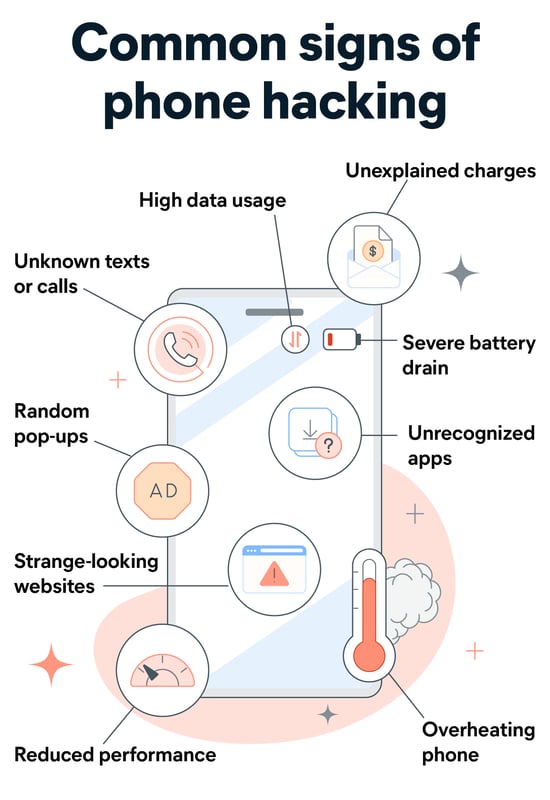
Common warning signs of a hacker gaining remote access to your phone could include unusual battery drain, overheating, or unexpected pop-up ads. While some of these symptoms could just indicate an ageing device, it’s still worth it to investigate, especially if you see a sudden change in your phone’s behavior.
Whether you use a Samsung, another Android device, or an iPhone, it’s important to check for these signs early. Identifying a potential compromise quickly can help limit further damage, such as your data being leaked on the dark web or even identity theft.
1. You're seeing lots of pop-ups
If you’re seeing a lot of pop-up ads, your phone could have an adware infection. If the problem persists, even when you have ad-blocking enabled, it could be a sign your phone is hacked, as malicious software can bypass ad-blockers and inject unwanted ads or pop-ups.
What the experts say
“Adware threats on mobile phones refer to applications that display intrusive out-of-context adverts to users with the intent of gathering fraudulent advertising revenue. This malicious functionality is often delayed until sometime after installation.”
A pop-up on your mobile is likely malicious if it:
-
Appears outside your browser: Pop-ups on your home screen or over other apps can indicate a rogue app or unsafe permissions.
-
Uses scare tactics or urgency: Messages like “Your phone is infected!” or time-limited offers are designed to pressure you into acting quickly.
-
Has no clear source: If there’s no identifiable app, website, or brand, its legitimacy is questionable.
-
Won’t close: Persistent pop-ups that redirect you or keep reappearing may be trying to force interaction.
-
Shows up repeatedly: Frequent pop-ups, even when no app is open, suggest background activity you didn’t authorize.
Avoid interacting with pop-ups displaying these characteristics. Don’t click or open them, as doing so can worsen the issue.
2. You’re receiving unrecognized texts or calls
Although it’s almost impossible to get hacked by simply answering a call, phone calls and text messages can be exploited to compromise your security via a social engineering attack.
Calls or texts from unrecognized numbers may indicate you’re the victim of a hacker who’s sold your contact information to data brokers or leaked it in forums on the dark web.
Here are some indications that your phone number has been compromised:
-
You receive fake text messages asking you to click a link or download something.
-
You get messages that seem to reference apps, accounts, or passwords you don’t use.
-
You get calls from unknown numbers, especially repeatedly.
Alternatively, if you suddenly stop receiving calls or texts, or friends say they keep going to voicemail when they contact you, a hacker may have diverted your number.
3. An app is using lots of data
If your online streaming and other activities haven’t changed, but your data usage has shot up, it could be a sign of a phone hacker. Malicious apps or spyware can use significant mobile data to send your personal data, location, or messages to hackers without you knowing.
Here’s how to check for suspicious data usage:
-
Look for activity when idle: Data spikes even when you’re not using your phone can signal background activity.
-
Check for unknown apps: High data usage from apps you don’t recognize is a red flag.
-
Watch for bill increases: Sudden, unexplained jumps in your monthly data usage may indicate an issue.
-
Monitor background transfers: Unusual uploads or downloads to unknown servers can point to malicious behavior.
-
Review carrier alerts: Notifications about data overages despite normal use warrant closer inspection.
If you spot anything unusual, remove or disable unfamiliar apps and run a mobile security scan.
4. Your battery drains fast
If your battery is draining much faster than usual and you find yourself charging more often, it might just be aging — but it could also be a sign that apps installed through hacking or malware are hijacking your phone’s resources.
-
Check battery usage: You can usually check your remaining battery in the top-right of your screen or get more details via Settings > Battery > Battery Usage.
-
Look at individual app battery usage: Go to Settings > Apps > Select an app > Battery.
If you think your battery is being drained by hackers or malicious apps, disconnect from the internet, remove any suspicious apps that use a lot of battery, or check your app permissions.
5. Unusual sign-ins or actions on linked accounts
Unusual sign-ins or actions on linked accounts suggest someone else may have gained access to your accounts through your device.
Hackers may steal saved passwords, session cookies, or authentication tokens from a compromised phone, allowing them to access accounts like your email or social media (e.g., X (formerly Twitter) and Instagram), without needing your password. This can trigger security alerts such as login notifications from new locations, password reset emails you didn’t request, or actions you didn’t make.
If you think someone has hacked a linked account on your phone, look out for:
-
Login alerts from unfamiliar locations or devices.
-
Password reset emails you didn’t request.
-
Messages sent or posts made that you don’t recognize.
-
Security settings changed without your permission.
You can also check if your email account has been signed into using a hack check tool.
6. Your phone is behaving strangely
Some unusual behaviors — such as overheating, crashing, or phone call interference — may simply point to an aging device or a minor glitch, especially if they occur individually. But when several occur together, they could be signs of phone hacking.
Your phone gets hot
Is your iPhone or Android getting hot and staying hot, even when you’re not using it? Like all devices, prolonged use — especially if you’re streaming or gaming for long periods — can cause your phone to get hot.
But if that’s not happening and your phone still feels unnaturally hot, malicious software might be causing it to overheat.
Camera or microphone self-activating
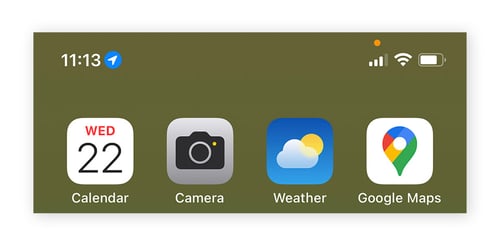
If your phone’s camera or microphone activates unexpectedly, it may be a sign of unauthorized access. Watch for indicators like the green (camera) or orange (microphone) dot appearing when you’re not using recording features or voice assistants.
This can happen if a malicious app or spyware is abusing permissions to access your device. If there’s no clear reason for the activity, review which apps have used these features. On iPhone, you can go to Settings > Privacy & Security > App Privacy Report to see recent camera and microphone access and identify any suspicious behavior.
Phone call interference or dropping
If your calls frequently drop, sound distorted, include echoes, clicks, or unusual background noise, even when your signal appears strong, it could be a sign of a phone hacker.
Call interference, such as static, dropped calls, or unusual echoes, can sometimes indicate spyware intercepting communications or malicious apps disrupting your connection in the background. To rule out slow mobile network coverage, test your calls in different locations. If the problem persists, it may warrant further investigation.
Crashing and freezing
If your phone frequently freezes, becomes unresponsive, or apps crash unexpectedly, it could point to an underlying issue.
Malicious apps can strain your device by running in the background, overloading memory and processing power. While occasional crashes are normal, persistent or worsening problems may signal a compromise.
To investigate, review battery and CPU usage to identify apps consuming excessive resources. Android users can also restart in safe mode to check whether third-party apps are causing the issue.
Unexpected reboots
Another potential sign of compromise is your phone restarting on its own — especially when idle or during normal use and not tied to a system update.
Unexpected reboots can occur on a hacked device if malware disrupts system processes or if an attacker forces restarts to conceal activity. Repeated incidents may point to deeper system interference.
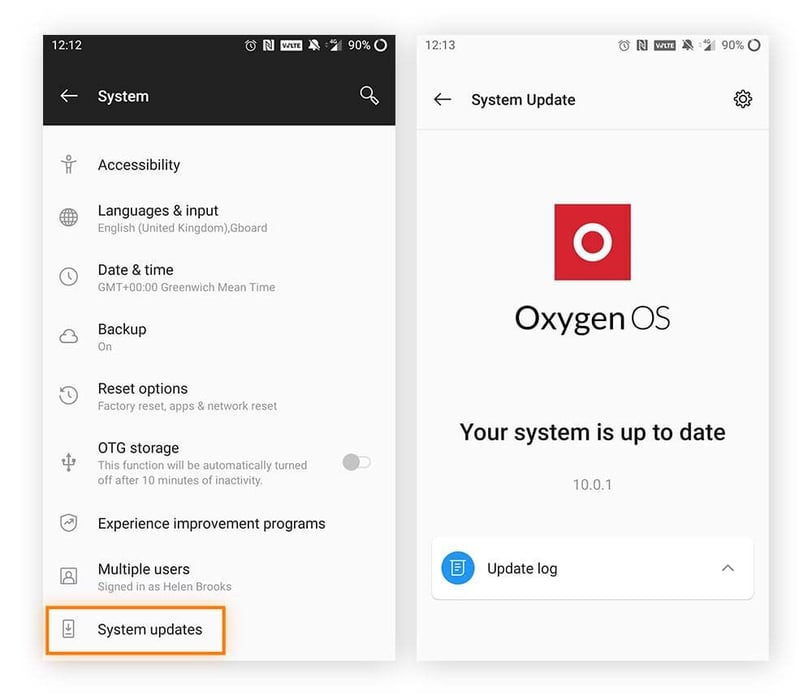
Check your system update history to rule out legitimate updates as the cause.
Here’s how to check your system update history:
-
On an iPhone, go to Settings > General > Software Update > Last Update or scroll down to see when the latest iOS updates were installed.
-
On an Android, open Settings > About phone (or System > About phone on some devices) > Software information or System updates > Update history, Update log, or similar to see recent updates and install dates.
7. Websites look strange
A compromised phone may display websites with unusual layouts, missing images, strange fonts, or frequent pop-ups. You might also be redirected to unfamiliar or suspicious URLs, and even trusted sites may appear slightly altered.
This can happen when malware intercepts or modifies web content, injects ads, or redirects you to malicious pages. Such changes may indicate your browsing activity is being manipulated. Stay alert for warning signs of spoofed websites, including typos, fake virus alerts, or unexpected requests for passwords or personal information.
8. Unexpected charges on your phone bill
If your phone bill is higher than usual, you could be incurring unexpected charges from texts, calls, or high data usage caused by hackers.
Look out for the following charges on your phone bill:
-
Premium-rate text messages are being sent to short numbers (often 4–6 digits instead of a full phone number).
-
International calls show up in your contact history.
-
Unusually high mobile data usage with no obvious explanation.
-
Subscription services (such as ringtones, games, or streaming services) are being signed up for without your permission.
-
Call forwarding is being set up on your phone to redirect calls to expensive or unknown numbers.
9. Unfamiliar changes to your device settings
Unexpected changes to your device settings are a clear telltale sign your phone may be hacked.
Common examples include:
- Privacy and location: Location tracking or data sharing enabled without your consent.
- App permissions: Apps gaining access to your camera, microphone, contacts, or messages.
- Notifications: Alerts disabled for high data usage or suspicious activity.
- Security settings: Locks, PINs, biometrics, or two-factor authentication turned off.
- Browser settings: A changed homepage or search engine, or pop-ups enabled.
If you notice these changes and didn’t make them yourself, there’s a good chance your device could be compromised.
10. Apps you don’t recognize
If you spot an app you don’t remember installing, a hacker might be responsible. Be extra suspicious if an app is difficult to remove, linked to unexpected charges, or appears alongside other signs of compromise. In those cases, take action to remove the app immediately. Just remember that not all unfamiliar apps are harmful — some devices come with pre-installed bloatware that you might stumble upon.
What to do if your phone is hacked
If your phone has been hacked, it’s important to act quickly to remove viruses or other malware and tighten up your phone’s security from hackers. The steps to take include activating airplane mode to quarantine the threat, deleting suspicious apps, and, in rare cases, completely wiping your phone.
 If your phone is hacked, delete unusual apps, scan for malware, and reset your passwords.
Here’s what to do if you think someone’s hacked your phone:
1. Turn on airplane mode
If you suspect your phone has been hacked, enable airplane mode immediately. It cuts off internet and network connections, which may stop malware or attackers from communicating with your device.
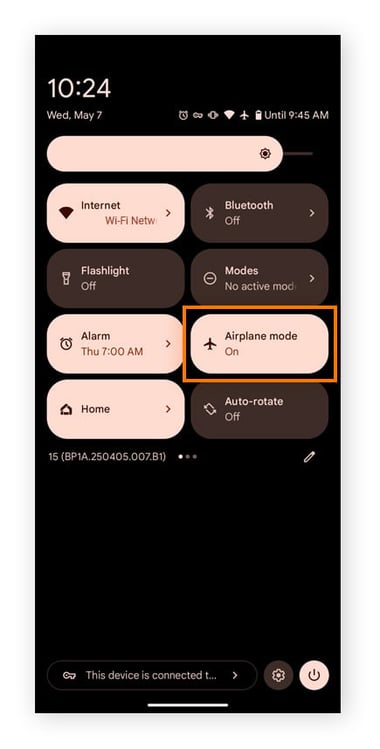
You can turn on airplane mode from your phone’s quick settings menu or through the main settings on both Android and iPhone.
On Android:
-
Swipe down from the top of your screen, swipe down again to expand the menu, and, if needed, tap Airplane mode.
-
Alternatively, open Settings > Network & internet (or Connections on some devices), and toggle airplane mode on.
On iPhone:
-
Swipe down from the top-right corner of the screen (or swipe up from the bottom on older iPhones with a Home button) and tap Airplane Mode.
-
Or, go to Settings > Airplane Mode and set the toggle at the top of the screen to On.
2. Delete unrecognized apps
Review your apps and look for anything unfamiliar or suspicious. Malicious apps can disguise themselves as harmless background tools, so verify any you don’t recognize and remove those that seem questionable.
Here’s how to delete apps on Android:
-
Open Settings > Apps (or Apps & notifications) and scroll through the app list and look for unfamiliar apps.
-
Tap the suspicious app and then tap Uninstall > Confirm.
Alternatively, you can uninstall apps on your home screen or app menu: Tap and hold the app until the uninstall option appears, and drag it up to the Uninstall option.
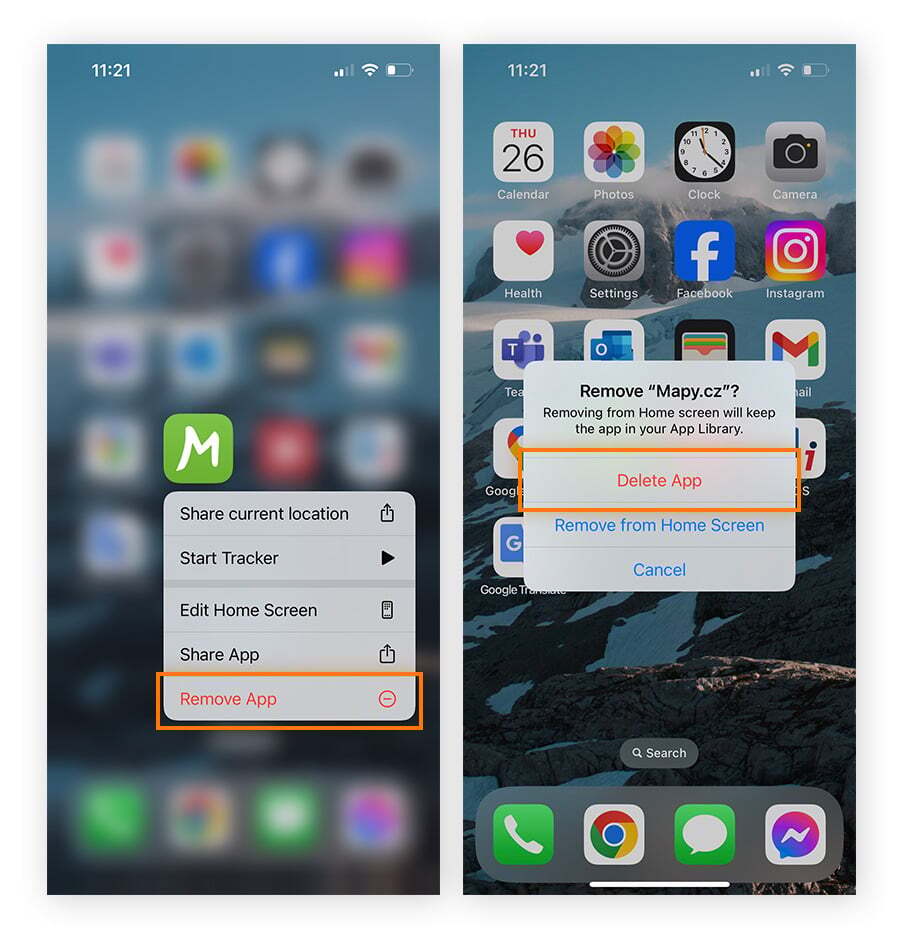
Here’s how to uninstall apps on iPhone:
-
Go to your Home Screen or App Library to locate the app, press and hold the unfamiliar app icon, then tap Remove App > Delete App > Confirm.
-
You can also go to Settings > General > iPhone Storage, select the app, and tap Delete App.
3. Run anti-malware software
Running anti-malware software can help stop hackers by detecting threats that are difficult to find manually. A reliable scanner checks your device for malicious code and removes it, helping prevent continued access. This step is important because leftover traces of malware can allow the problem to return, so it’s okay to disable airplane mode if you need to download cybersecurity software.
Here’s how to run an anti-malware scan on Android and iPhone using our free antivirus app, Avast One:
-
Download, install, and launch Avast One from Google’s Play Store or Apple’s App Store.
-
Log in or set up an account using the prompts, grant the app access to files, apps, and settings to enable a thorough scan.
-
Tap Run Smart Scan on the home screen, wait for the scan to complete, and follow the recommendations to remove threats or fix security issues.
4. Sign out of all linked accounts
Signing out of all linked accounts helps stop hackers from accessing your email, social media, or banking apps. It interrupts ongoing unauthorized sessions and gives you control to reset passwords safely.
Here are the linked accounts to sign out of on your phone:
-
Google account and Apple ID: This signs you out of any linked apps like emails, calendars, etc.
-
On an Android: Go to Settings > Accounts > Google > Remove account.
-
On an iPhone: Go to Settings> Tap your Apple ID> Sign Out.
-
Social media and messaging apps, such as Facebook, WhatsApp, Instagram, etc.
-
Open each app and go to Settings > Account > Sign Out.
5. Reset your passwords
If your phone has been hacked, it’s vital that you change all your passwords on your phone, including your phone’s unlock code. You should also reset passwords for the accounts connected to your phone, such as login credentials for social media accounts, online banking portals, and cloud-sharing services. Always create strong passwords to help prevent future security breaches.
6. Inform your contacts
It’s possible your hacked phone was used to send phishing emails to people you know, so tell your contacts what’s happened as soon as possible. Through an alternative device like your computer or a landline, alert them not to click links or interact with any strange messages — otherwise, they may become the next victim.
7. Inform your service provider
Contact your mobile service provider and send them all the relevant data, such as the number the hacker might be trying to contact, or redirect your calls to. Your service provider can freeze any unauthorized activity, restore your phone number, and secure your account by adding a PIN or security question.
8. Restore the device
A factory reset can remove many forms of embedded malware — but this should be a last resort since you’ll wipe all the data stored on your phone, losing all your texts, contacts, photos, notes, and anything else not previously backed up.
You can reset your iPhone by navigating to Settings > General > Transfer or Reset iPhone > Erase All Content and Settings.
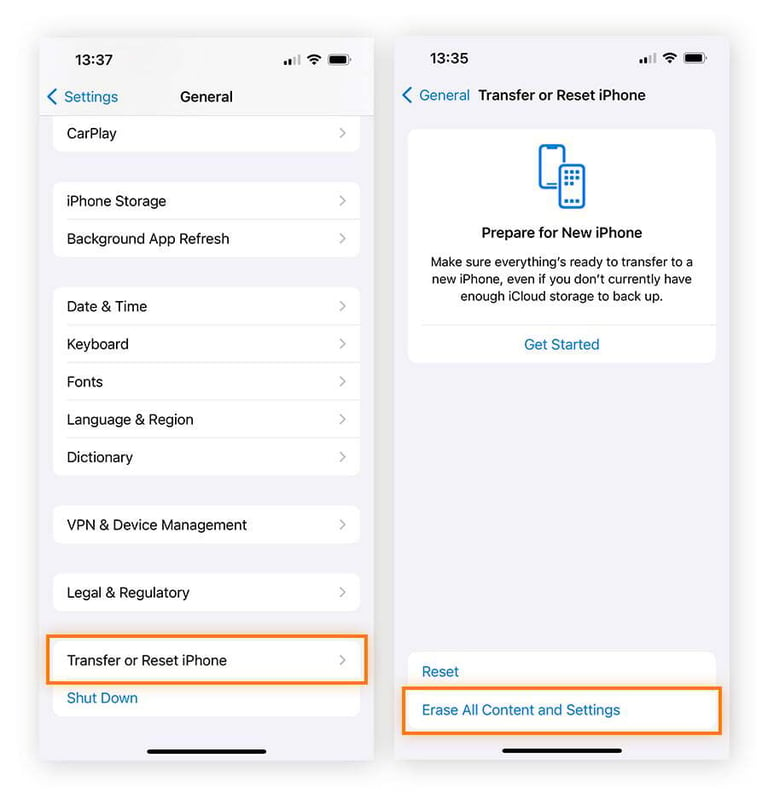
To reset Samsung or other Android devices, go to Settings > Backup and reset > Factory data reset > Reset Device > Erase Everything or Erase all data.
If you restore your phone from a backup, ensure it was created before any suspicious activity began. More recent backups may include the same malware or issues you’re trying to remove.
How can someone hack my phone?
Phone hacking usually happens after a target or victim takes some kind of action, like clicking an infected link or visiting an unsafe website. Often, phone hackers use a combination of social engineering techniques, technical trickery, and exploits, allowing them to hack both Androids and iPhones.
Here are some of the most common ways a phone can be hacked.
Phishing
Phishing is a targeted cyberattack that lures victims into clicking a malicious link, downloading a dangerous attachment, or sending personal or other sensitive information. The aim is to obtain a victim’s private data.
Phishing attacks are usually carried out over email or through smishing text messages. The attacker may cast a wide net or bait specific groups or individuals in what’s known as spear phishing. Depending on the private data they catch, hackers can gain access to various accounts and devices, including your phone.
Social engineering attack
A social engineering attack tricks you into giving away sensitive information, like passwords, PINs, or access to your phone, by exploiting your trust. Even phones with strong passwords and security updates can be compromised if a user is tricked into:
-
Clicking a malicious link.
-
Installing a fake app.
-
Revealing account credentials.
Tracking software
Tracking software monitors and records device activity. Although web tracking can be legitimate, sometimes it’s spyware used by hackers (or even family members) to record and steal private data. The use of Pegasus spyware against politicians, journalists, and activists is a particularly potent recent example.
Hackers can also use keyloggers to capture your phone’s keystrokes and record what you type, such as search queries, login credentials, passwords, credit card details, and other sensitive information.
Wi-Fi and Bluetooth
Hackers can exploit unsecured wireless networks to steal personal information or monitor communications. Public Wi-Fi networks, in particular, are often particularly vulnerable. Using a VPN helps by encrypting your connection, reducing the risk of data interception or tampering. Bluetooth can also be a point of entry for hackers, so avoid pairing your phone with unknown devices and disable Bluetooth when it’s not in use.
SIM swap attack
A SIM swap attack happens when criminals fraudulently request a new SIM card from your mobile service provider using personal data they’ve phished out of you or that you’ve made public on social media. A SIM swap attack can give a hacker control over your number, meaning they’ll receive all your texts and calls.
Typically, the main goal of a SIM swap attack is to gain access to your bank or other accounts using 2FA (two-factor authentication) texts. The best way to help guard against SIM swap attacks is to set a tough security question with your service provider.
USB cable
It’s rare, but some counterfeit USB cables can be modified to transmit data to a hacker’s device. Often referred to as “juice jacking,” this risk isn’t limited to one platform — any device that supports data transfer over a charging cable can be affected.
Because fake cables can closely resemble those from brands like Apple, Samsung, or Google, it’s best to buy accessories from trusted retailers. Avoid using unknown or shared cables, especially in public or unfamiliar settings.
Trojans
A Trojan looks like a legitimate app, but in reality, malicious code designed to harm your device or steal information is hidden inside. Trojans are often more common on Android because the strict iOS app ecosystem generally makes it more difficult for malicious apps to be distributed. To stay safer, avoid installing any apps you’re unsure of, and make sure you install a reliable antivirus software tool to catch anything that slips through.
Cryptominers
Cryptominers use your device’s processing power to help generate cryptocurrency. When done without your permission, cryptomining is a form of hacking called cryptojacking. But even “legit” cryptomining apps can be so aggressive with your phone that it overheats and stops working, or they compromise your device security in other ways.
Weak passwords
Weak passwords are easy to guess and often rely on simple patterns or personal details like “123456,” “password,” or your name or birthdate. Attackers use automated password-cracking tools to test thousands of common combinations. So if your accounts — such as email, social media, or banking apps — use weak passwords, they can be compromised quickly, leading to data theft or account takeover.
Use strong, unique passwords for each account, ideally generated and stored in a secure password manager. It’s also good practice to enable two-factor authentication (2FA) to add an extra layer of protection, so a stolen password alone isn’t enough to gain access.
Drive-by downloads
A drive-by download occurs when malicious software installs on your device without your consent, often just by visiting a compromised or fake website. You don’t need to click anything; simply loading the page can trigger the download.
Attackers use this method to silently install malware, spyware, or adware on phones and computers. Once on your device, they can steal passwords, track activity, send spam, or enable remote access. And because the process is invisible, infections often go unnoticed.
How to protect your phone from being hacked
Fixing your phone to secure your personal data after a breach is a hassle, and by then, the damage has usually been done. That’s why it’s important to focus on preventing hacks in the first place.
With regular maintenance and good digital hygiene, you can strengthen your protection against phone hacking while also securing your personal data and devices.
Here are the best security practices to help prevent phone hacks:
-
Use strong passwords. Create long, unique passwords or passphrases; don’t reuse them across accounts. Use a password manager to track them securely.
-
Enable 2FA and biometrics. Two-factor authentication and biometric features (like facial recognition) add extra layers of protection.
-
Clear cookies and browsing history. Delete cookies to limit the digital profile hackers can build about you.
-
Install updates. Keep your phone and apps updated to patch security vulnerabilities.
-
Use antivirus software. Install trusted antivirus apps like Avast One for Mobile for real-time protection and malware detection.
-
Use a VPN. Encrypt your connection, especially on public Wi-Fi, to protect data from hackers.
-
Lock your SIM card. Change the default SIM PIN to prevent unauthorized access.
-
Turn off Wi-Fi and Bluetooth when not in use. Reduce exposure and prevent remote malware access.
-
Don’t answer calls from unknown numbers. Callers you don’t recognize or are marked as ‘Scam Likely’ could be a phone spoofing attempt.
-
Avoid storing sensitive information on your phone. Remove personal data stored on your phone, like ID scans, family details, travel info, or bank card photos.
-
Don’t jailbreak or root your phone. Avoid bypassing built-in security; jailbreaking or rooting makes devices more vulnerable to hacks.
Protect against phone hacking with Avast
From photos to finances, our personal lives are inseparable from our phones. Practicing good digital hygiene is essential to help avoid hackers. Don’t risk your phone getting hacked and your personal data being compromised.
Avast One for Mobile can help detect and alert you in the event of a malware attack. Plus, it will automatically scan your phone for threats, block malicious links and websites, and check the security of any Wi-Fi network you’re on. Turn your phone into a fortress with Avast.
-
-
What customers say

More Security Articles
Is ChatGPT Safe?

Is BlueStacks safe?

What Is Riskware and How to Avoid It

Is Roblox Safe for Kids?

Juice Jacking: What It Is and How to Protect Your Devices

What Is Hugging Face?
What Can Scammers Do With Your Number and How Can You Help Protect It?
What Is CAPTCHA and How Does It Work?

What Is DNS Poisoning and How to Protect Your Data

What Is a Swatting Incident and How Does Swatting Work?

How to Keep Kids Safe Online

Has My Twitter Account Been Hacked?
Other Threats
Security
Deepan Ghimiray
26-01-2023